How to Get an OpenRouter API Key: A Step-by-Step Guide
On this page
This guide shows you how to get an OpenRouter API key. You'll create an OpenRouter account, generate your key, and make your first API call, plus a free alternative for adding OpenRouter models to your web app.
Prerequisites
- An email, GitHub, or Google account for signing up
- Basic familiarity with code (we'll show simple examples)
Step 1: Create Your OpenRouter Account
Go to openrouter.ai. You'll see the homepage. Click Sign up and create your account using your email, GitHub, or Google account.
Once you've signed up, you'll see the Get API Key button on the home screen.
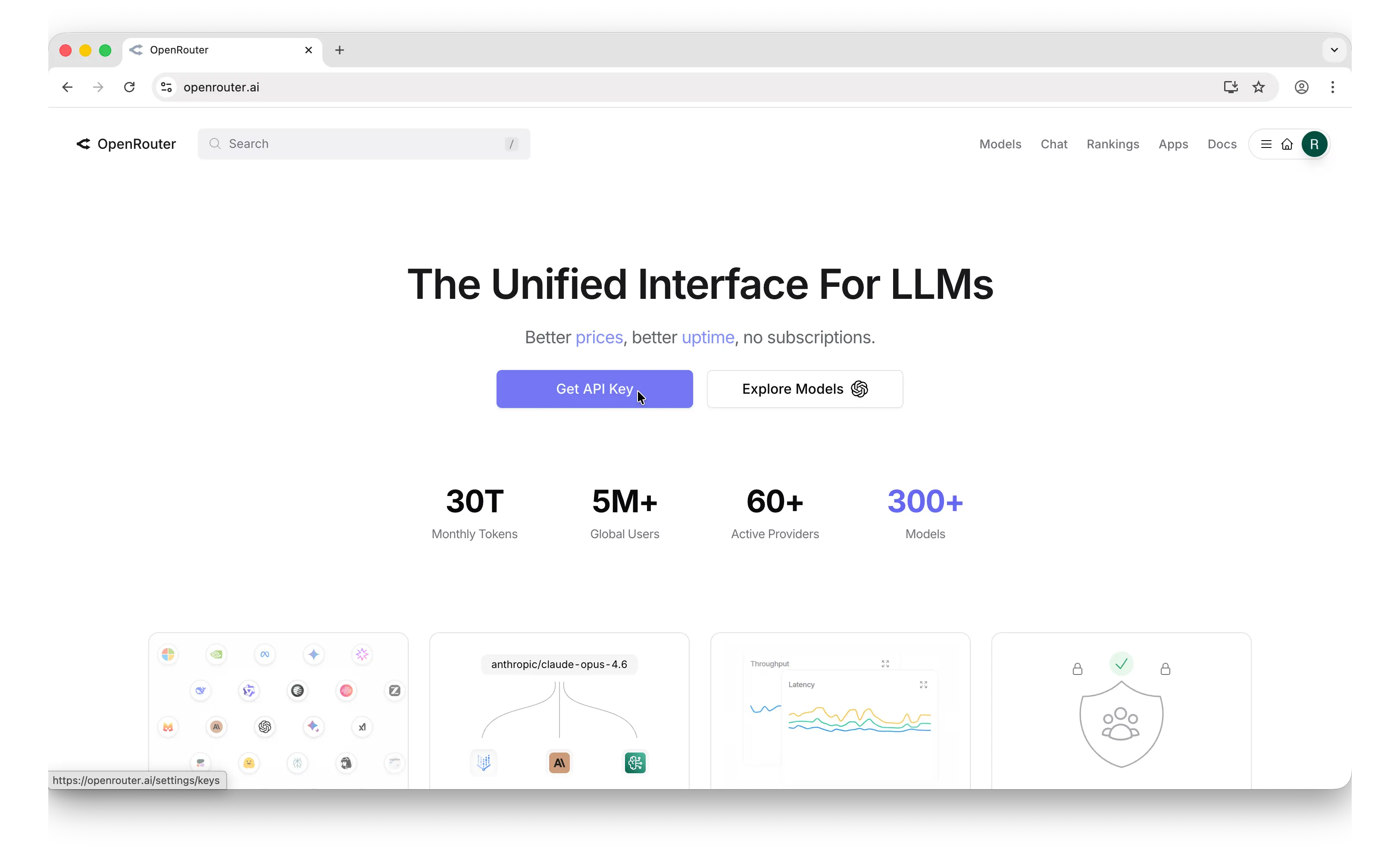
Click that to go to the API key management page.
Step 2: Generate Your API Key
You'll land on the API key page. Click Create.
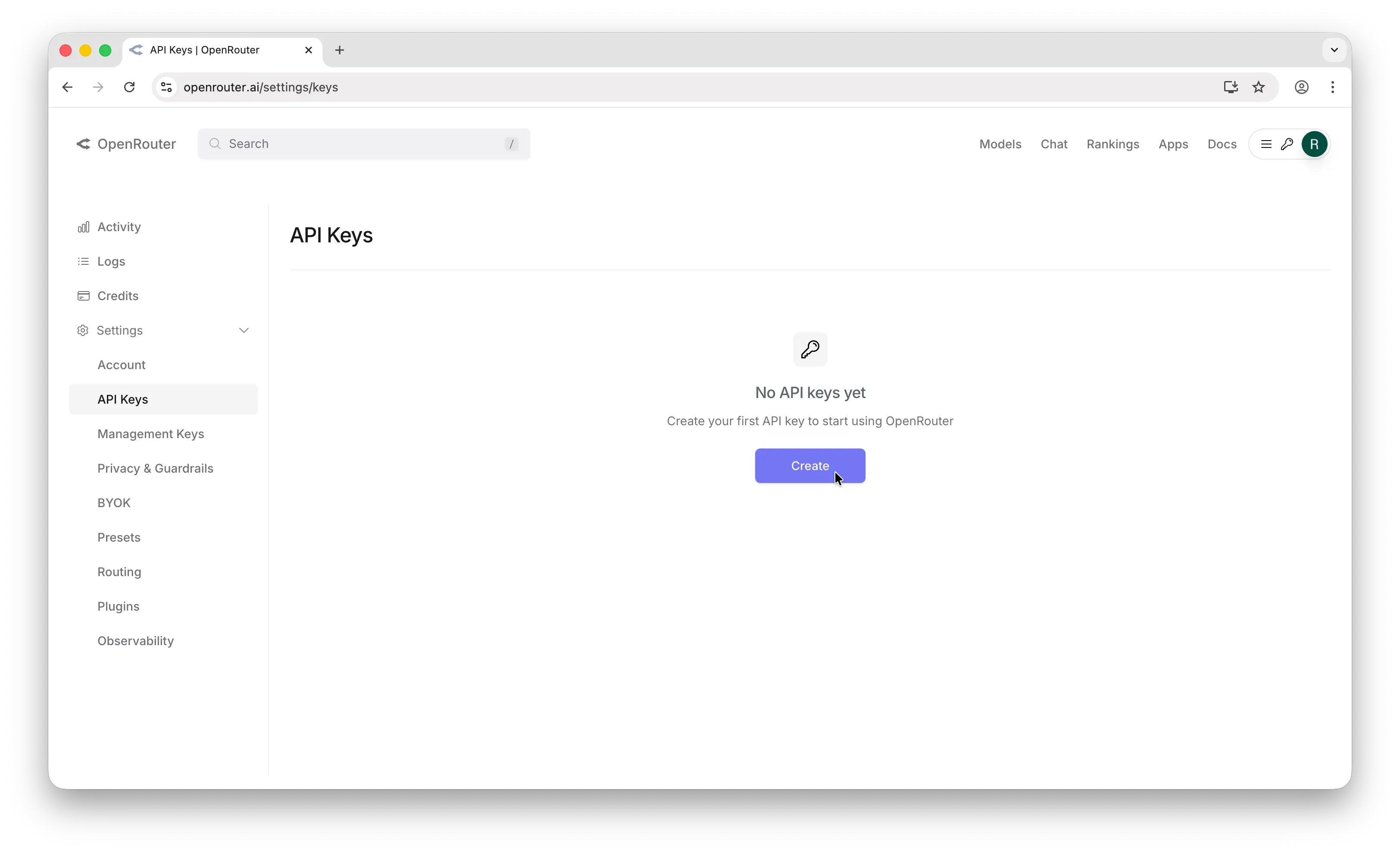
In the creation popup, you can configure:
- Name — give it something descriptive like
my-app-dev - Credit limit — set a spending cap for this key
- Reset limit — configure when the limit resets
- Expiration — set when the key expires
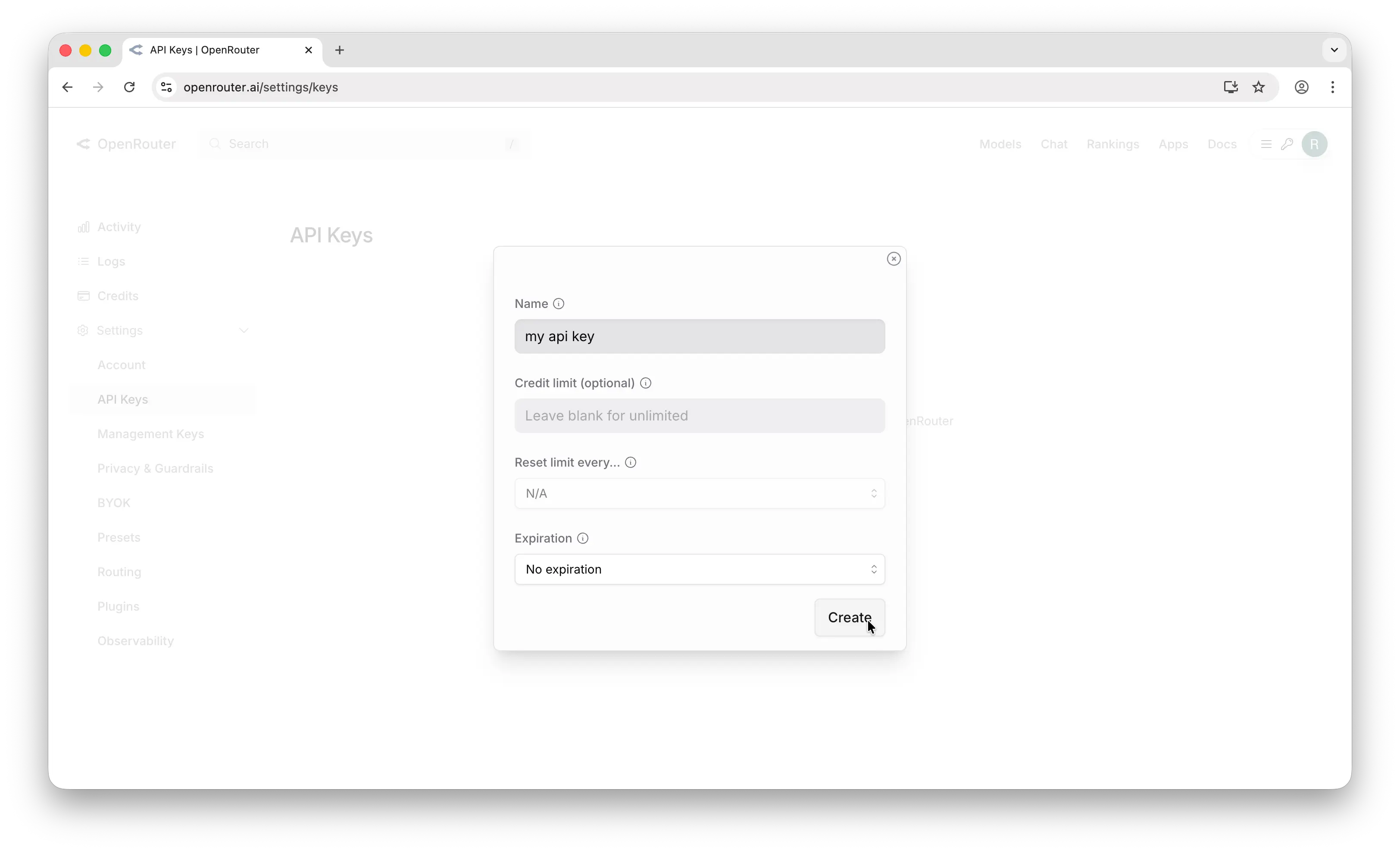
Important: Copy the key immediately after creation. OpenRouter only shows it once. If you lose it, you'll need to generate a new one.
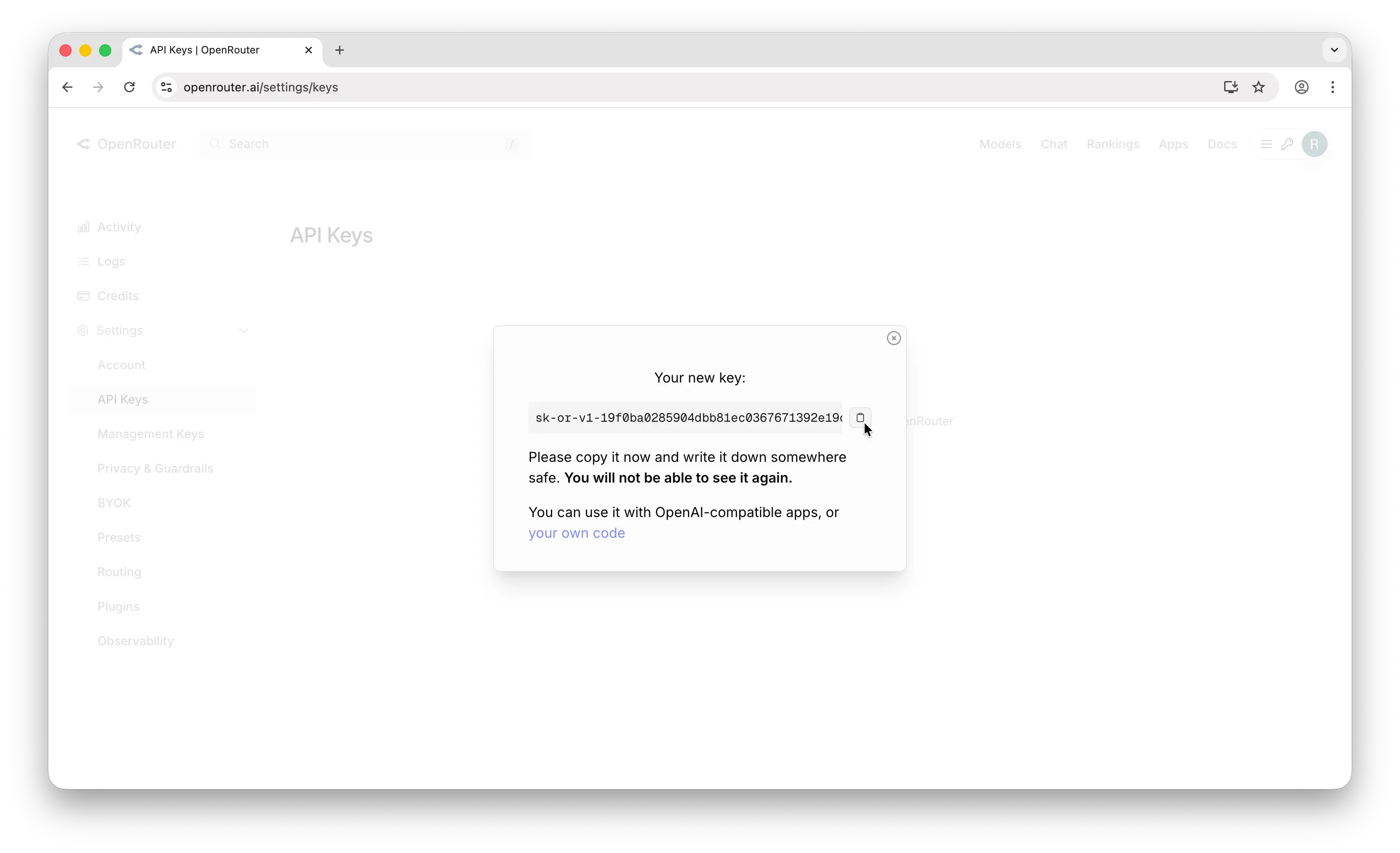
Store it somewhere safe — a password manager, an .env file, or your platform's secrets manager. Never commit API keys to a public repository.
Step 3: Make Your First API Call
Note: The OpenRouter SDK is currently in beta and may have breaking changes between versions. This tutorial uses version 0.9.11. We recommend pinning your dependency to this version until the SDK reaches a stable release.
Install the OpenRouter SDK:
npm install @openrouter/sdk@0.9.11
Then make a chat completion request:
import { OpenRouter } from "@openrouter/sdk";

const client = new OpenRouter({
  apiKey: process.env.OPENROUTER_API_KEY,
});

const response = await client.chat.send({
  chatGenerationParams: {
    model: "openai/gpt-5.5",
    messages: [{ role: "user", content: "Hello, world!" }],
  },
});

console.log(response.choices[0].message.content);
If you get a response back, everything is working. For the full set of endpoints and parameters, see OpenRouter's official API docs.
Can You Use the OpenRouter API for Free?
Creating an API key is free, but using it requires credits. OpenRouter is a router, so it passes through each underlying provider's pricing plus its own fee, and the price depends on which model you call. Some models are served through free endpoints, and you can see current per-model rates on OpenRouter's models page.
Puter.js offers a different model. With its User-Pays model, you can add hundreds of models to your app for free: each user covers their own AI usage through their own Puter account, so your cost stays at $0 regardless of how many users you have, with no API key and no backend.
Like OpenRouter, Puter.js gives you one interface to many models. Add a model with the browser script tag:
<script src="https://js.puter.com/v2/"></script>
<script>
  puter.ai.chat("Explain quantum computing in simple terms", {
    model: "openai/gpt-5.4-nano"
  }).then(response => {
    document.body.innerHTML = response.message.content;
  });
</script>
or the npm package:
import { puter } from '@heyputer/puter.js';

const response = await puter.ai.chat("Explain quantum computing in simple terms", {
  model: "openai/gpt-5.4-nano"
});
console.log(response.message.content);
You can swap the model ID for any of the hundreds of models in the Puter catalog. This fits front-end apps where your users sign into Puter: usage is tied to their accounts, and Puter.js runs in the browser, so it does not replace a server-side key for a backend you control.
Why Isn't My Key Working?
Most first-call failures trace back to a few errors:
- 402, payment_required: the account or key has insufficient credits. Add credits on your account, then retry. This is behind most reports of a new key not working.
- 401, authentication: the key is missing, invalid, or revoked, often a stray space or newline picked up when copying. Regenerate it and paste again.
- 429, rate_limit_exceeded: requests are going out faster than your limit allows. Respect the
Retry-Afterheader and add retries with exponential backoff. - 404, not_found: the requested model or resource does not exist, usually a typo in the model ID.
- 403, permission_denied: the key is valid but lacks the required permission, or the request was blocked by guardrails.
Most of these come back to credits, so check your balance first. For the full list of status and error codes, see OpenRouter's error codes reference.
Conclusion
To get an OpenRouter API key: sign up at openrouter.ai, add a payment method, then open the API key page and click Create. From there you can make your first API call, or skip the key entirely and add OpenRouter-style access to hundreds of models in a web app for free with Puter.js.
Related
- Free, Unlimited OpenRouter API
- How to Use OpenRouter SDK with Puter
- How to Get an OpenAI API Key
- How to Get an Anthropic (Claude) API Key
- How to Get a Gemini API Key
- How to Get a Grok (xAI) API Key
- How to Get a DeepSeek API Key
- How to Get an ElevenLabs API Key
- How to Get a Mistral API Key
- How to Get a MiniMax API Key
- How to Get a Moonshot AI (Kimi) API Key
- How to Get a Qwen API Key
- How to Get a Z.AI (GLM) API Key
- How to Get a FLUX (Black Forest Labs) API Key
- How to Get a Stability AI (Stable Diffusion) API Key
- How to Get a Kling API Key
- How to Get a Leonardo.Ai API Key
- How to Get a Together AI API Key
- How to Get a Llama API Key
- How to Get a Cohere API Key
- How to Use OpenAI SDK with Puter
- Free, Unlimited OpenAI API
- Free, Unlimited Claude API
Ship a Full-Stack App with One Prompt
Build an AI chat app using Puter.js
Coding manually? see the guide