How to Get a Together AI API Key: A Step-by-Step Guide
On this page
This guide shows you how to get a Together AI API key. You'll create a Together AI account, generate your key, and make your first API call, plus a free alternative for adding Together AI models to your web app.
Prerequisites
- An email, GitHub, or Google account for signing up
- A payment method — Together AI's API is usage-based
- Basic familiarity with code (we'll show simple JavaScript examples)
Step 1: Create Your Together AI Account
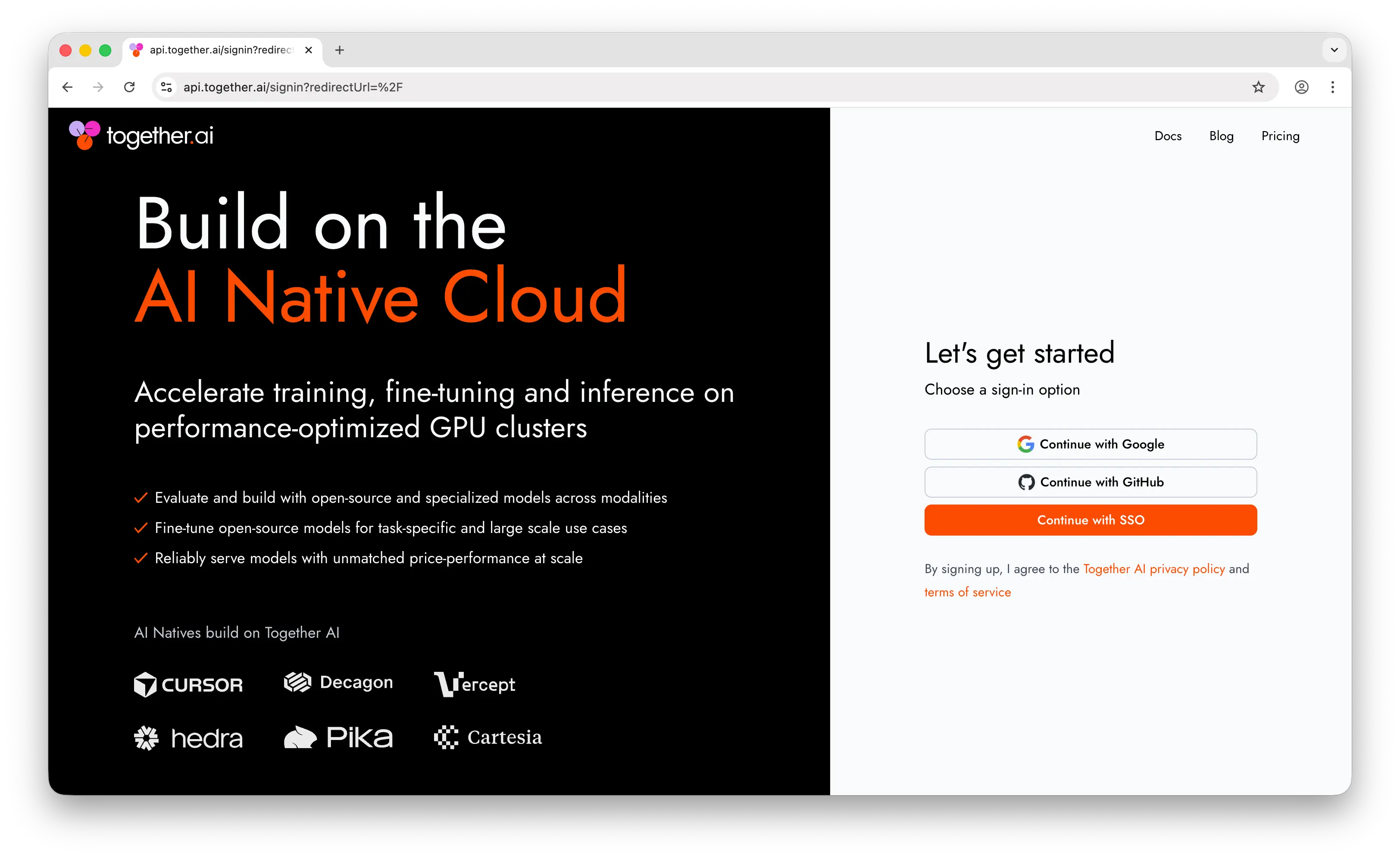
Go to api.together.ai. Click Sign up and create your account using your Google account, GitHub, or email.
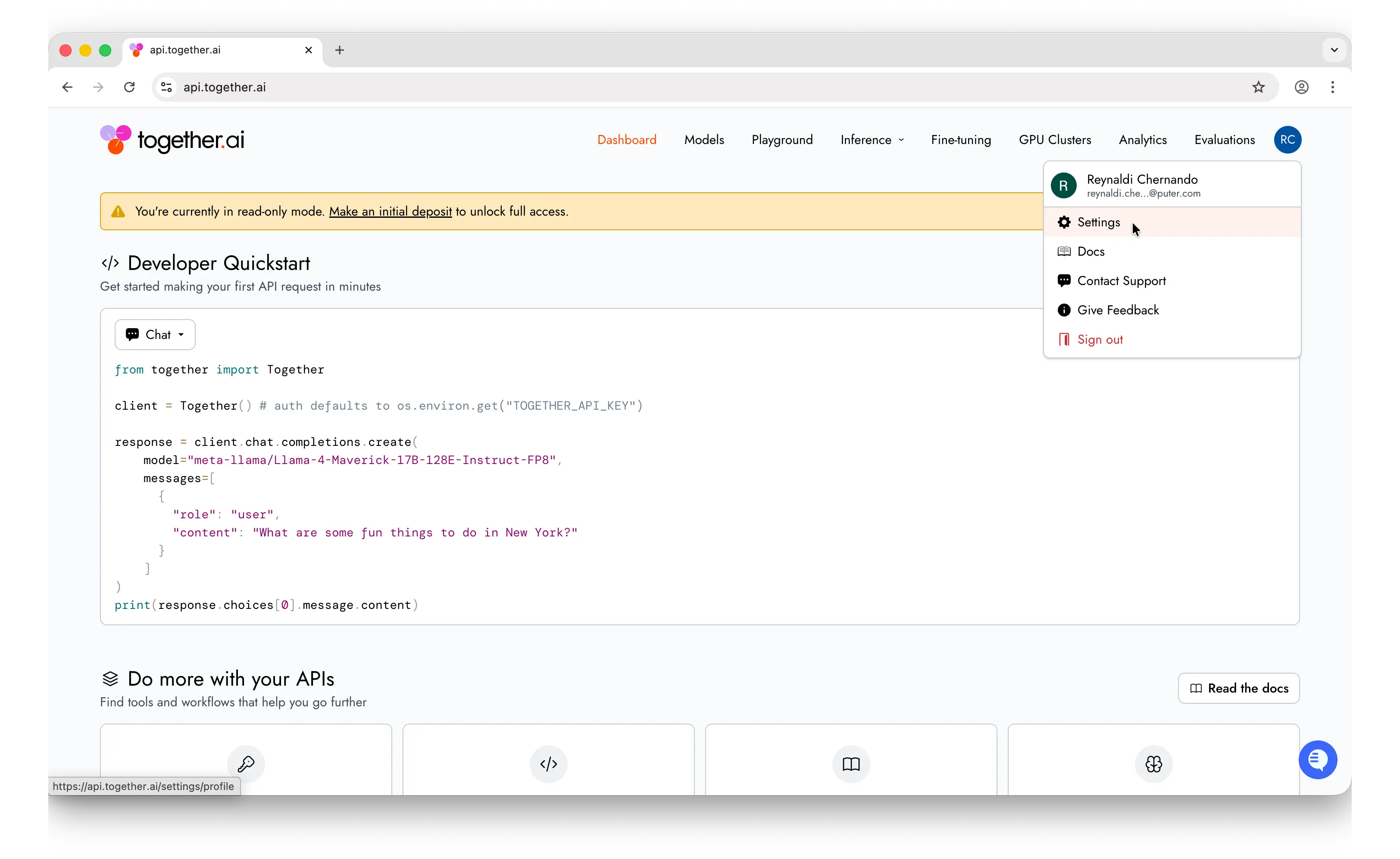
Once you've signed up, you'll land on the dashboard. Find your account settings by clicking your profile icon in the top right corner.
Before your API key will work for production use, you'll need to set up billing. Go to your account settings and add a payment method or purchase credits. Together AI charges per token, and pricing varies by model.
Step 2: Generate Your API Key
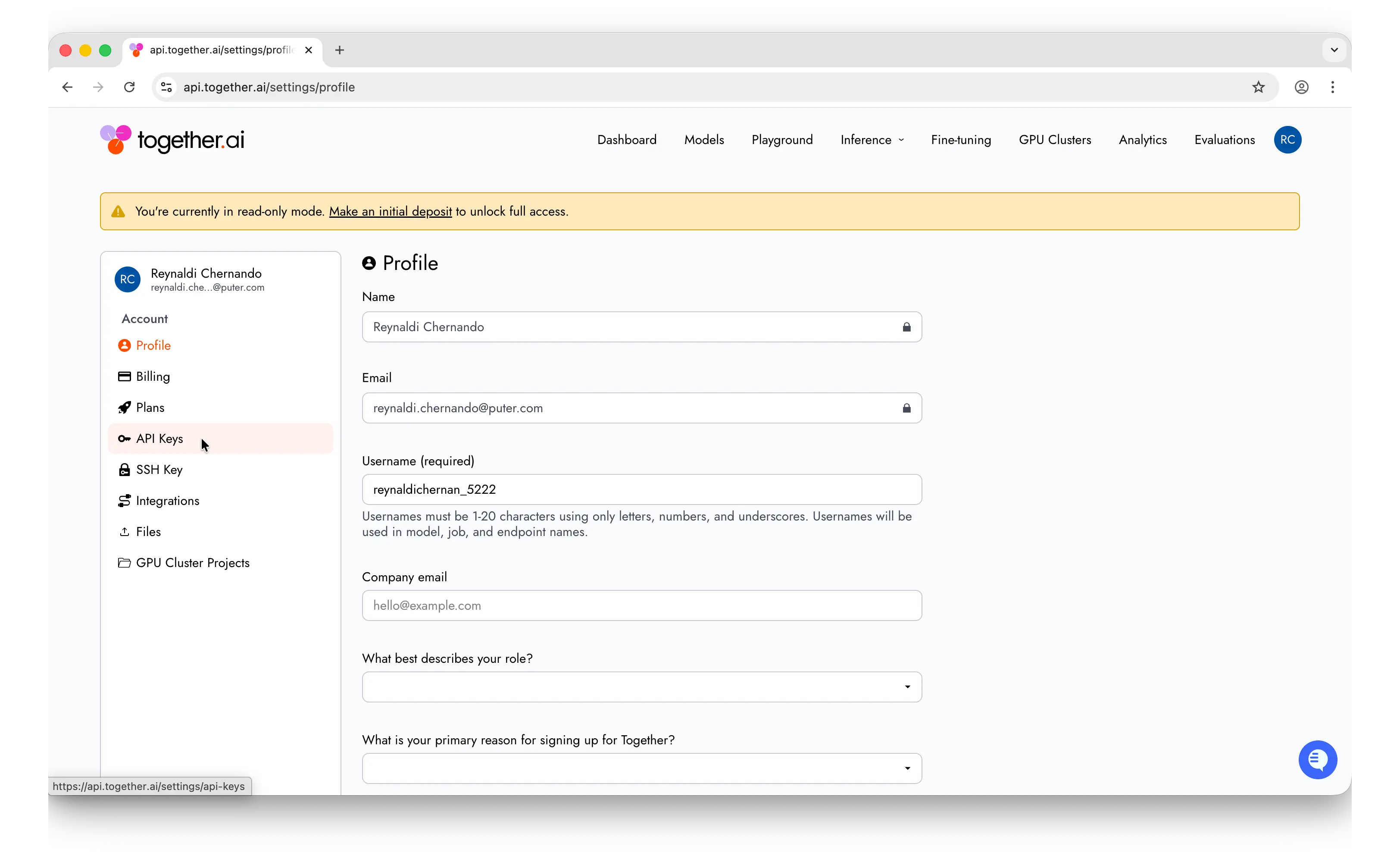
In the settings page, find the API Keys menu in the sidebar.
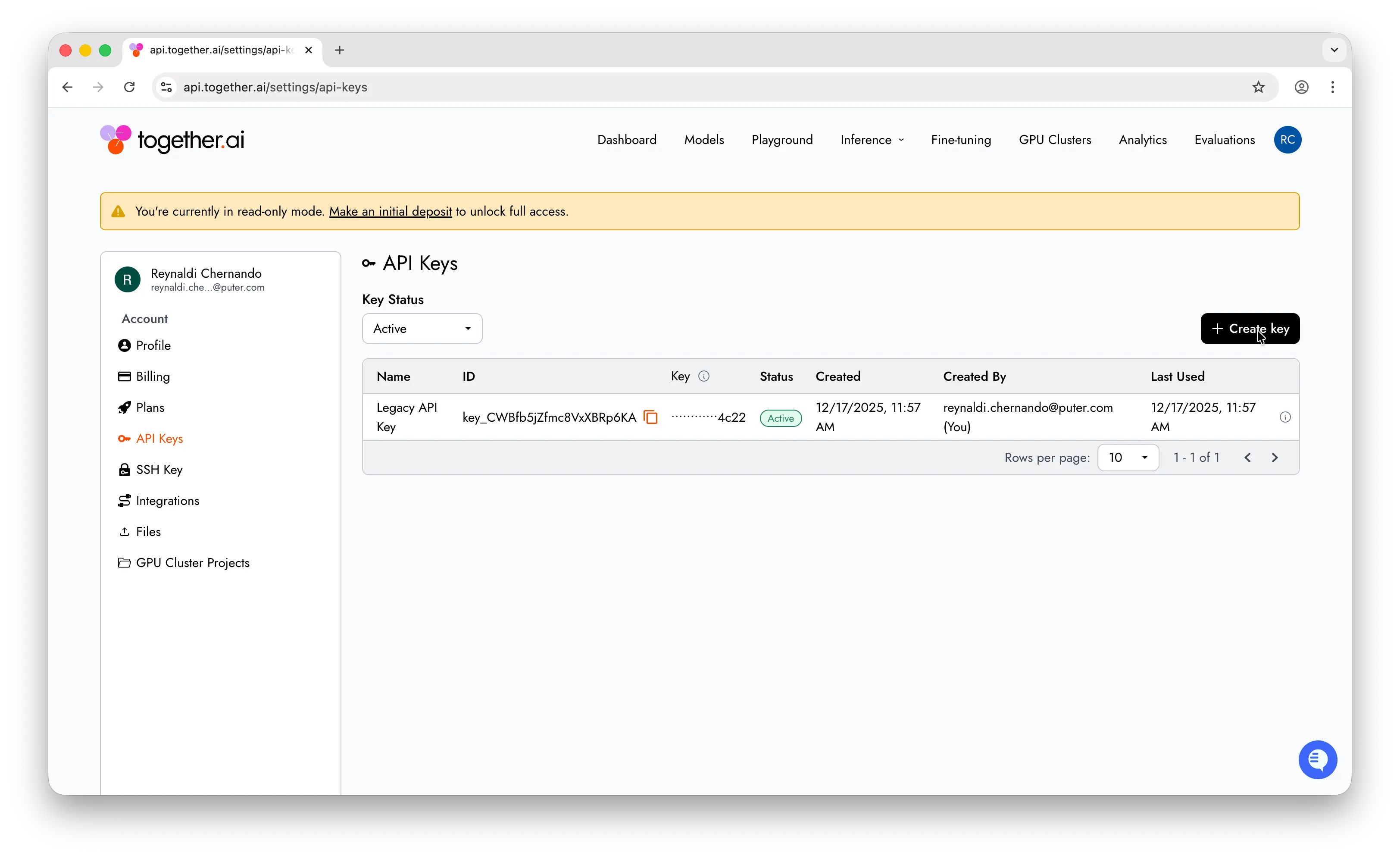
Click + Create key to generate a new API key.
Give your key a descriptive name like my-app-dev so you can identify it later.
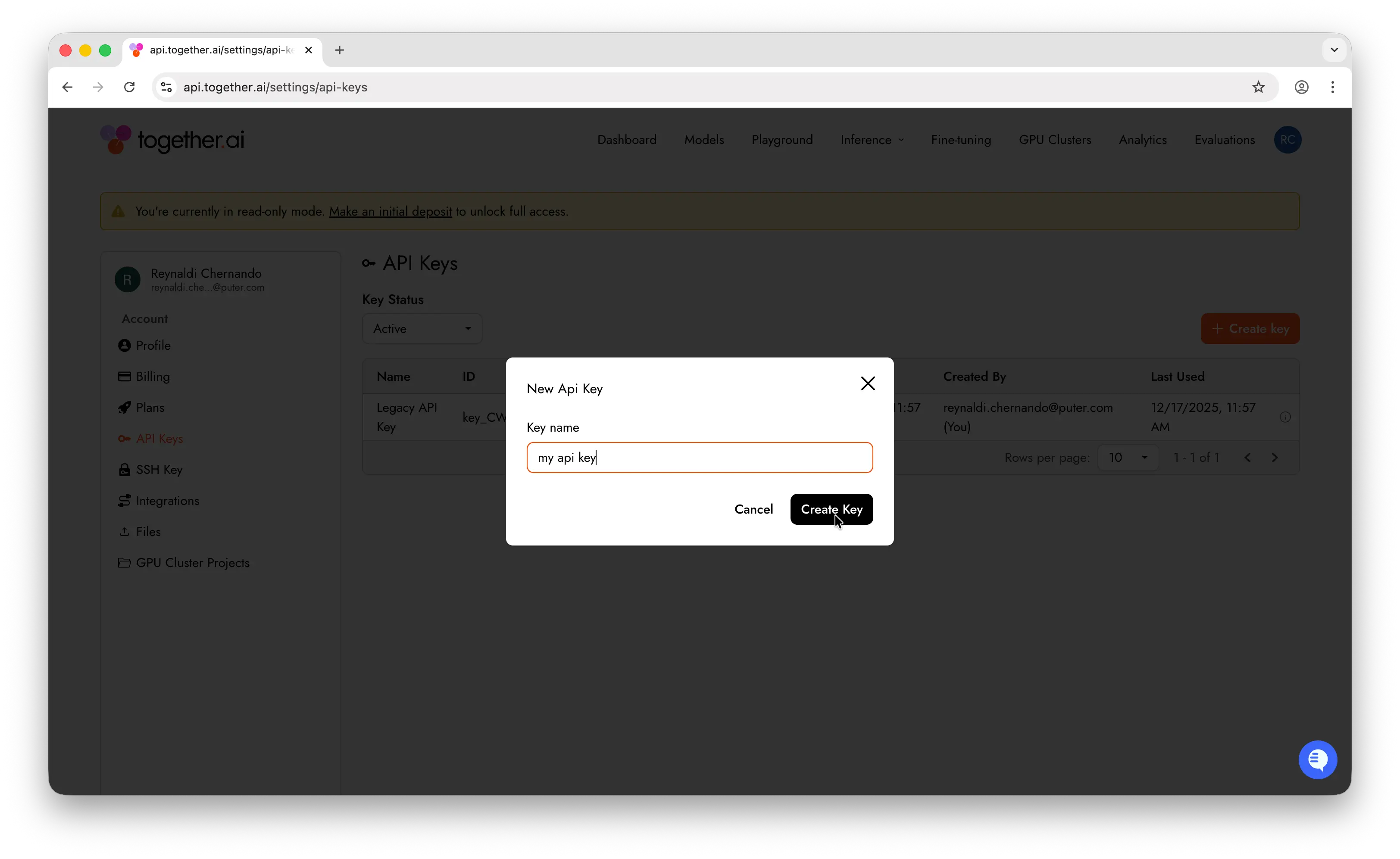
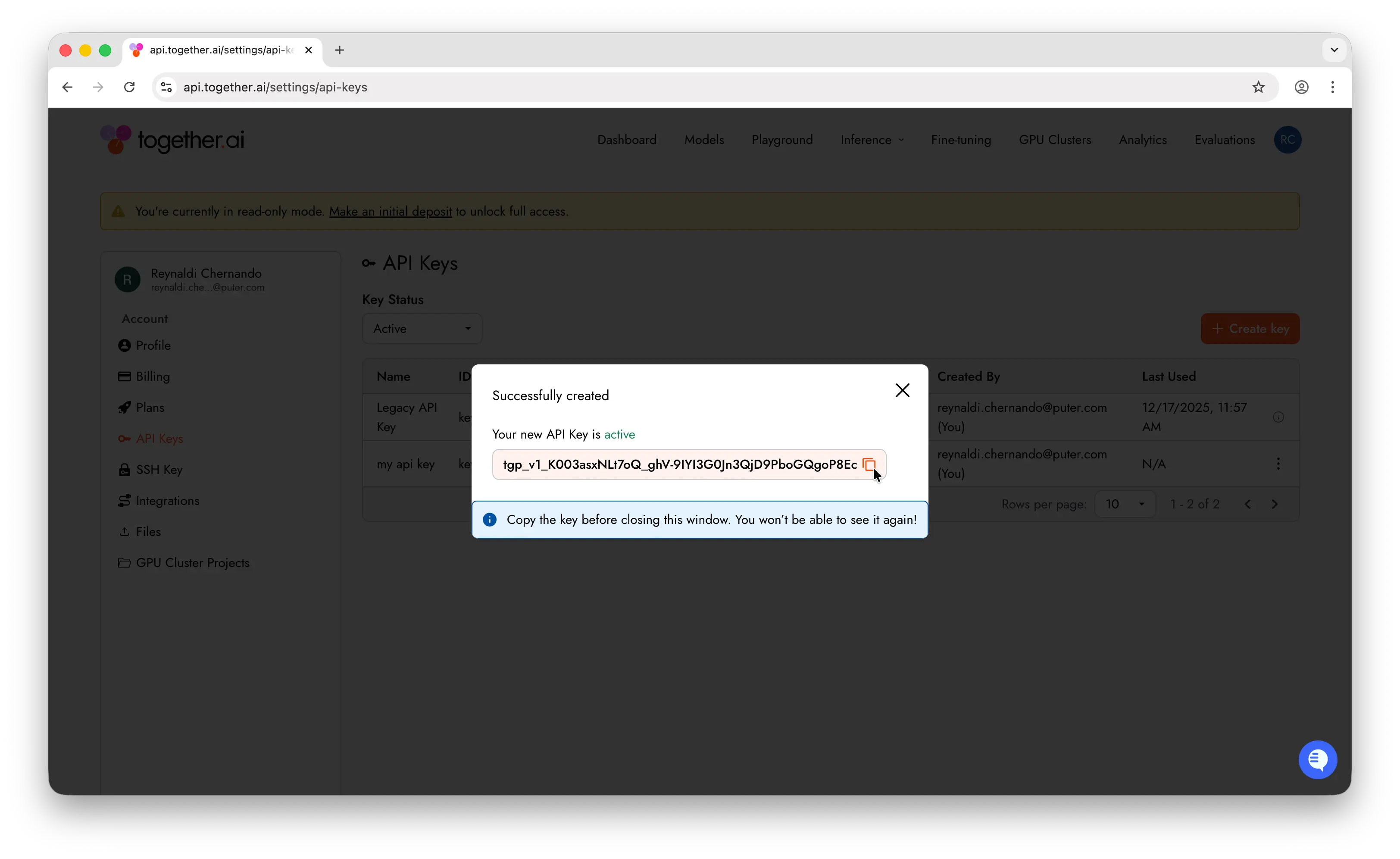
Important: Copy the key immediately after creation. Together AI only shows it once. If you lose it, you'll need to generate a new one.
Store it somewhere safe — a password manager, an .env file, or your platform's secrets manager. Never commit API keys to a public repository.
Step 3: Make Your First API Call
Set your API key as an environment variable:
export TOGETHER_API_KEY=xxxxx
Install the Together AI SDK:
npm install together-ai
Then make a chat completion request:
import Together from "together-ai"

async function main() {
  const together = new Together()
  const stream = await together.chat.completions.create({
    model: "openai/gpt-oss-20b",
    messages: [
      { role: "user", content: "What are the top 3 things to do in New York?" },
    ],
    stream: true,
  })

  for await (const chunk of stream) {
    process.stdout.write(chunk.choices[0]?.delta?.content || "")
  }
}

main()
If you get a response back, everything is working. You can swap openai/gpt-oss-20b for any model on Together AI's supported models page. For the full set of endpoints and parameters, see Together AI's official API docs.
Can You Use the Together AI API for Free?
Creating an API key is free, but using it requires paying for what you run. Together AI's API is usage-based and bills per token, and the rate varies by model since the platform hosts many open models at different sizes. Check Together AI's pricing page for the current per-model rates.
Puter.js offers a different model. With its User-Pays model, you can add open models to your app for free: each user covers their own AI usage through their own Puter account, so your cost stays at $0 regardless of how many users you have, with no API key and no backend. Because Puter hosts many of the same open models that Together AI serves, it is one way to reach them without managing keys or billing.
Add a model with the browser script tag:
<script src="https://js.puter.com/v2/"></script>
<script>
  puter.ai.chat("Explain quantum computing in simple terms", {
    model: "meta-llama/llama-3.3-70b-instruct"
  }).then(response => {
    document.body.innerHTML = response.message.content;
  });
</script>
or the npm package:
import { puter } from '@heyputer/puter.js';

const response = await puter.ai.chat("Explain quantum computing in simple terms", {
  model: "meta-llama/llama-3.3-70b-instruct"
});
console.log(response.message.content);
This fits front-end apps where your users sign into Puter: usage is tied to their accounts, and Puter.js runs in the browser, so it does not replace a server-side key for a backend you control.
Why Isn't My Key Working?
Most first-call failures trace back to a few errors:
- 401, Authentication Error: the key is missing, wrong, or picked up a stray space or newline when copied. Regenerate it and paste again.
- 402, Payment Required: the account hit its monthly spending limit. Add a payment method or raise the limit in billing, then retry.
- 404, Not Found: the endpoint URL is wrong or the model name does not exist or is not available to your account. Check the model ID against the docs.
- 429, Rate Limit: requests are going out faster than your tier allows. Add retries with exponential backoff, or move up a usage tier.
- 403, Bad Request: your input tokens plus
max_tokensexceed the model's context length. Shorten the prompt or lowermax_tokens.
Most of these come back to billing, so check that first. For the full list of status and error codes, see Together AI's error codes reference.
Conclusion
To get a Together AI API key: sign up at api.together.ai, add a payment method, then open the API Keys settings and click + Create key. From there you can make your first API call, or skip the key entirely and add Together AI models to a web app for free with Puter.js.
Related
- How to Get an OpenAI API Key
- How to Get an Anthropic (Claude) API Key
- How to Get a Gemini API Key
- How to Get a Grok (xAI) API Key
- How to Get a DeepSeek API Key
- How to Get an ElevenLabs API Key
- How to Get a Mistral API Key
- How to Get a MiniMax API Key
- How to Get a Moonshot AI (Kimi) API Key
- How to Get a Qwen API Key
- How to Get a Z.AI (GLM) API Key
- How to Get an OpenRouter API Key
- How to Get a FLUX (Black Forest Labs) API Key
- How to Get a Stability AI (Stable Diffusion) API Key
- How to Get a Kling API Key
- How to Get a Leonardo.Ai API Key
- How to Get a Cohere API Key
- How to Use OpenAI SDK with Puter
- Free, Unlimited OpenAI API
- Free, Unlimited Claude API
Ship a Full-Stack App with One Prompt
Build an AI chat app using Puter.js
Coding manually? see the guide