How to Get a Llama API Key
On this page
This guide shows you how to get a Llama API key from Meta. You'll request access to Meta's Llama API, generate your key, and make your first API call, plus a free alternative for adding Llama models to your web app.
Prerequisites
- A Meta account to sign in to the Llama API platform
- Access to the US region — Meta's Llama API is currently US-only
- Basic familiarity with code (we'll show simple JavaScript examples)
Step 1: Request Access to Meta's Llama API
The official way to get a Llama API key is through Meta's Llama API platform. Access is currently limited: you'll need to join a waitlist, and the API is only available in the US region.
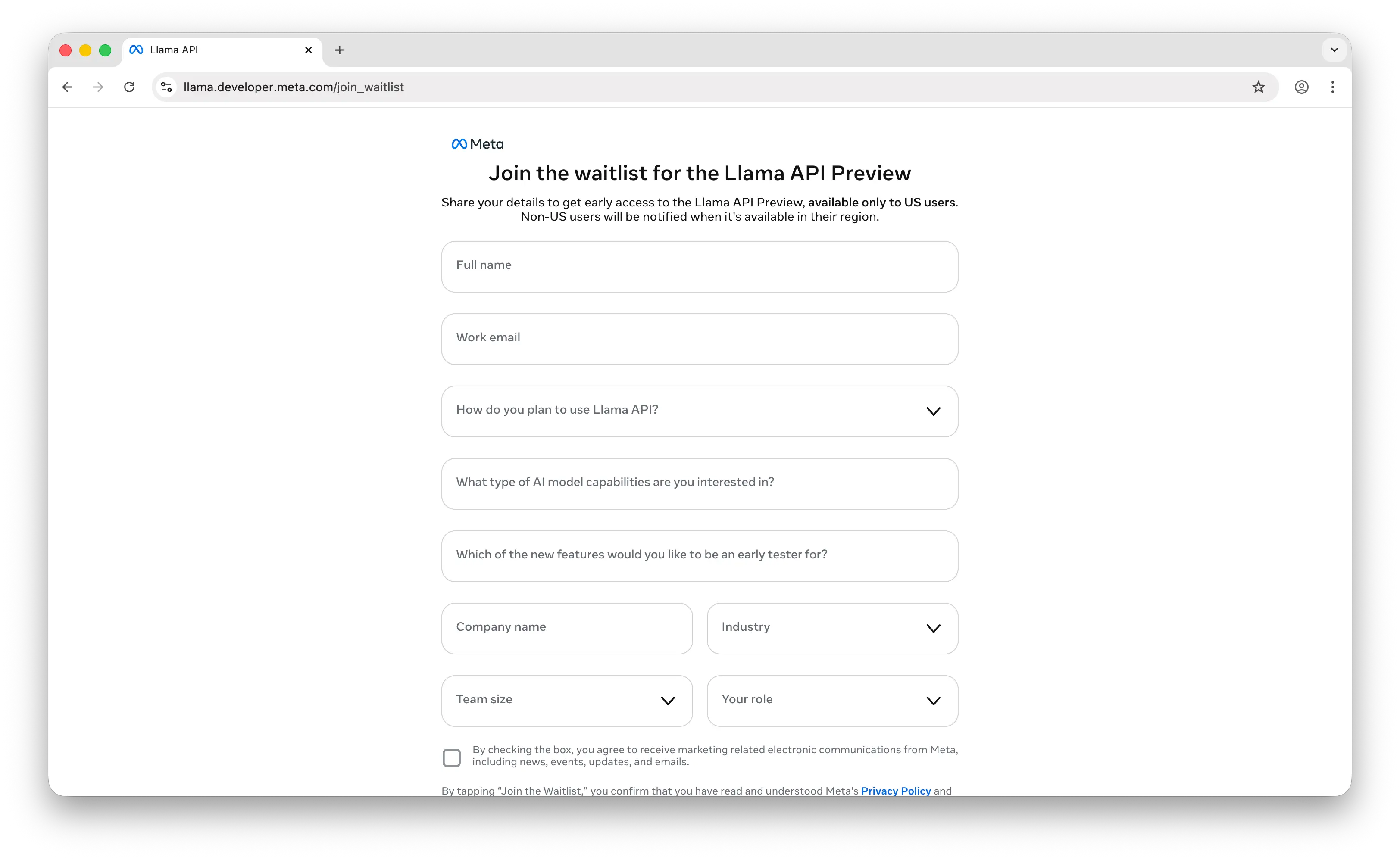
Sign in with your Meta account and request access. Once you're approved, you'll land on the Llama API dashboard, where you can manage your keys.
Step 2: Generate Your API Key
In the Llama API dashboard, create a new API key. Give it a descriptive name so you can identify it later.
Important: Copy the key when it's shown and store it somewhere safe, such as a password manager, an .env file, or your platform's secrets manager. Never commit API keys to a public repository.
Step 3: Make Your First API Call
The Llama API is compatible with the OpenAI endpoint, so you can use the OpenAI JavaScript SDK directly. Just point the base URL at Meta's compatibility endpoint:
npm install openai
import OpenAI from "openai";

const client = new OpenAI({
  baseURL: "https://api.llama.com/compat/v1/",
  apiKey: process.env.LLAMA_API_KEY,
});

const response = await client.chat.completions.create({
  model: "Llama-4-Maverick-17B-128E-Instruct-FP8",
  messages: [{ role: "user", content: "Hello, world!" }],
});

console.log(response.choices[0].message.content);
If you get a response back, everything is working. For the full set of endpoints and parameters, see Llama's official API docs.
Can You Use the Llama API for Free?
Llama models are open-weight, so no single company owns "the Llama API." Meta's own Llama API is free to request, but it's waitlisted and US-only. Other hosts run the same models and bill per token: OpenRouter, Together AI, and similar providers each set their own rates. Creating a key on these platforms is free; running the models through them is paid, so check each host's pricing page for current rates.
Puter.js offers a different model. With its User-Pays model, you can add Llama models to your app for free: each user covers their own AI usage through their own Puter account, so your cost stays at $0 regardless of how many users you have, with no API key and no backend.
Add Llama models with the browser script tag:
<script src="https://js.puter.com/v2/"></script>
<script>
  puter.ai.chat("Explain quantum computing in simple terms", {
    model: "meta-llama/llama-4-maverick"
  }).then(response => {
    document.body.innerHTML = response.message.content;
  });
</script>
or the npm package:
import { puter } from '@heyputer/puter.js';

const response = await puter.ai.chat("Explain quantum computing in simple terms", {
  model: "meta-llama/llama-4-maverick"
});
console.log(response.message.content);
This fits front-end apps where your users sign into Puter: usage is tied to their accounts, and Puter.js runs in the browser, so it does not replace a server-side key for a backend you control.
Conclusion
To get a Llama API key: request access at Meta's Llama API platform, wait for approval, then create a key in the Llama API dashboard. From there you can make your first API call, or skip the key entirely and add Llama models to a web app for free with Puter.js.
Related
Ship a Full-Stack App with One Prompt
Build an AI chat app using Puter.js
Coding manually? see the guide