How to Get a Gemini API Key: A Step-by-Step Guide
On this page
This guide shows you how to get a Gemini API key. You'll set up Google AI Studio, generate your key, and make your first API call, plus a free alternative for adding Gemini models to your web app.
Prerequisites
- A Google account
- Basic familiarity with code (we'll show simple JavaScript examples)
Step 1: Go to Google AI Studio
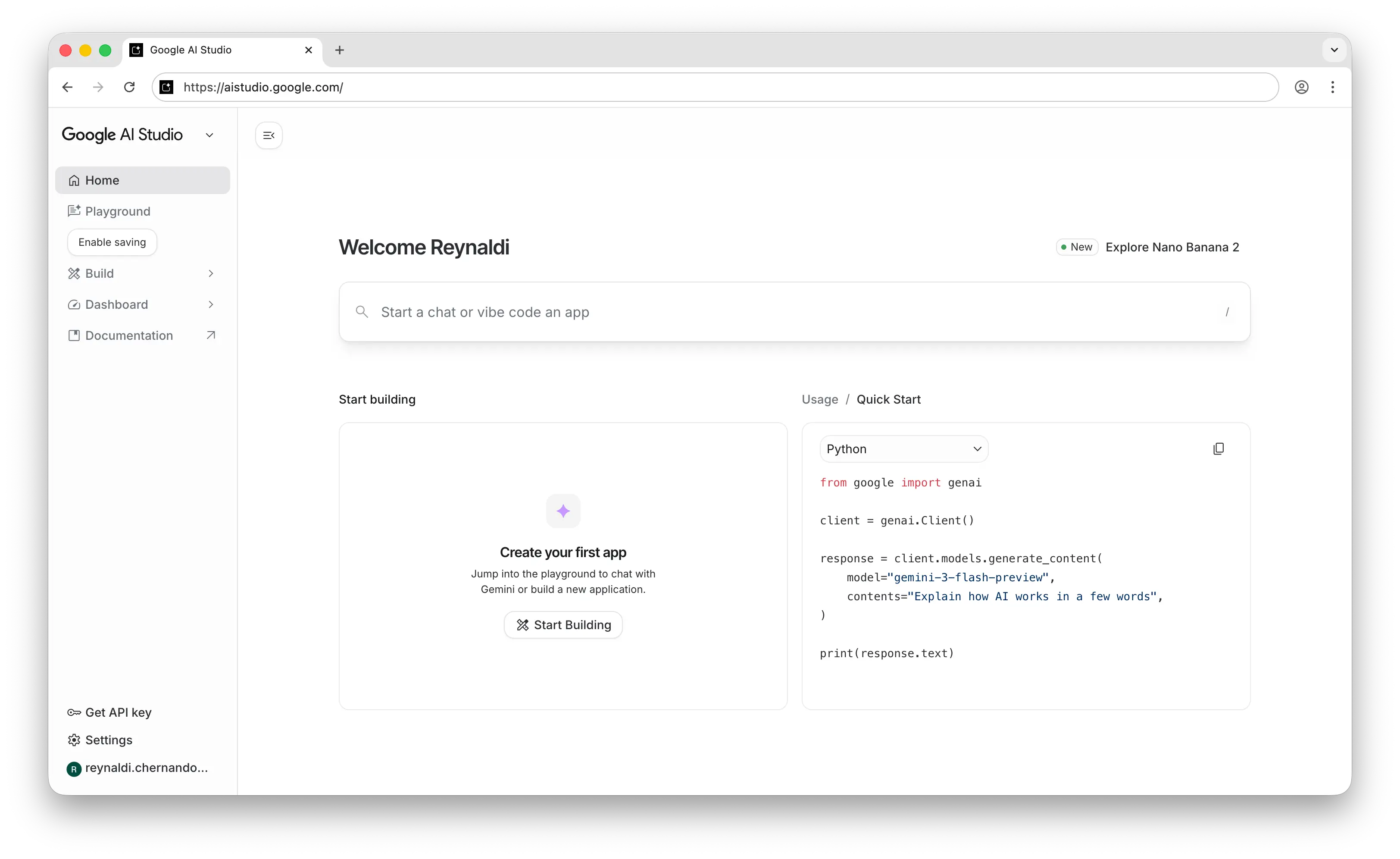
Open aistudio.google.com. This is Google's developer platform for building with Gemini models. Sign in with your Google account.
Once you're in, you'll land on the dashboard.
Step 2: Generate Your API Key
In the left sidebar, click Get API key. Then click Create API key.
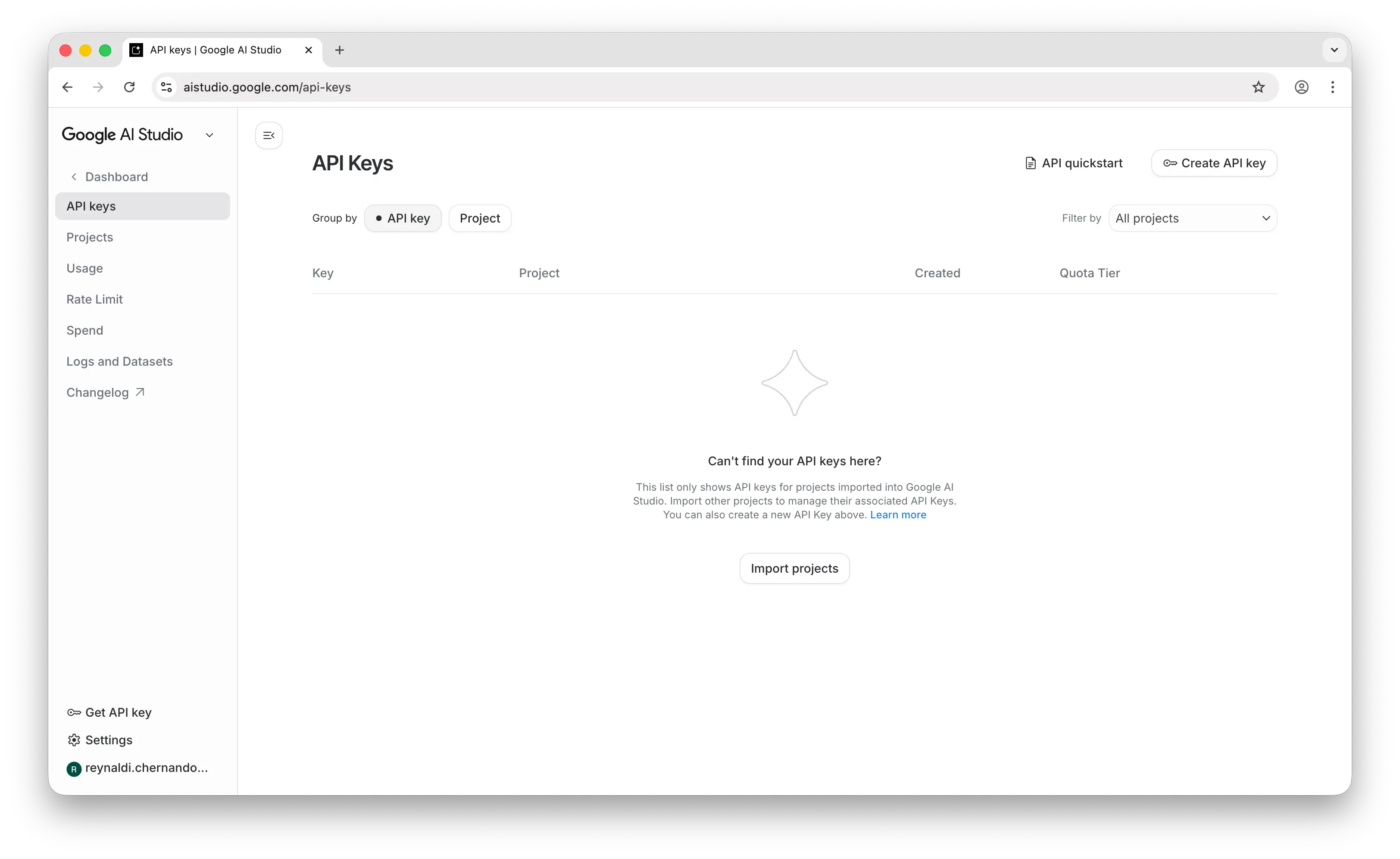
Give your key a descriptive name like my-app-dev so you can identify it later.
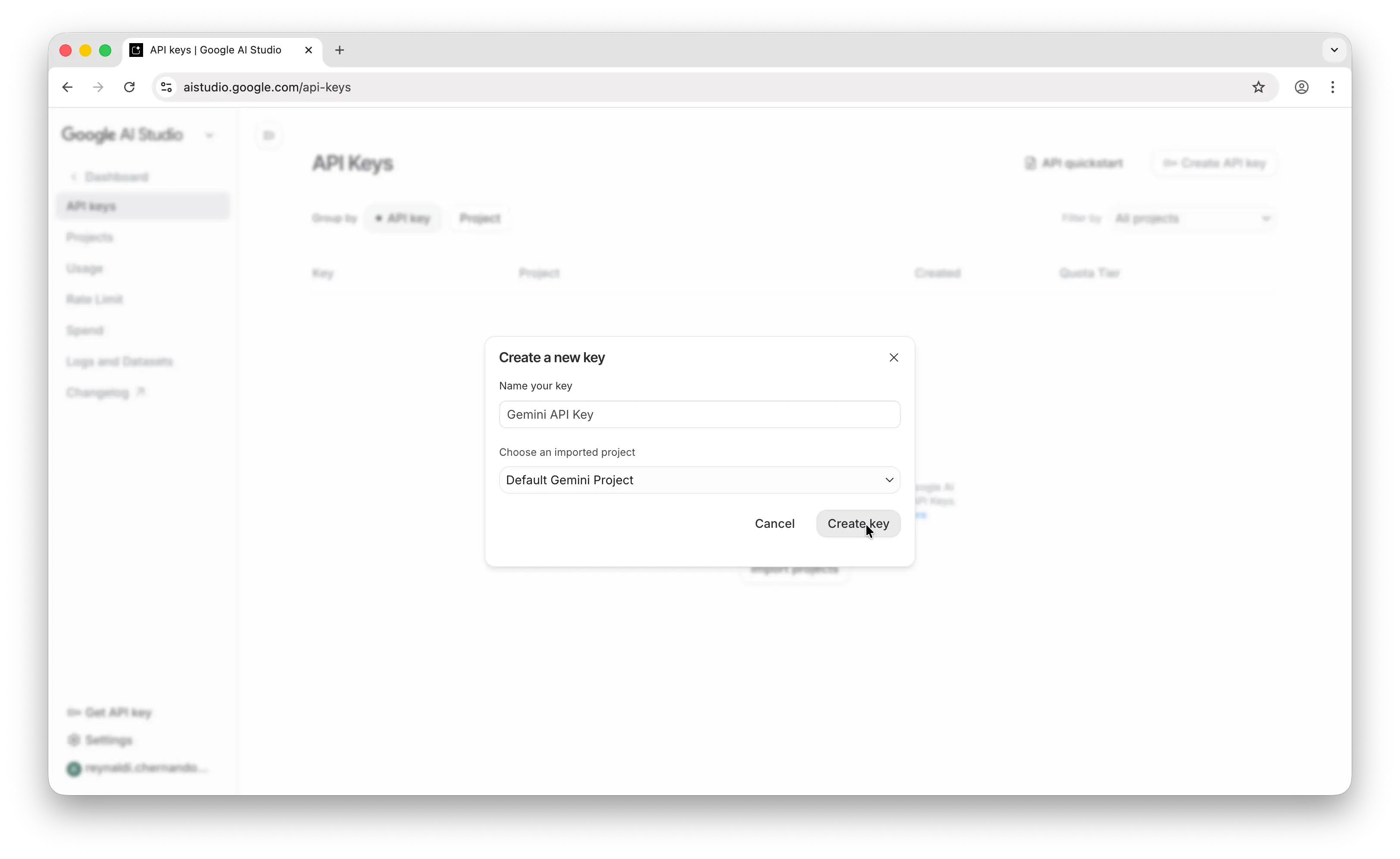
Copy the key once it's generated. Unlike some providers, Google AI Studio lets you view your key again later — but it's still best practice to store it securely right away.
Store it somewhere safe — a password manager, an .env file, or your platform's secrets manager. Never commit API keys to a public repository.
Step 3: Make Your First API Call
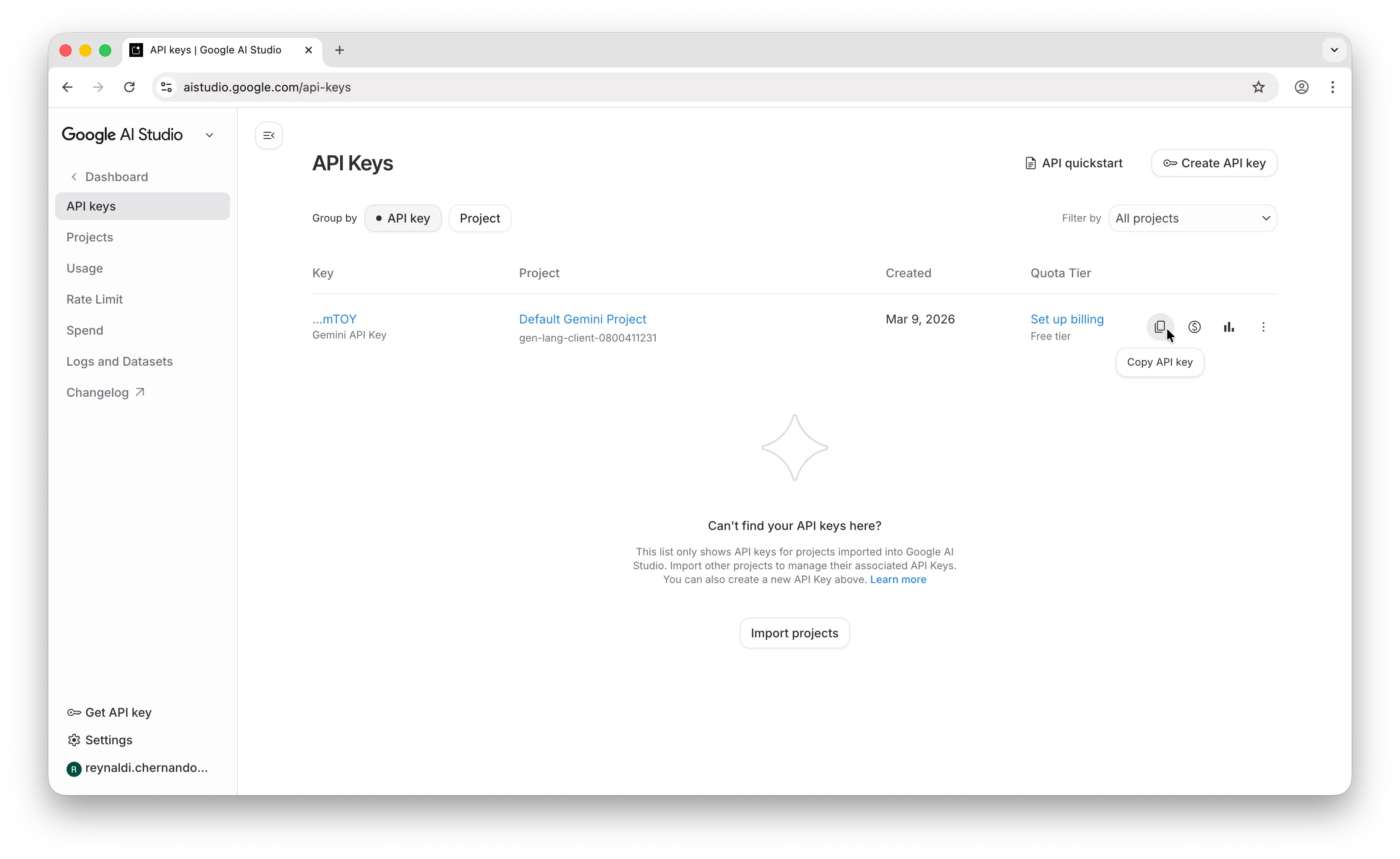
Now you're ready to use the key. Here's a quick example using the Google GenAI JavaScript SDK:
npm install @google/genai
import { GoogleGenAI } from "@google/genai";

const ai = new GoogleGenAI({ apiKey: process.env.GEMINI_API_KEY });

async function main() {
  const response = await ai.models.generateContent({
    model: "gemini-3.8-flash",
    contents: "Explain how AI works in a few words",
  });
  console.log(response.text);
}

main();
If you get a response back, everything is working. For the full set of endpoints and parameters, see Gemini's official API docs.
Can You Use the Gemini API for Free?
Creating an API key is free, and unlike most providers, Gemini has a recurring native free tier rather than only one-time trial credits. The Flash-family models (including Gemini 3.8 Flash, 3.7 Flash, and 3.5 Flash-Lite) give you free input and output tokens within per-model rate limits, with no credit card required. Two trade-offs: free-tier content is used to improve Google's products, so it isn't suitable for sensitive data, and the Pro models are paid-tier only. Past those limits, the API is pay-as-you-go and bills per token.
Puter.js offers a different model. With its User-Pays model, you can add Gemini models to your app for free: each user covers their own AI usage through their own Puter account, so your cost stays at $0 regardless of how many users you have, with no API key and no backend.
Add Gemini models with the browser script tag:
<script src="https://js.puter.com/v2/"></script>
<script>
  puter.ai.chat("Explain quantum computing in simple terms", {
    model: "google/gemini-3.8-flash"
  }).then(response => {
    document.body.innerHTML = response.message.content;
  });
</script>
or the npm package:
import { puter } from '@heyputer/puter.js';

const response = await puter.ai.chat("Explain quantum computing in simple terms", {
  model: "google/gemini-3.8-flash"
});
console.log(response.message.content);
This fits front-end apps where your users sign into Puter: usage is tied to their accounts, and Puter.js runs in the browser, so it does not replace a server-side key for a backend you control. For a backend, see the pricing below.
How Much Does the Gemini API Cost?
Gemini bills per token, with separate input and output rates, so cost scales with usage instead of a flat fee. The flagship, Gemini 3.1 Pro, is $2.00 per 1M input tokens and $12.00 per 1M output for prompts up to 200K tokens. The cheapest current-generation model, Gemini 3.1 Flash-Lite, is $0.25 input and $1.50 output. The Flash-family models also have a native free tier within rate limits.
For the full breakdown, including the Batch and context-caching discounts and the per-image and per-second media rates, see our Gemini API pricing guide.
Why Isn't My Key Working?
Most first-call failures trace back to a few errors:
- 403, PERMISSION_DENIED: the API key is wrong, was revoked, or lacks access to the resource. Check that the key is passed correctly and picked up no stray space or newline when copied.
- 400, FAILED_PRECONDITION: the free tier is not available in your country and billing is not enabled. Enable a paid plan in Google AI Studio.
- 429, RESOURCE_EXHAUSTED: you went over a rate limit (RPM, TPM, or RPD). Slow down requests and retry with backoff, or request a higher limit.
- 404, NOT_FOUND: the model name does not exist for your API version. Check the model ID and that your endpoint version supports it.
- 400, INVALID_ARGUMENT: the request body is malformed, usually a typo, a missing field, or an API version mismatch.
Most of these come back to billing and region, so check those first. For the full list of status and error codes, see Gemini's error codes reference.
Conclusion
To get a Gemini API key: sign up at Google AI Studio, then click Get API key and Create API key. From there you can make your first API call, or skip the key entirely and add Gemini models to a web app for free with Puter.js.
Related
- Free, Unlimited Gemini API
- Gemini API Pricing
- How to Get an OpenAI API Key
- How to Get an Anthropic API Key
- How to Get a Grok (xAI) API Key
- How to Get a DeepSeek API Key
- How to Get an ElevenLabs API Key
- How to Get a Mistral API Key
- How to Get a MiniMax API Key
- How to Get a Moonshot AI (Kimi) API Key
- How to Get a Qwen API Key
- How to Get a Z.AI (GLM) API Key
- How to Get an OpenRouter API Key
- How to Get a FLUX (Black Forest Labs) API Key
- How to Get a Stability AI (Stable Diffusion) API Key
- How to Get a Kling API Key
- How to Get a Leonardo.Ai API Key
- How to Get a Together AI API Key
- How to Get a Cohere API Key
- How to Use OpenAI SDK with Puter
- Free, Unlimited OpenAI API
- Free, Unlimited Claude API
- How to Use LangChain with Puter
- How to Use Vercel AI SDK with Puter
Ship a Full-Stack App with One Prompt
Build an AI chat app using Puter.js
Coding manually? see the guide