How to Get a Leonardo.Ai API Key: A Step-by-Step Guide
On this page
In this guide, you'll learn how to get your Leonardo.Ai API key. You'll create a Leonardo.Ai account, generate your key, and make your first image generation API call. We'll also show you a simpler alternative if you want access to Leonardo.Ai and hundreds of other AI models without managing multiple accounts.
Prerequisites
- A Google, Canva, or email account, Leonardo.Ai supports multiple sign-in methods
- A valid payment method for verification (you'll receive $5 in free API credits)
- Basic familiarity with code (we'll show simple examples)
Step 1: Create Your Leonardo.Ai Account
Go to app.leonardo.ai/api-access. You'll see the sign-up/login page.
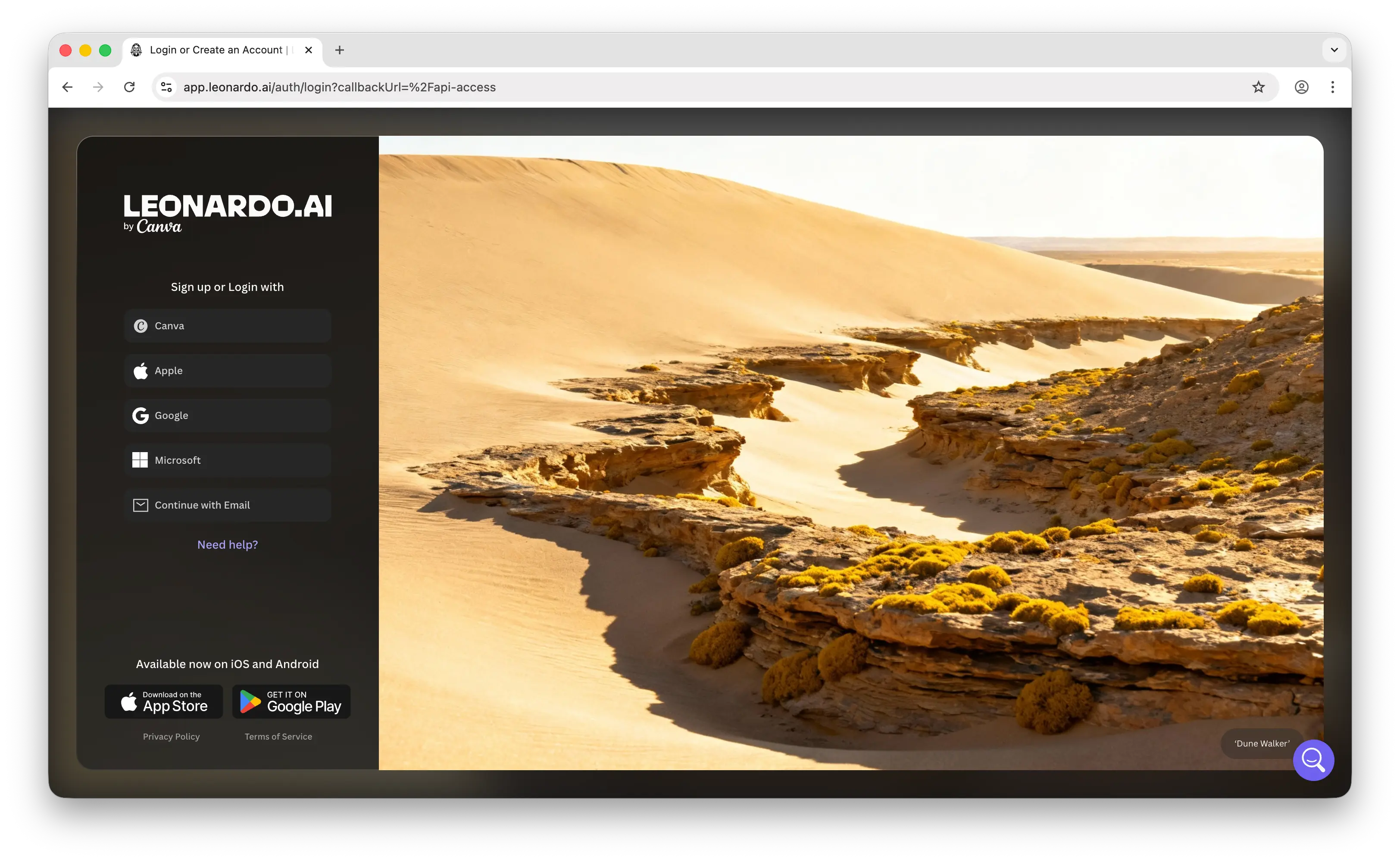
You can sign up using various methods including Canva, Google, or email. Once you've completed the setup and signed in, you'll land on the API Access page.
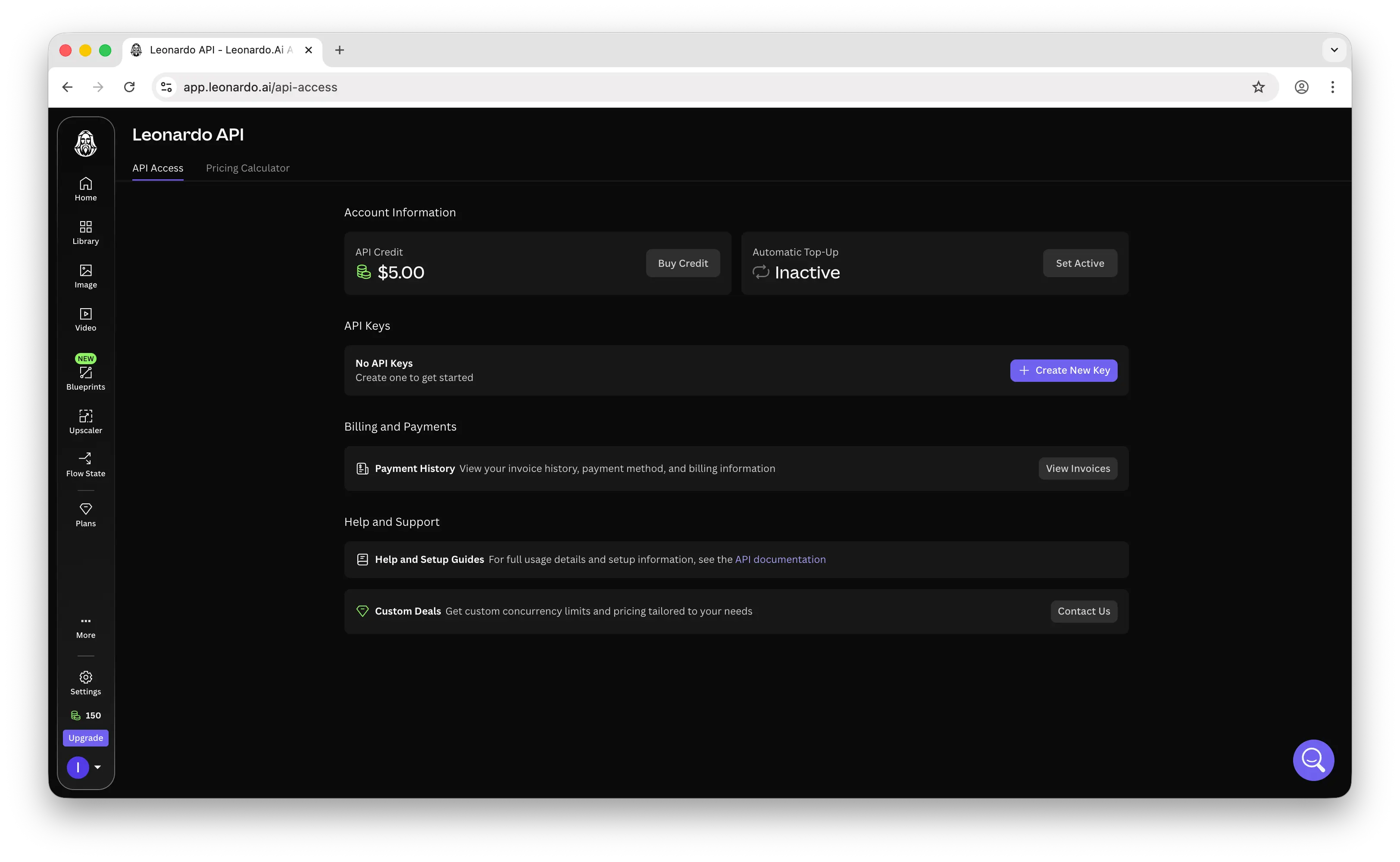
Note that Leonardo.Ai requires you to provide a valid payment method as verification. Once verified, you'll receive $5 in free API credits to get started.
Step 2: Generate Your API Key
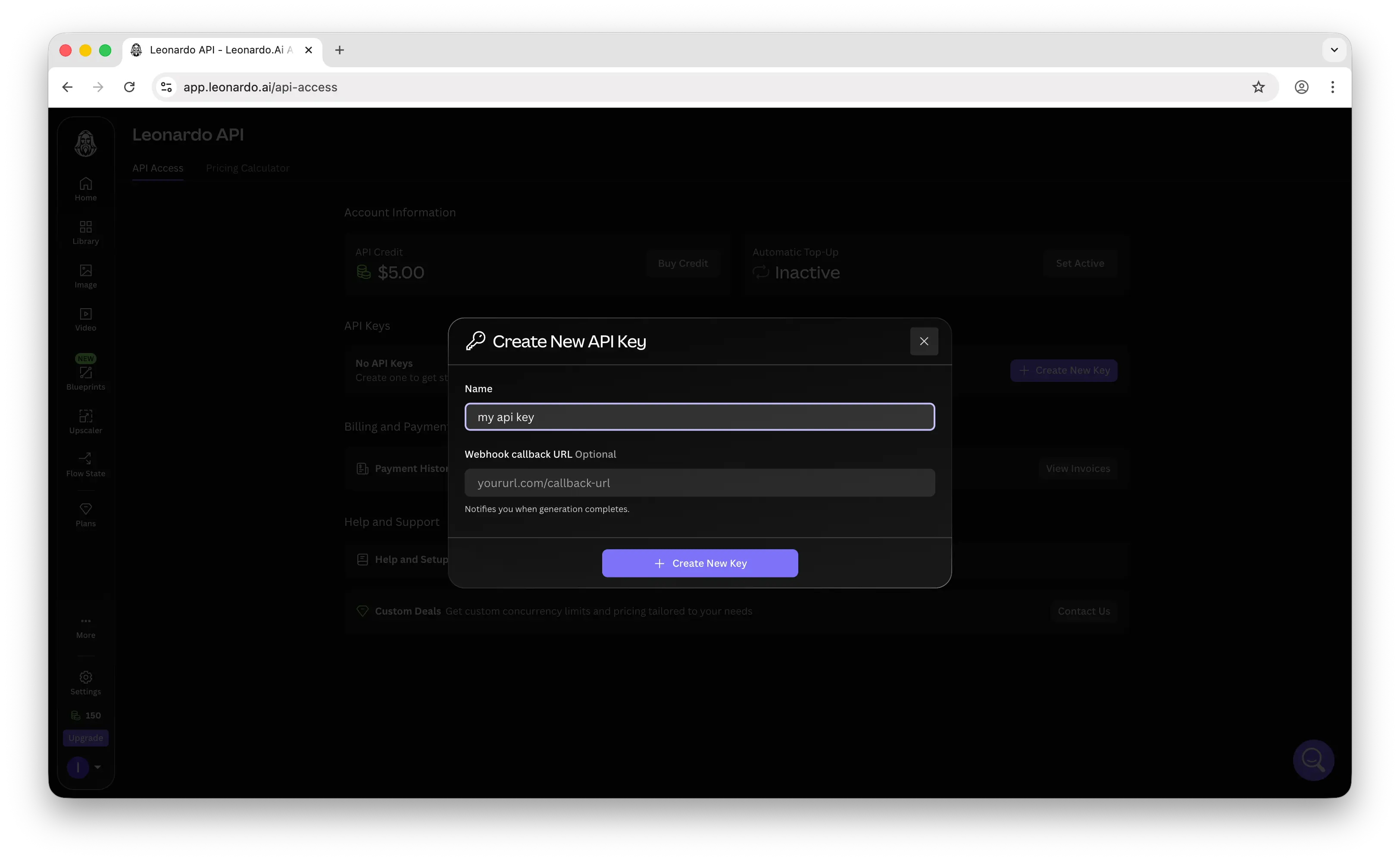
Under the API Keys section, click the + Create New Key button.
Provide a name for your API key and an optional webhook URL.
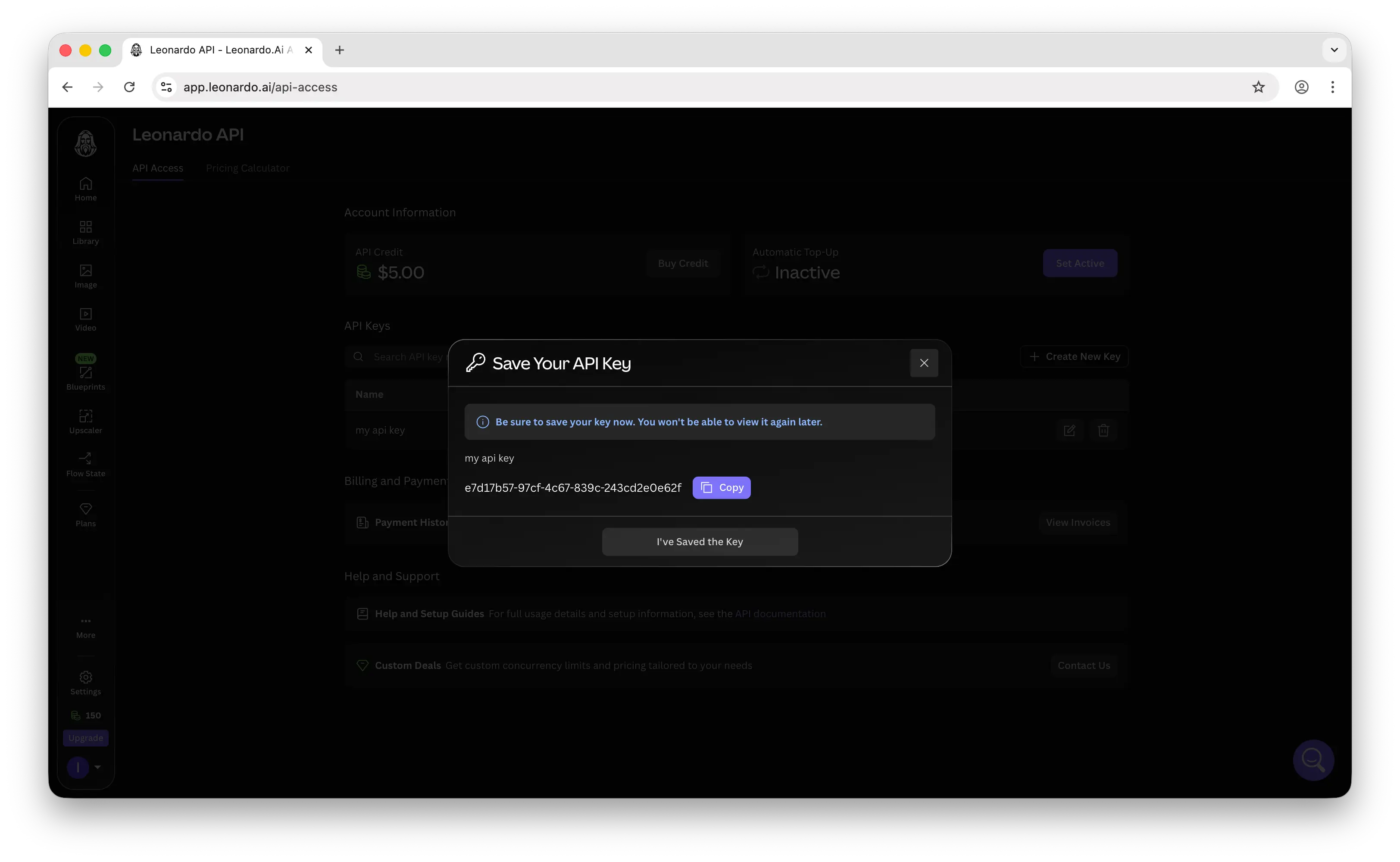
Important: Copy the key immediately. Leonardo.Ai only shows it once. If you lose it, you'll need to generate a new one.
Store it somewhere safe, like a password manager, an .env file, or your platform's secrets manager. Never commit API keys to a public repository.
Step 3: Make Your First API Call
Leonardo.Ai uses a direct REST API for image generation. For full details, check out Leonardo.Ai's official documentation.
Here's a quick example using curl to generate an image:
curl --request POST \
     --url https://cloud.leonardo.ai/api/rest/v1/generations \
     --header 'accept: application/json' \
     --header 'authorization: Bearer <YOUR_API_KEY>' \
     --header 'content-type: application/json' \
     --data '
{
  "alchemy": false,
  "height": 1080,
  "modelId": "7b592283-e8a7-4c5a-9ba6-d18c31f258b9",
  "contrast": 3.5,
  "num_images": 4,
  "styleUUID": "111dc692-d470-4eec-b791-3475abac4c46",
  "prompt": "A serene watercolor painting of a mountain lake at sunrise",
  "width": 1920,
  "ultra": false
}
'
The response contains a generationId that you can use to fetch the generated images. You can also use their "Get API Code" feature to export generations from the web app as ready-to-use API code.
One Library, Hundreds of Models
The process above works for Leonardo.Ai specifically, but it requires managing API keys, providing payment information, and dealing with a provider-specific API format. What if you want to also use FLUX, GPT Image, Stable Diffusion, or other image models? You'd need to learn each provider's API, manage separate keys, and set up billing for each one.
Puter.js offers a simpler approach: one JavaScript library, access to hundreds of AI models across providers, including Leonardo.Ai, FLUX, GPT, Claude, Gemini, and many more.
With Puter.js, you don't even need an API key. Puter uses the User-Pays model, where your app's users cover their own AI costs. This means you pay nothing for AI usage, no matter how many users you have.
Just add the Puter.js script tag and start generating images:
<html>
<body>
    <script src="https://js.puter.com/v2/"></script>
    <script>
        puter.ai.txt2img(
            "A cat running like a human holding a silver fish in a market",
            { model: "leonardo/lucid-origin" }
        )
        .then(imageElement => {
            document.body.appendChild(imageElement);
        });
    </script>
</body>
</html>
That's it. No API key, no payment method, no backend. The same puter.ai.txt2img() function works with FLUX, GPT Image, Stable Diffusion, and other image models too. One library, one interface, access to all of them.
Conclusion
You now know how to create a Leonardo.Ai account, generate an API key, and make your first image generation call. For more details, check out Leonardo.Ai's official documentation. If you'd rather skip managing API keys and provider-specific APIs, Puter.js gives you access to Leonardo.Ai and hundreds of other AI models through a single JavaScript library, with no API keys required.
Related
- Free, Unlimited Image Generation API
- Free, Unlimited Flux API
- Free, Unlimited Stable Diffusion API
- Free, Unlimited GPT Image API
- Free, Unlimited Claude API
- How to Get an OpenAI API Key
- How to Get an Anthropic (Claude) API Key
- How to Get a Gemini API Key
- How to Get a Grok (xAI) API Key
- How to Get a DeepSeek API Key
- How to Get an ElevenLabs API Key
- How to Get a Mistral API Key
- How to Get a MiniMax API Key
- How to Get a Moonshot AI (Kimi) API Key
- How to Get a Z.AI (GLM) API Key
- How to Get an OpenRouter API Key
- How to Get a Stability AI (Stable Diffusion) API Key
- How to Get a Kling API Key
- How to Get a Together AI API Key
- How to Get a Cohere API Key
- How to Get a FLUX (Black Forest Labs) API Key
- How to Use OpenAI SDK with Puter
- How to Use LangChain with Puter
- How to Use Vercel AI SDK with Puter
Free, Serverless AI and Cloud
Start creating powerful web applications with Puter.js in seconds!
Get Started Now