How to Host a Website for Free
On this page
In this tutorial, you'll learn how to host your static website for free using Puter — no credit card, no server setup, and no complicated configurations required.
What is Puter?
Puter is a free, open-source cloud desktop that runs in your browser. It provides cloud storage, app hosting, and a full desktop experience — all accessible from any device. One of its features is the ability to publish static websites directly from your files with just a few clicks.
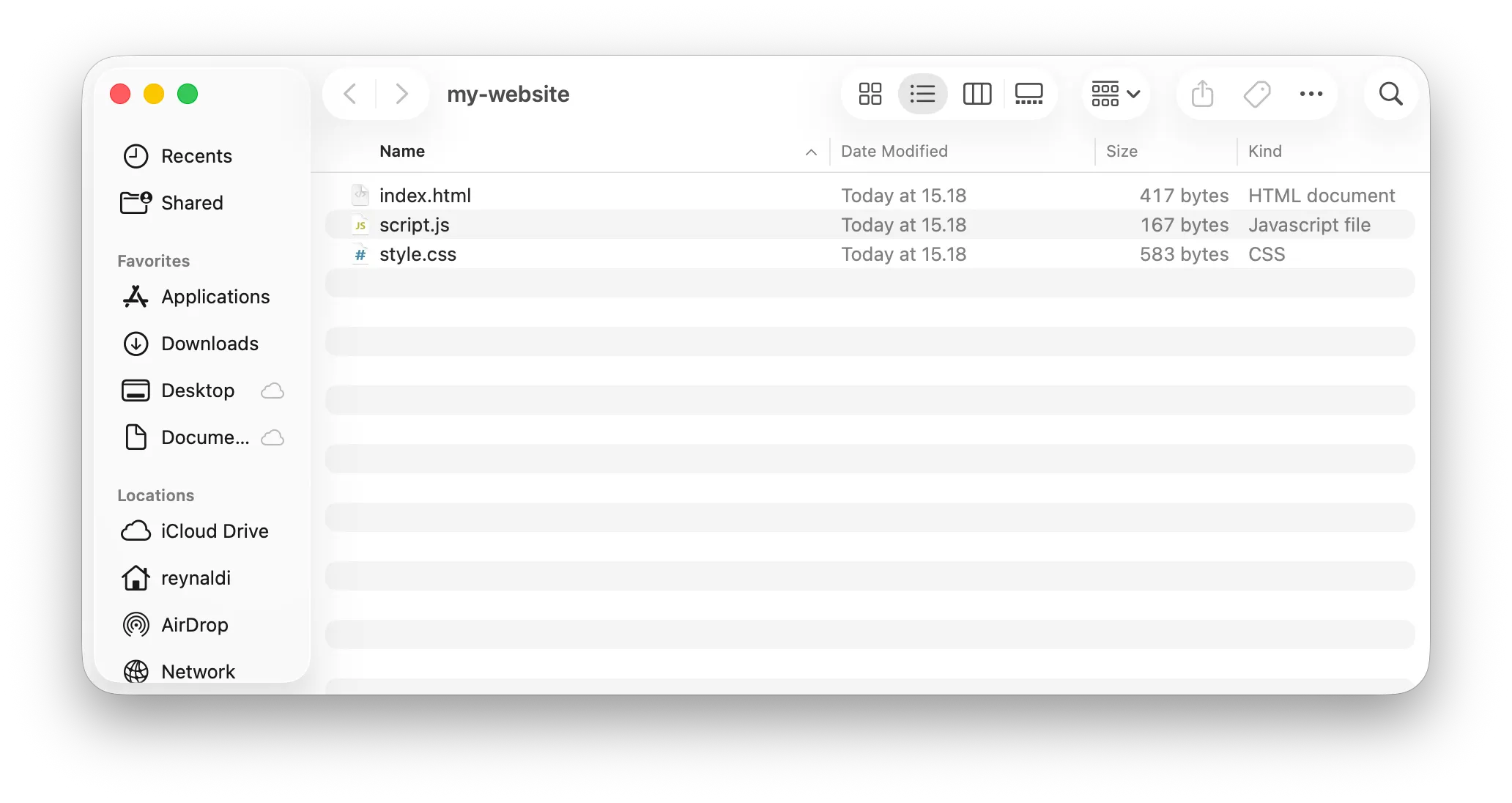
Step 1: Prepare Your Website Files
Have your static website files ready on your local machine. This can be a single index.html file or a complete project with multiple HTML, CSS, and JavaScript files.
Step 2: Upload Your Files to Puter
- Go to Puter.com
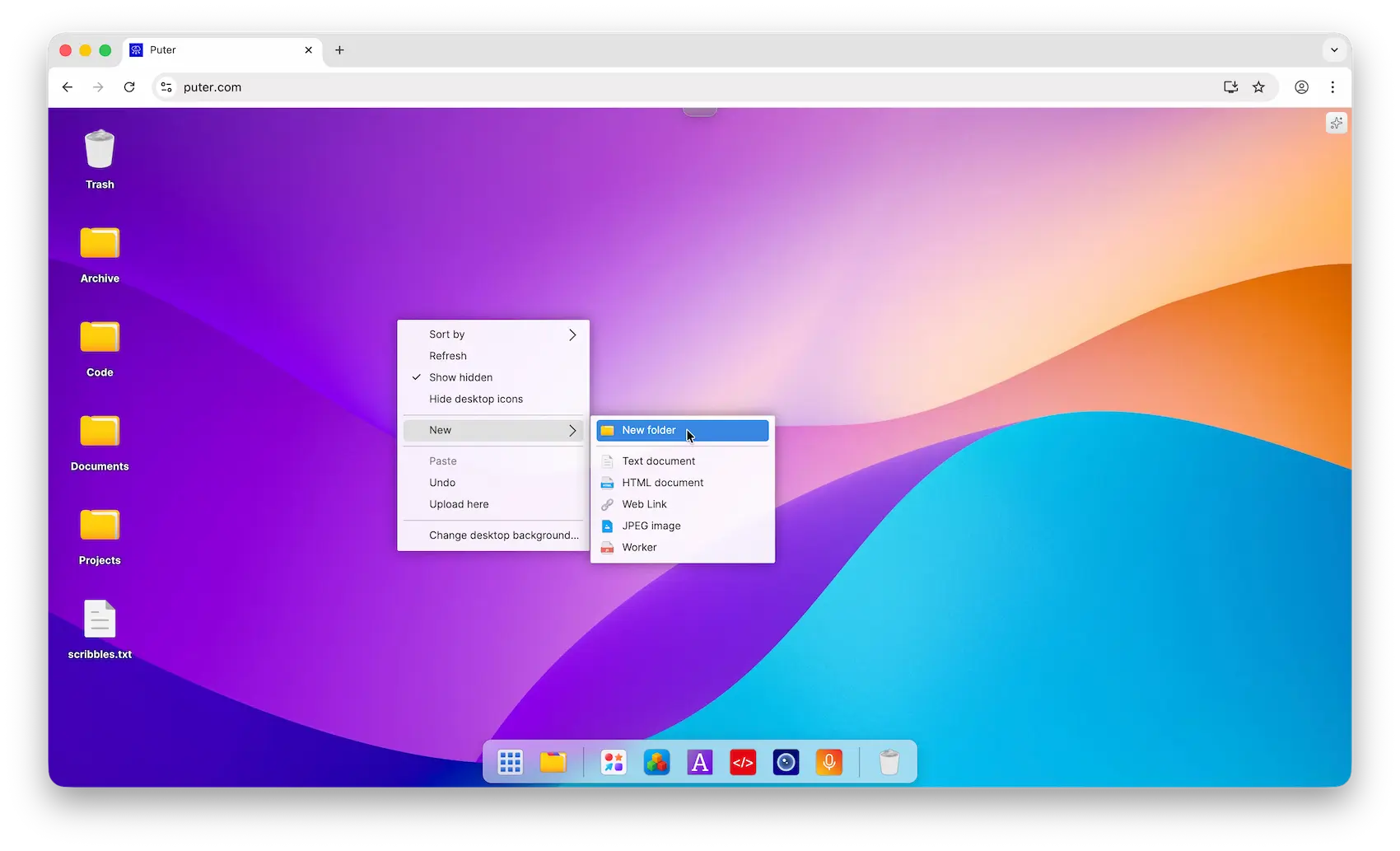
- Right-click and create a New folder for storing your website files
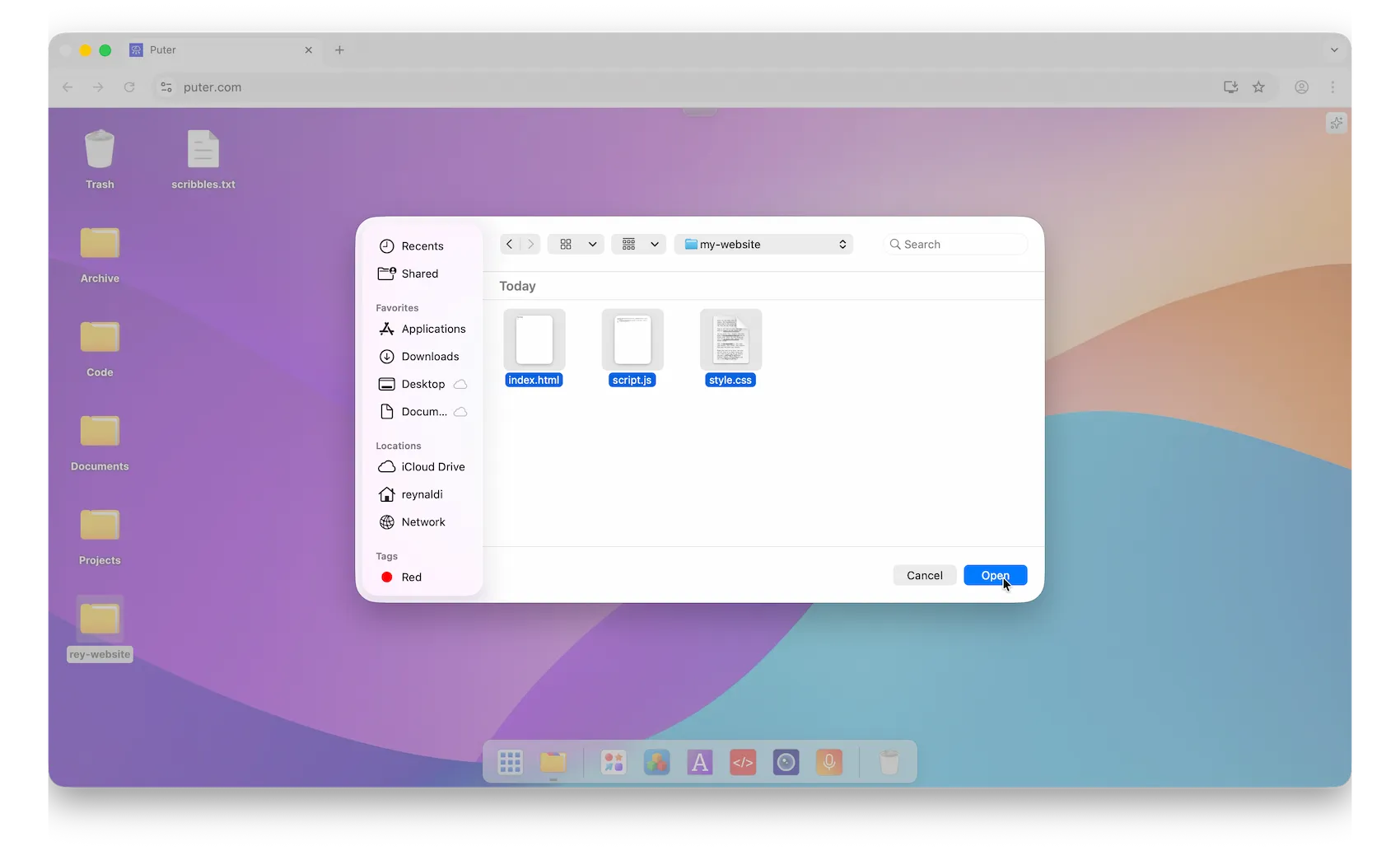
- Open the folder, then right-click inside it and select Upload Here

- Select your website files and upload them
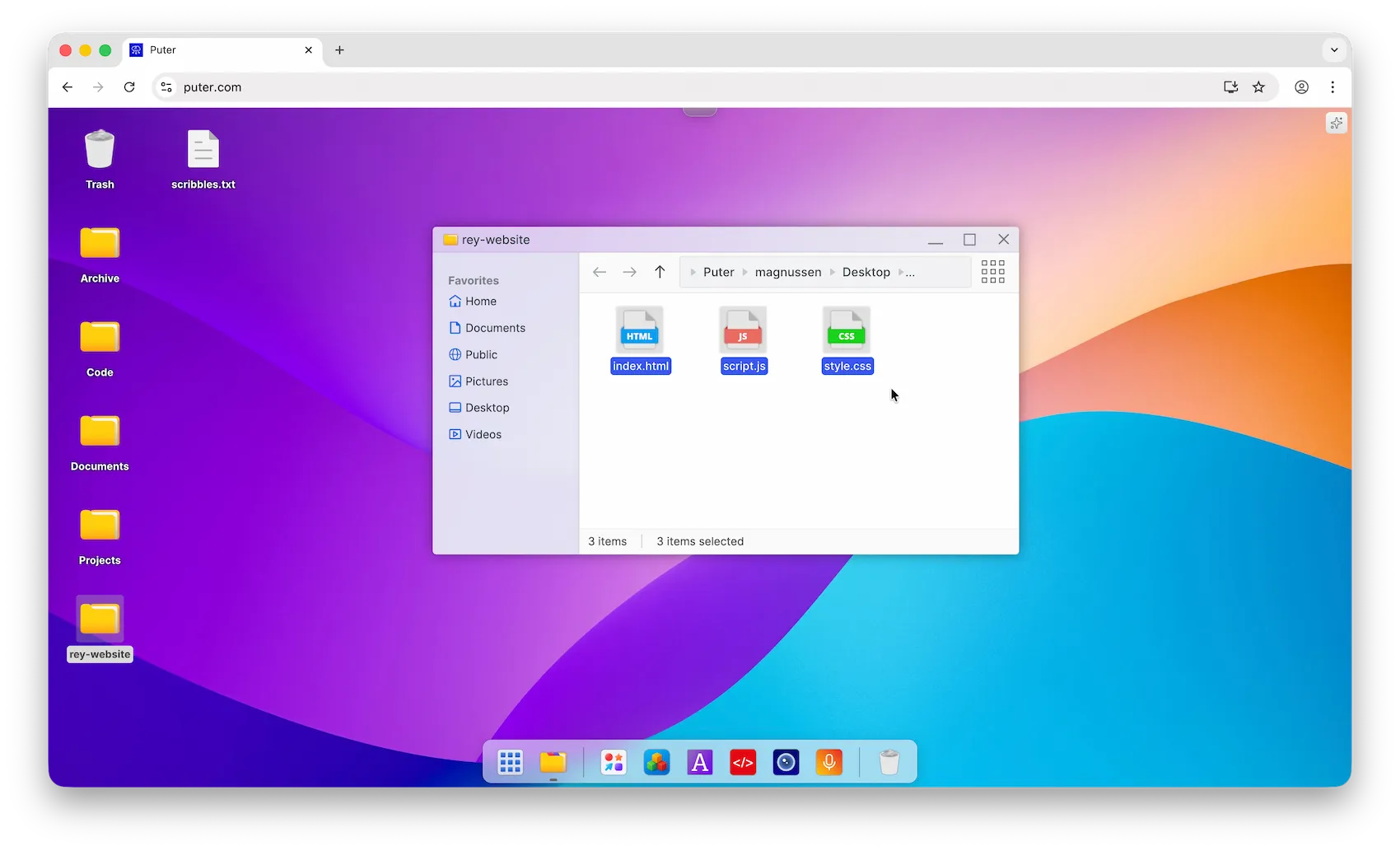
- Verify that your files are uploaded
Step 3: Publish Your Website
- In the same folder, right-click and select Publish as Website
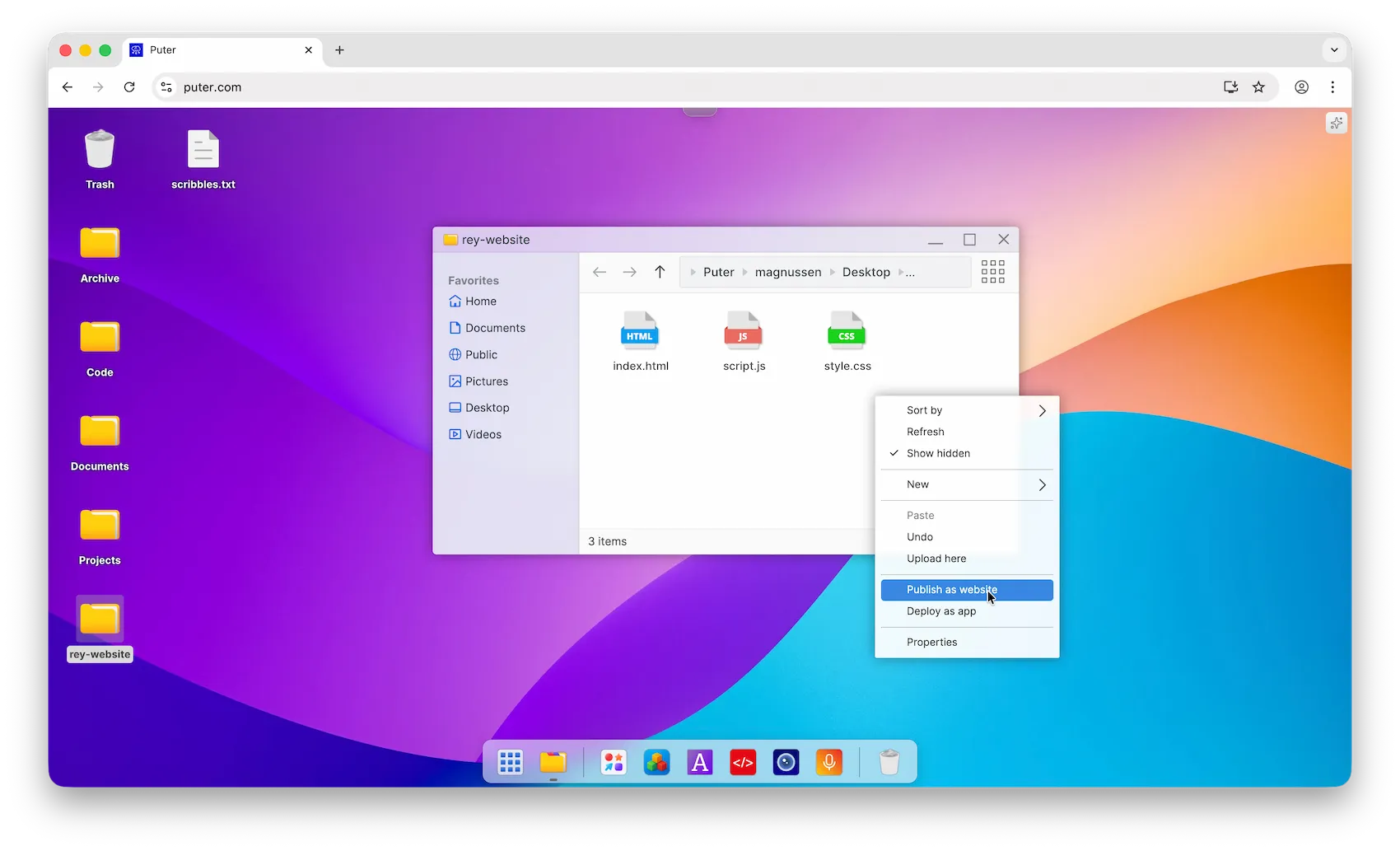
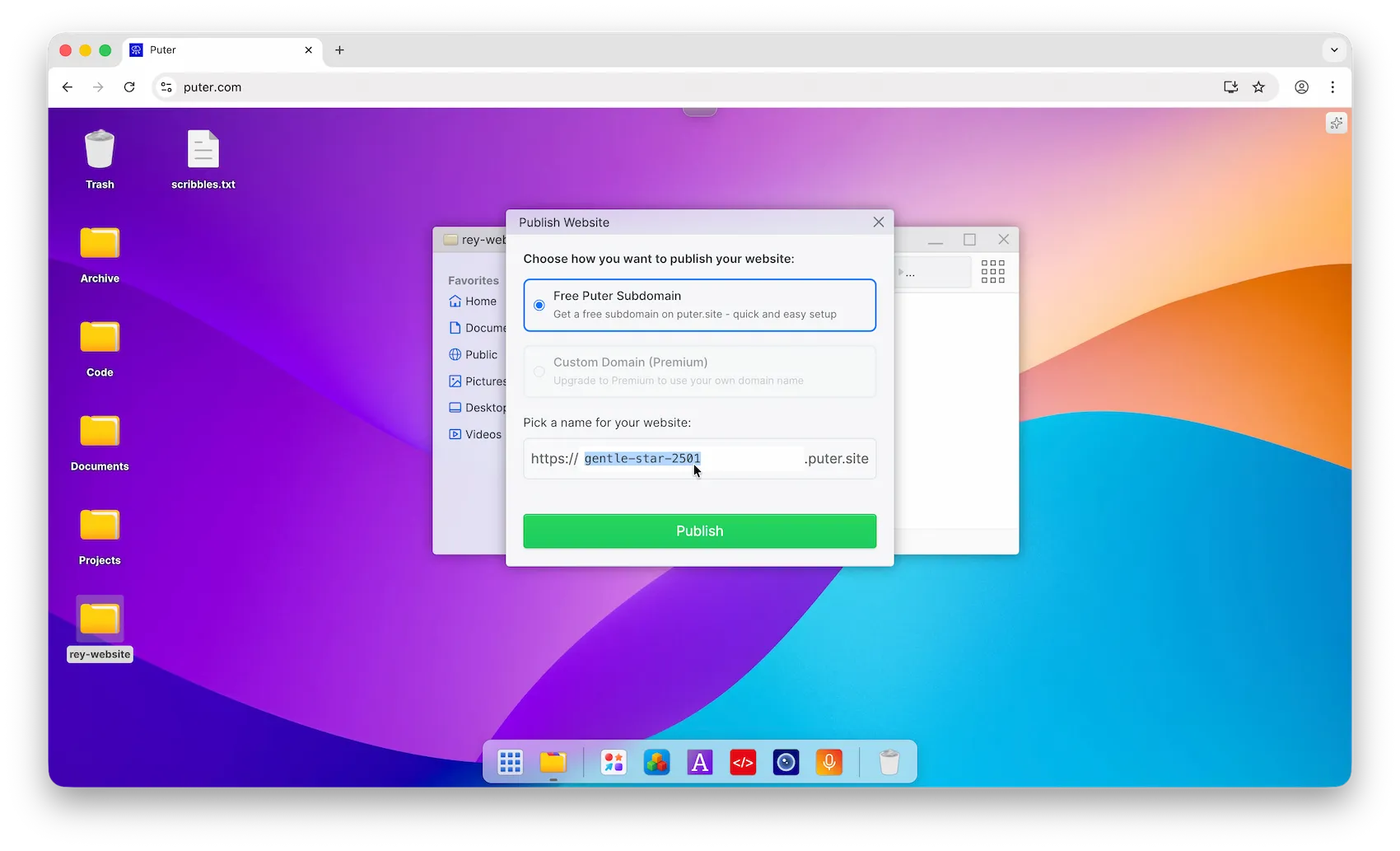
- Choose your free subdomain (e.g.,
yoursite.puter.site) and click Publish
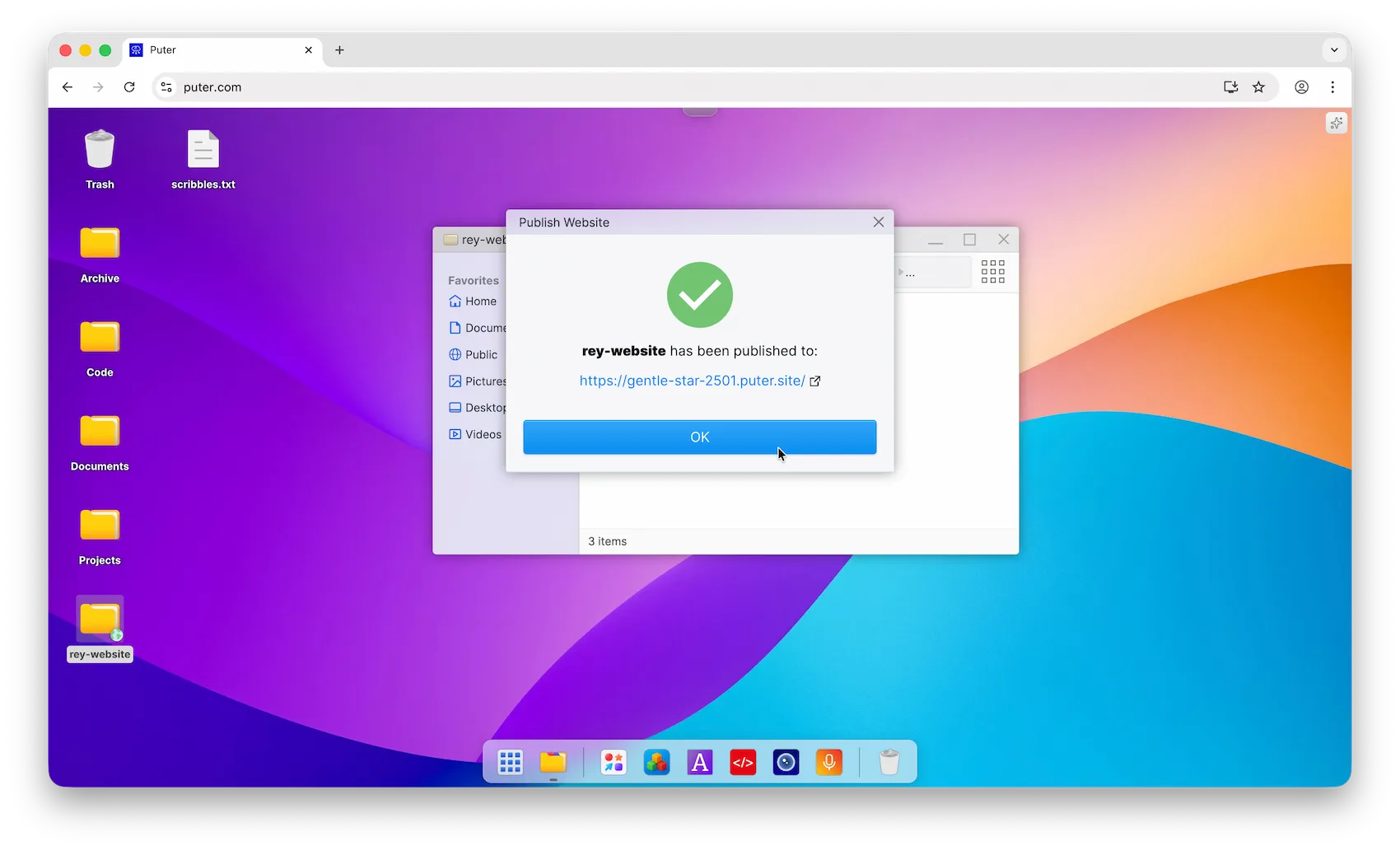
- Congratulations, you have successfully published your website!
Conclusion
That's it! Your website is now live and ready to share.
With Puter, you can host your static website for free without dealing with servers or complicated configurations.
If your website is an app, you can also publish it on Puter so Puter users can find and open it.
Related
- How to Publish Your Apps on Puter
- Deploy your Next.js Application with Puter
- Deploy your Astro Site with Puter
- Deploy your Flutter Web App with Puter
- Deploy your Angular App with Puter
- Deploy your Nuxt Application with Puter
- Deploy Your Vue.js App with Puter
- Deploy Your SvelteKit App With Puter
- Free, Unlimited Website Hosting API
- How to Run Serverless Functions on Puter
- Best Netlify Alternatives (2026)
- Top 5 Render Alternatives (2026)
- Best Vercel Alternatives (2026)
Ship a Full-Stack App with One Prompt
Build and publish a website using Puter.js
Coding manually? see the guide