How to Publish Your Apps on Puter.com
On this page
You've built a web app, and now you want people to use it. Publishing it on Puter puts it in front of Puter users, who can find and open it right away. This works for your existing app as well.
You'll need either your website files (index.html and any CSS, JavaScript, or other assets) or a public URL where your app is already running. If you need a place to host those files, you can host your website on Puter.
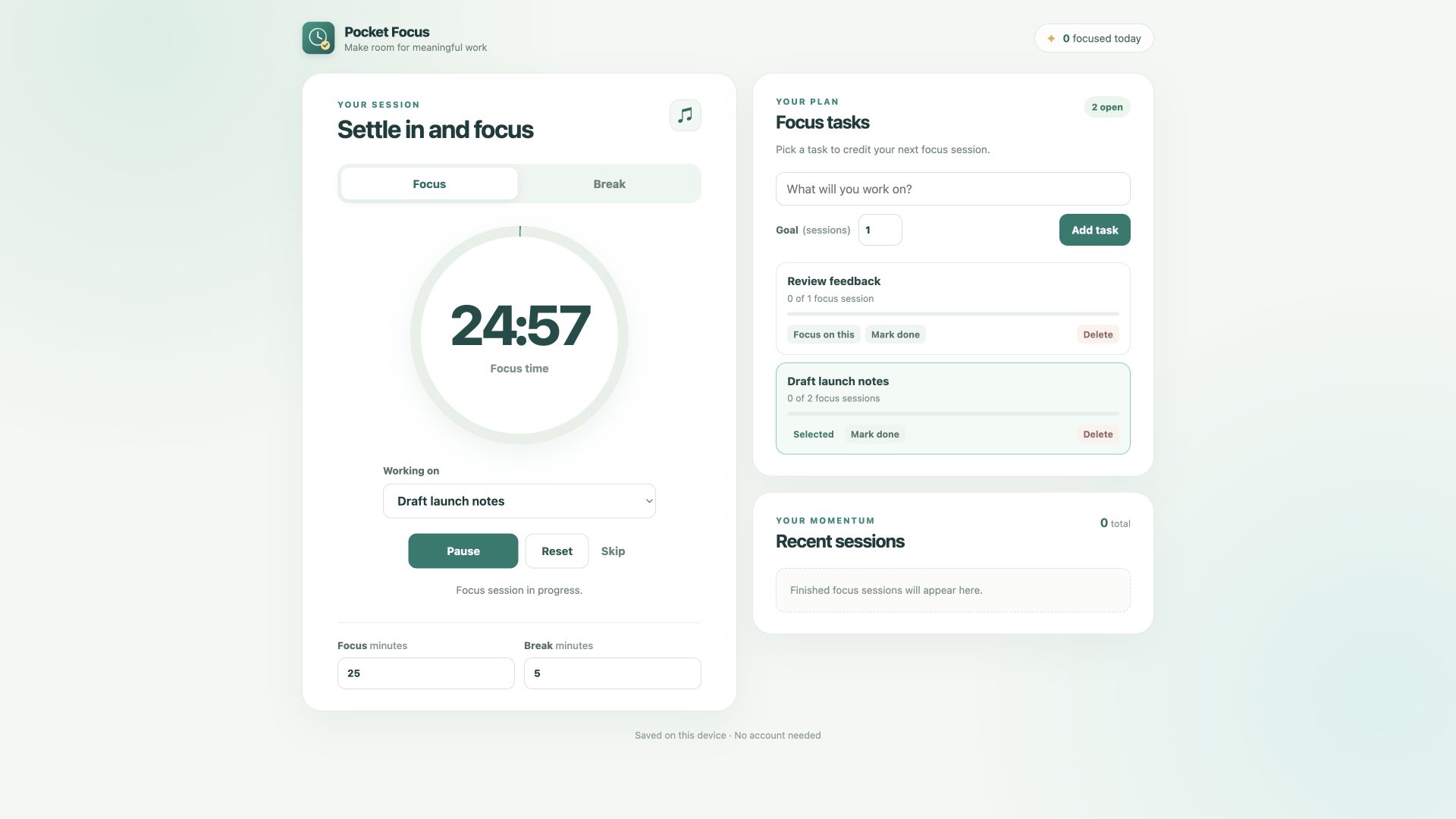
We'll use Pocket Focus, a simple focus timer with tasks and breaks, in the screenshots below. You can open the app on Puter.
Step 1: Create an app in Dev Center
Sign in at puter.com. In the Apps tab, open Dev Center. On the My Apps page, click New App in the top right.

Enter your app's name and click OK. We entered Pocket Focus.
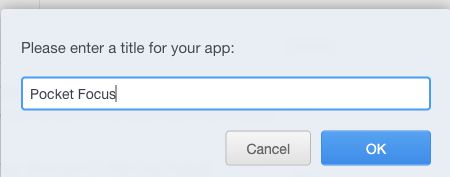
Step 2: Find your Puter app link
Dev Center opens your app's management page. At the top, you'll see a link like https://puter.com/app/pocket-focus.
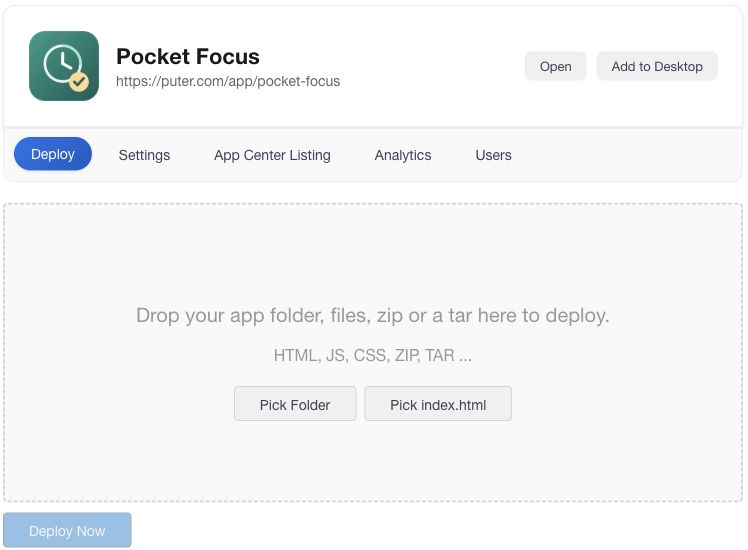
This is the link people use to open your app inside Puter. It's separate from the URL of the website that provides your app's content. For example, Pocket Focus also has a website at https://pocket-focus-wjdmgh.puter.site, but its Puter app link is https://puter.com/app/pocket-focus. Someone opening the app from their Puter desktop is already signed in to Puter, so an app using Puter.js can use their existing session.
Step 3: Add your app's content
Choose one of these options: upload your app's files to Puter, or connect a website that's already live.
Upload your files
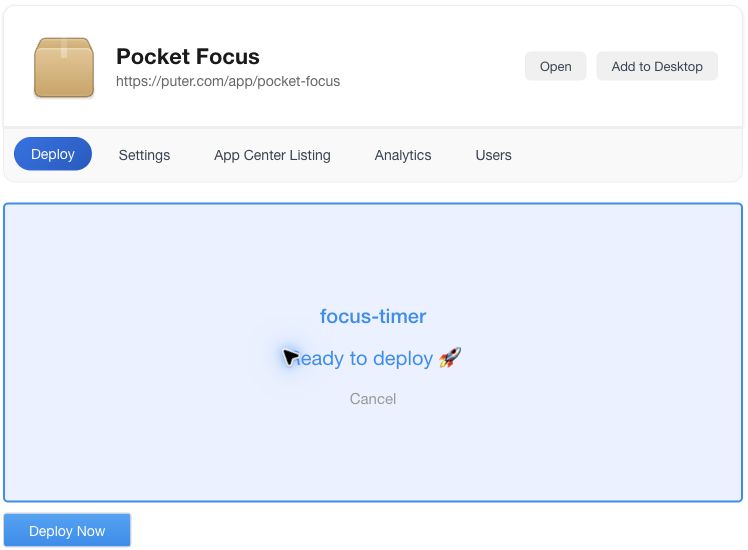
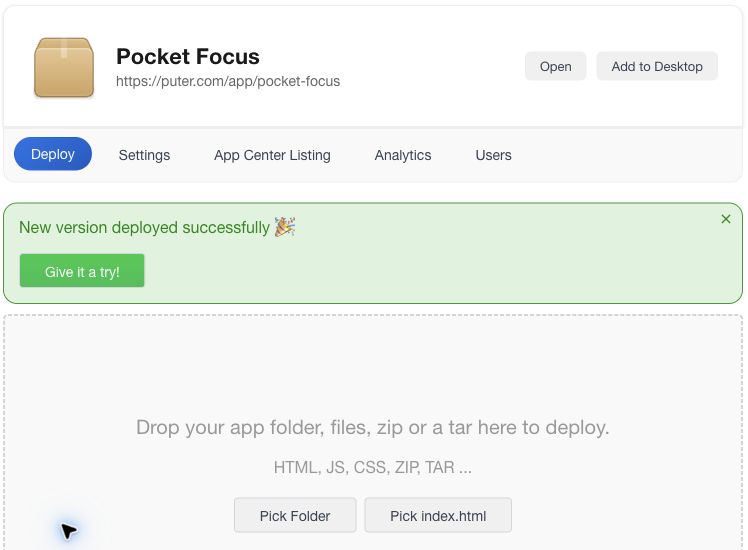
On the Deploy tab, drop in the folder containing index.html and your assets, or click Pick Folder to select it. When Dev Center says the files are ready, click Deploy Now.
Use a website you already host
Open Settings and paste your app's public website URL into Index URL, then click Save. You don't need to upload files through the Deploy tab for this option.
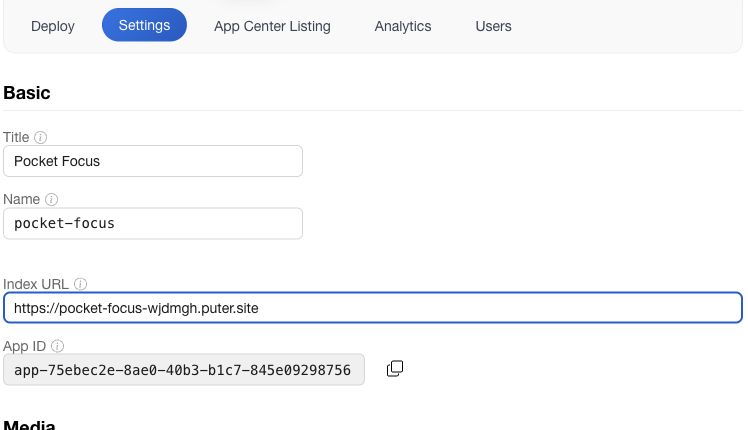
After you deploy or save the Index URL, click Open on the management page to check that the Puter app link loads your app.
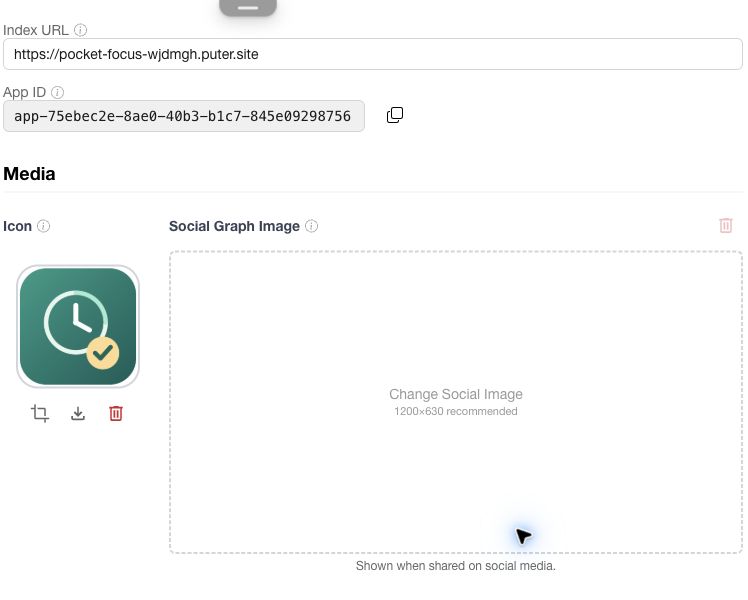
Step 4: Update your app's settings
In Settings, you can change the Title shown in users' apps, add an Icon, and add a Social Graph Image for link previews. There are other settings here too, but you don't need them for this tutorial. Click Save when you're done.
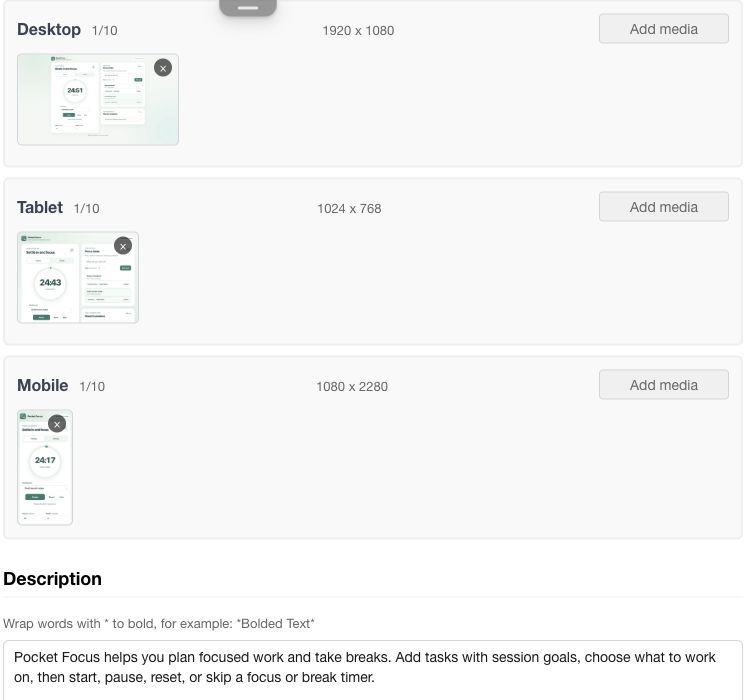
Step 5: Add your app's listing details
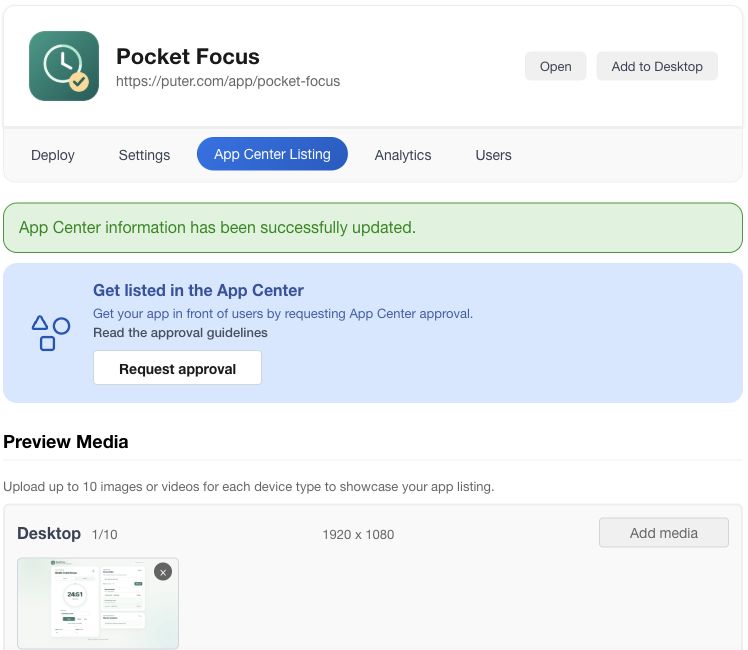
Your app now works through its Puter link. Open App Center Listing to add the details people will see when they find your app. Add screenshots or videos showing how it looks on desktop, tablet, and mobile. Then write a short Description, choose a Category, and click Save. For Pocket Focus, we showed the timer on each screen size and chose Productivity.
Step 6: Request approval
When the listing is ready, click Request approval on the App Center Listing page. The Puter app link works before approval. After approval, other users can find your app on Puter.
Conclusion
That's all it takes to publish your app on Puter. Once it's approved, Puter users can discover and use it, so your app reaches more people. You can publish your next app, or an existing one, the same way.
If you're starting a new app, try building it with Puter.js. It gives your app auth, cloud storage, a database, and AI straight from the frontend, with no backend to set up. Add it with the script tag https://js.puter.com/v2/ or install the npm package @heyputer/puter.js. Puter.js apps use the User-Pays Model, so Puter users sign in with the account they already have and cover their own usage.
Related
Ship a Full-Stack App with One Prompt
Build and publish a website using Puter.js
Coding manually? see the guide