Building Apps with Puter MCP
On this page
In this tutorial, you'll learn how to use the Puter MCP server alongside your AI coding tools to build and deploy apps powered by Puter.js.
What is Puter MCP?
The Puter MCP server lets you connect your AI coding tool to interact with the Puter platform directly. It's built on MCP (Model Context Protocol), an open standard that lets AI tools talk to external services.
That means you can stay in your AI tool and ask it to read and write files, deploy websites, run serverless workers, register apps, and look up the latest Puter.js documentation, all in plain language. Instead of copying code back and forth or switching to a dashboard, your assistant does the work for you.
Installing Puter MCP
Puter MCP runs over HTTP at https://mcp.puter.com/, so any MCP-compatible client can connect to it. Here's how to set it up in two popular tools.
Claude Code:
claude mcp add --transport http --scope user puter https://mcp.puter.com/
Then run /mcp inside Claude Code and follow the prompt to authenticate with your Puter account.
Codex:
codex mcp add puter --url https://mcp.puter.com/
OpenCode:
Add Puter to the mcp section of your opencode.json config file:
{
  "$schema": "https://opencode.ai/config.json",
  "mcp": {
    "puter": {
      "type": "remote",
      "url": "https://mcp.puter.com/",
      "enabled": true
    }
  }
}
OpenCode will walk you through signing in with your Puter account the first time it connects.
If you use a different MCP client, just point it at https://mcp.puter.com/. The server uses OAuth, so your client will walk you through signing in.
Building an App
Let's build something simple to see the workflow in action. We'll make a tiny notes app that saves your notes to Puter's key-value store so they persist across sessions, with no backend and no database setup.
With the MCP server connected, you don't write the code yourself. You just describe what you want:
Build a single-page notes app in
index.htmlusing Puter.js. Let me type a note and save it. Persist all notes withputer.kvand show them in a list on load.
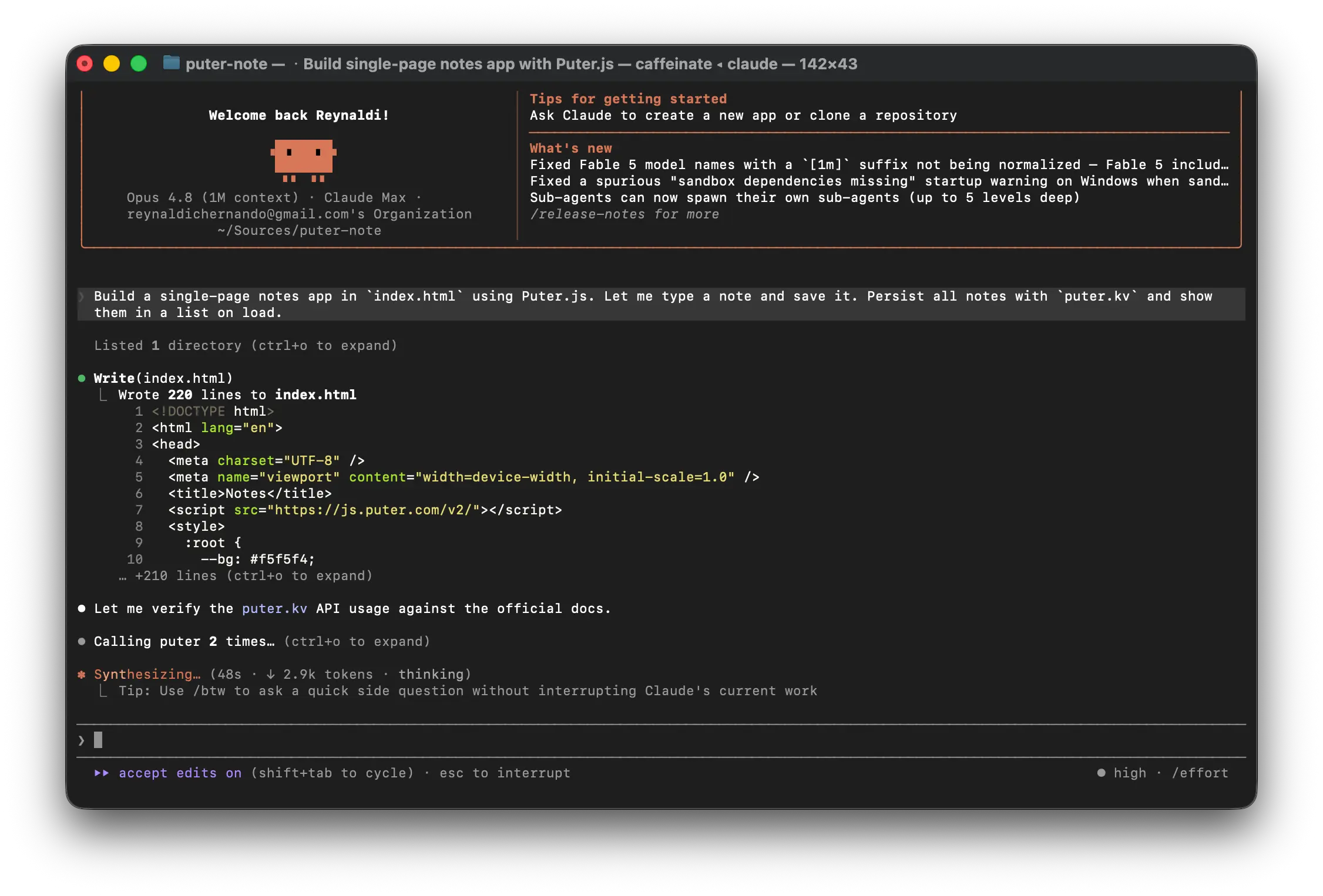
Because the MCP server exposes Puter's documentation tools, your AI assistant looks up the current API before it writes anything, so you get accurate, up-to-date Puter.js code. The part that handles your notes should look something like this:
// Load every saved note
async function loadNotes() {
  const items = await puter.kv.list({ returnValues: true });
  render(items);
}

// Save a note under its own key
async function saveNote(note) {
  await puter.kv.set(note.id, note);
  await loadNotes();
}

// Delete a note by key
async function deleteNote(id) {
  await puter.kv.del(id);
  await loadNotes();
}
That's the whole backend. Puter.js handles authentication and storage automatically, so there's no server to set up and no boilerplate code to write.
This makes Puter a great fit for agentic/vibe coding. The API is concise and there's no infrastructure setup, so your AI can focus on the actual app instead of devops, databases, configuration and scaling. In our own testing, building apps with Puter.js used up to 90% fewer tokens than building the same project with a traditional framework or infrastructure.
Deploying To Production
The MCP server doesn't stop at writing code; it can deploy your app too. Once you're happy with it, just ask:
Deploy this website to Puter at the subdomain
my-notes.
Your assistant uploads the project files to Puter's file system using the MCP hosting tools, creates the subdomain, and hands you back a live URL
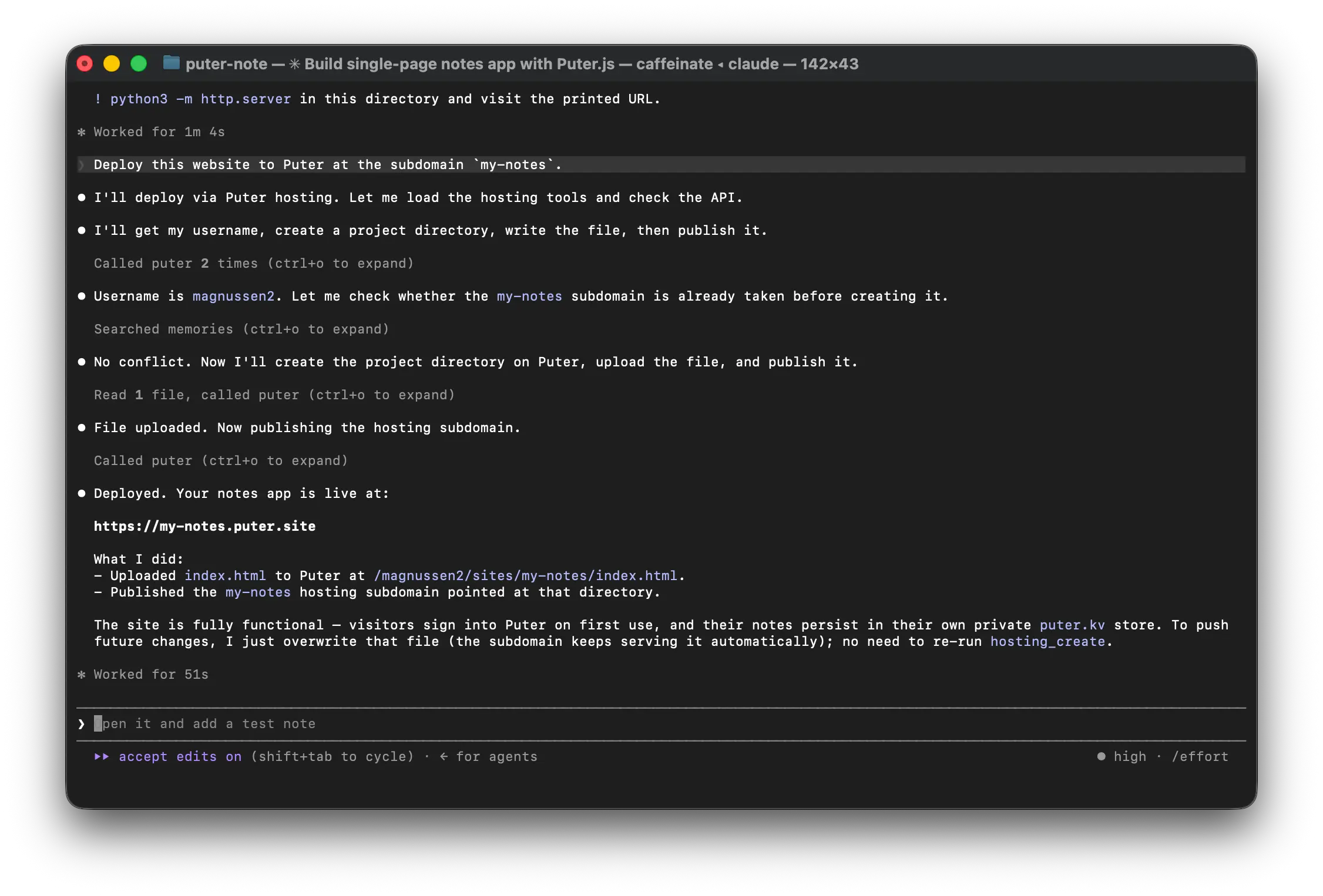
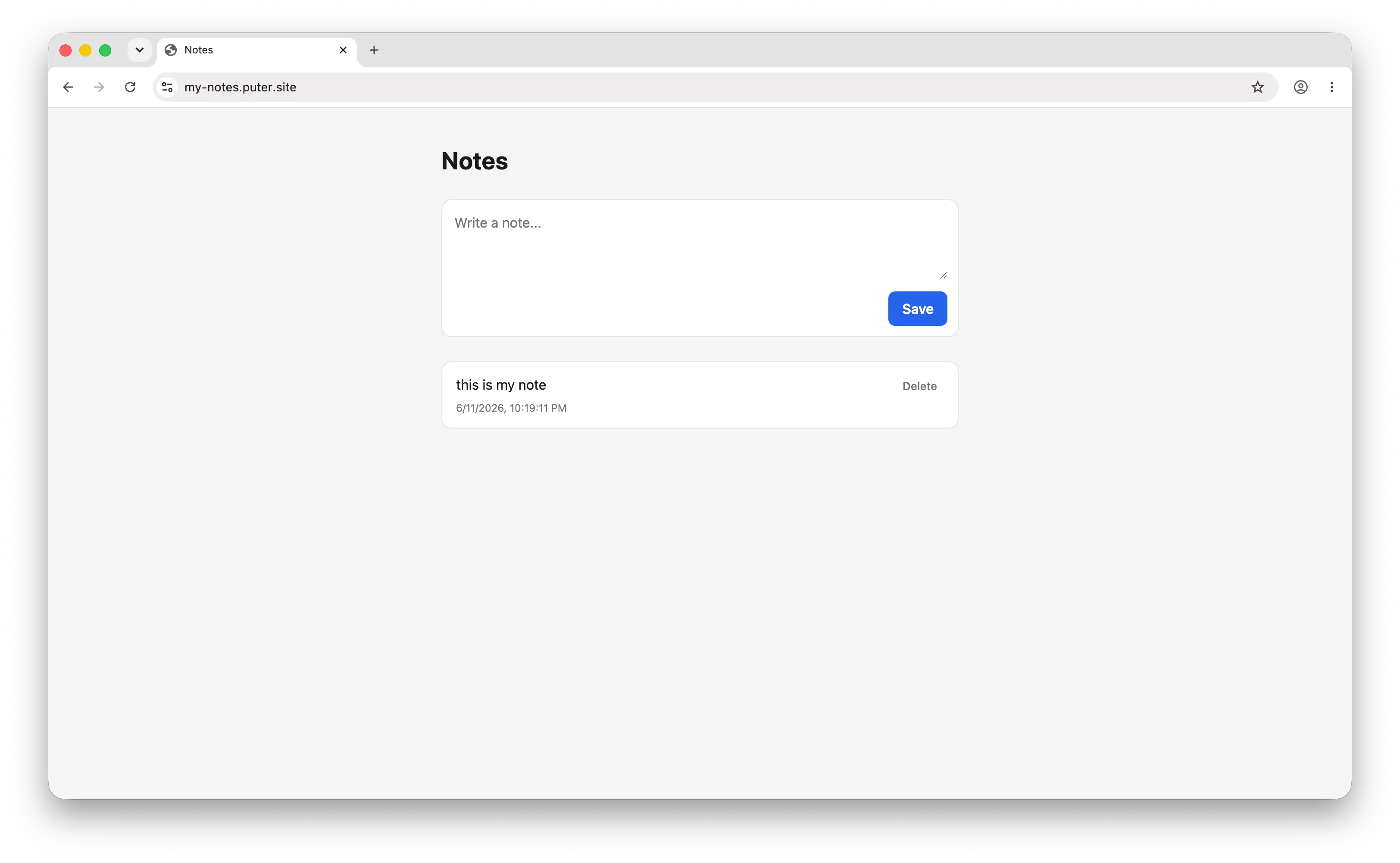
No build pipeline, no deploy config, no separate hosting account. You go from a prompt to a public link in the same conversation.
What Else Can You Do?
Puter MCP lets you use the whole Puter platform from your AI tool. Beyond the notes example, it gives your assistant tools for:
- Filesystem: read, write, list, and delete files in your Puter cloud storage
- Hosting: publish and manage static sites at
<subdomain>.puter.site - Workers: deploy and run serverless JavaScript functions with public URLs
- Apps: register launchable Puter apps and check name availability
- Documentation: pull the latest Puter.js docs so generated code stays accurate
- Account: look up your account info with
whoami
You can find the full list of tools in the Puter MCP docs.
Conclusion
With the Puter MCP, you can build apps on Puter using natural language directly from your AI coding tools. Talk to your assistant to write Puter.js code, manage files, deploy websites, and more.
Apps built with Puter.js run on the User-Pays Model. Your users authenticate with their own Puter accounts and cover their own usage, so your app is free to deploy and scales without infrastructure costs. Combined with how little code Puter takes to build with, you can go from idea to a live, shareable app in record time.
When your app is ready, you can publish it on Puter so Puter users can find and open it.
Related
Ship a Full-Stack App with One Prompt
Build an AI chat app using Puter.js
Coding manually? see the guide