Connect to a WebDAV Server on Windows
On this page
In this tutorial, you'll learn how to connect to a WebDAV server on Windows. WebDAV lets you access files from a remote server as if they were local files on your PC.
We'll use Puter's WebDAV server as an example, but these steps work with any WebDAV server.
1. Open the Map Network Drive Dialog
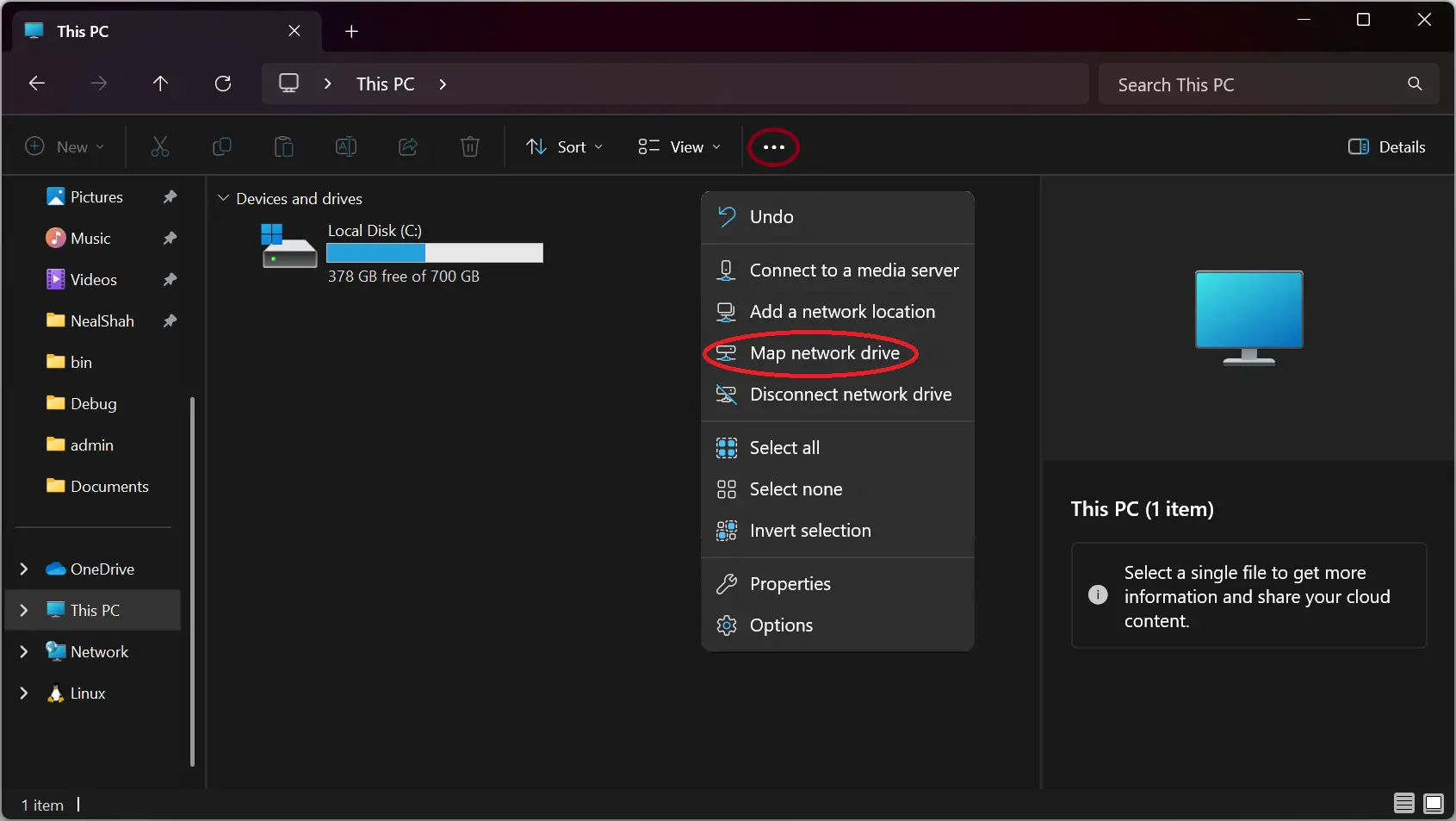
Open File Explorer and navigate to This PC. Click the three dots ⋯ in the toolbar, then select Map network drive.
2. Enter the WebDAV Server Address
In the dialog that appears, enter the URL of your WebDAV server in the Folder field, then click Finish.
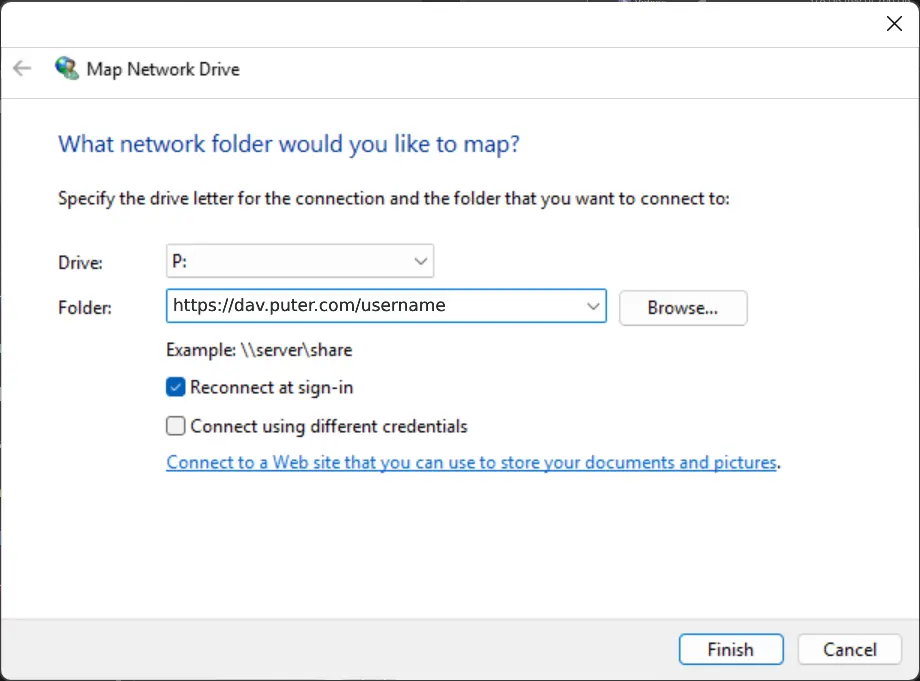
For Puter, use: https://dav.puter.com/<username> (replace <username> with your Puter username).
3. Enter Your Credentials
When prompted, enter your username and password, then click OK.
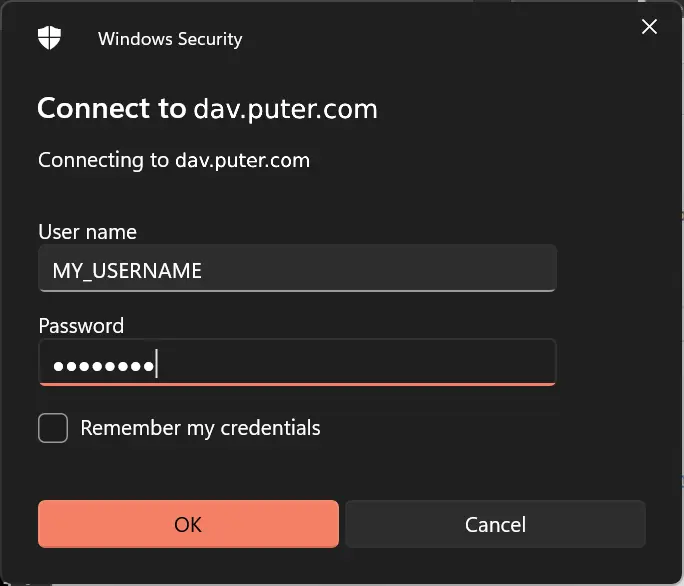
You can check Remember my credentials to avoid entering them again.
Conclusion
That's it! Your WebDAV server now appears in File Explorer under This PC. Any changes you make sync automatically with the remote server.
Want your own cloud storage accessible via WebDAV? Create a free Puter account and connect using the steps above.
Related
Ship a Full-Stack App with One Prompt
Build a cloud file manager using Puter.js
Coding manually? see the guide