How to Use Roo Code with Puter
On this page
In this tutorial, you'll learn how to configure Roo Code to work with Puter, giving you access to hundreds of AI models within VS Code. Roo Code is an AI coding agent for VS Code, and since Puter offers an OpenAI-compatible endpoint, you can plug it in as Roo Code's API provider in just a few steps.
Prerequisites
- A Puter account
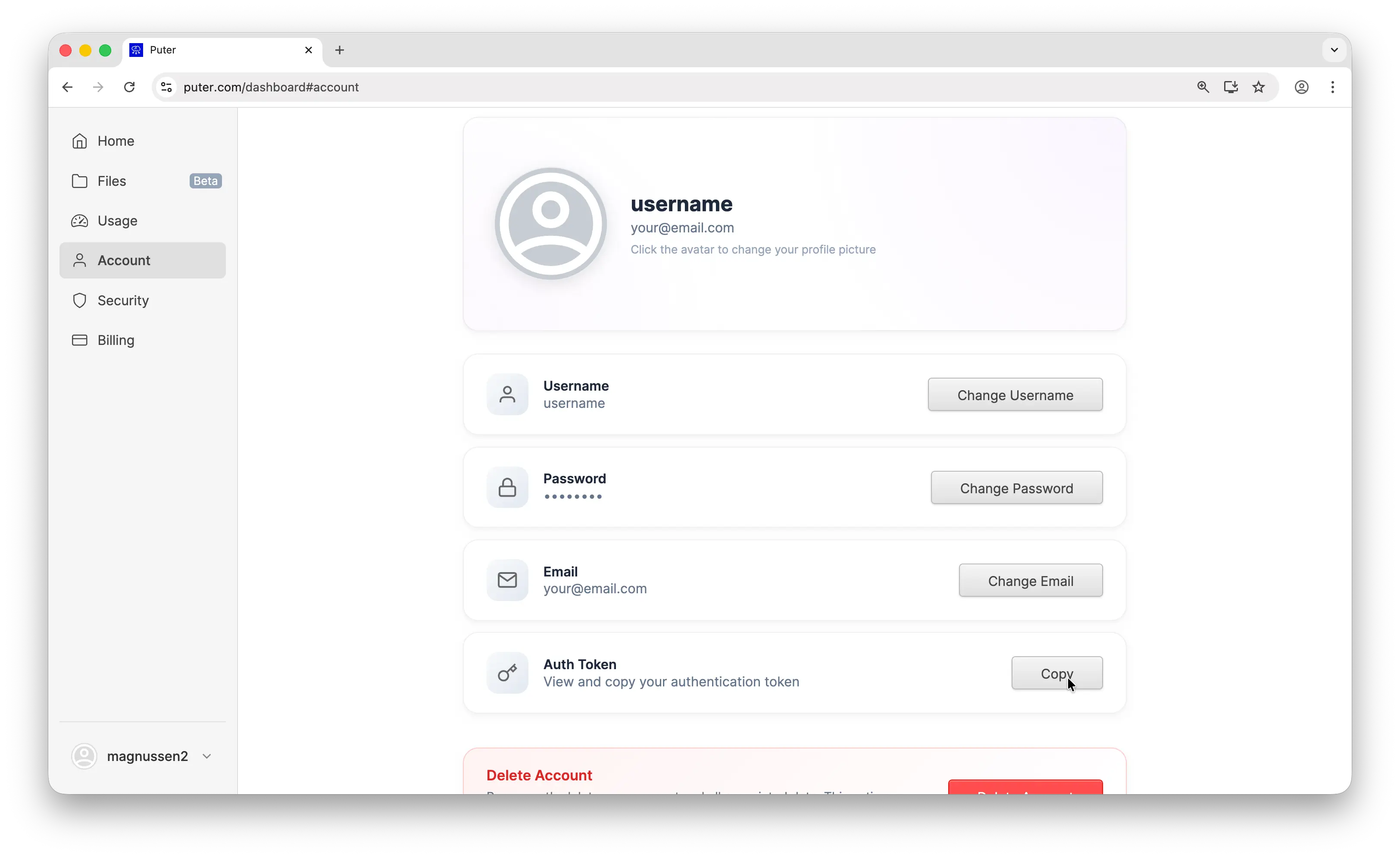
- Your Puter auth token, go to puter.com/dashboard and click Copy to get your auth token
Step 1: Install Roo Code
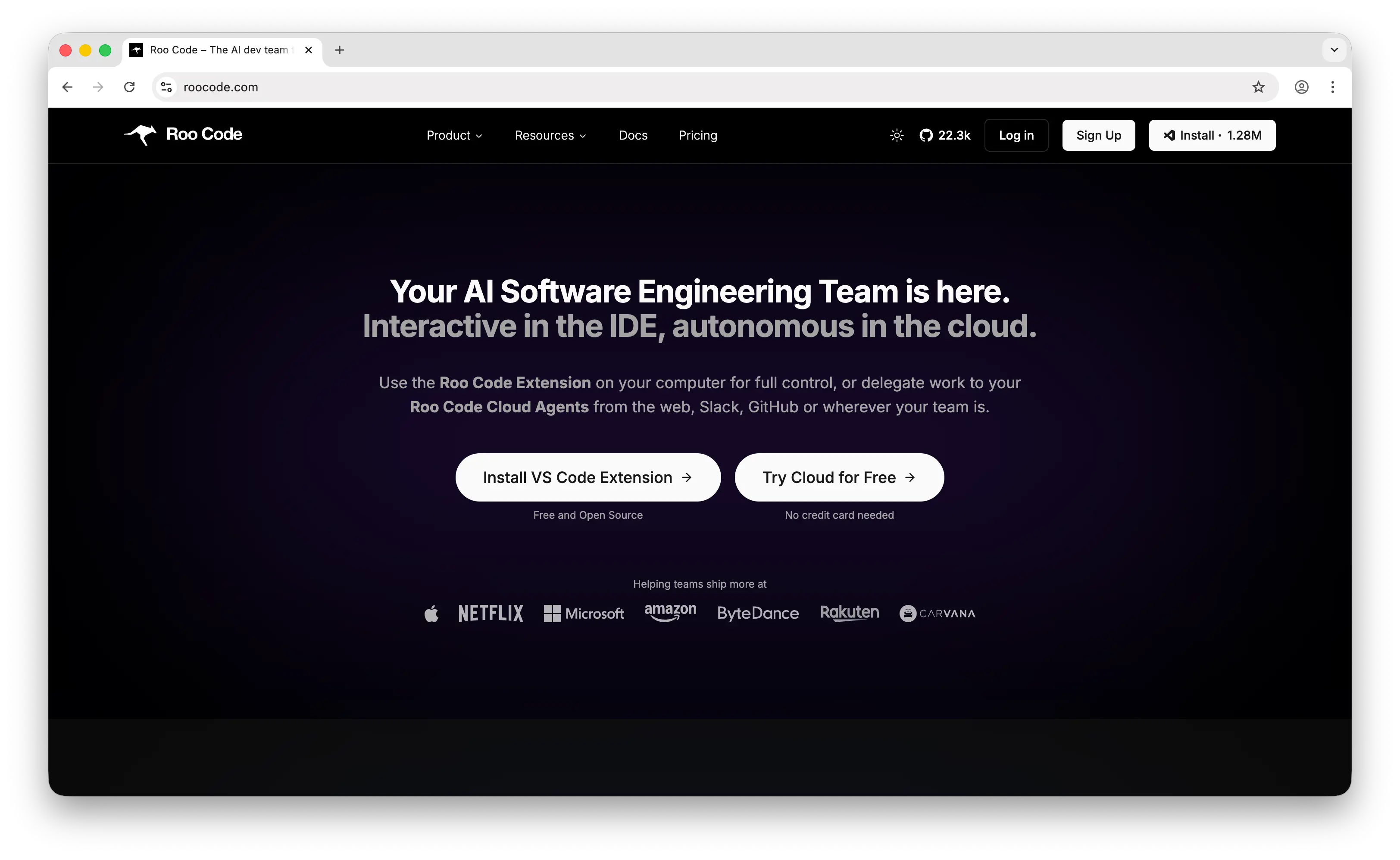
Head over to roocode.com and click Install VS Code Extension.
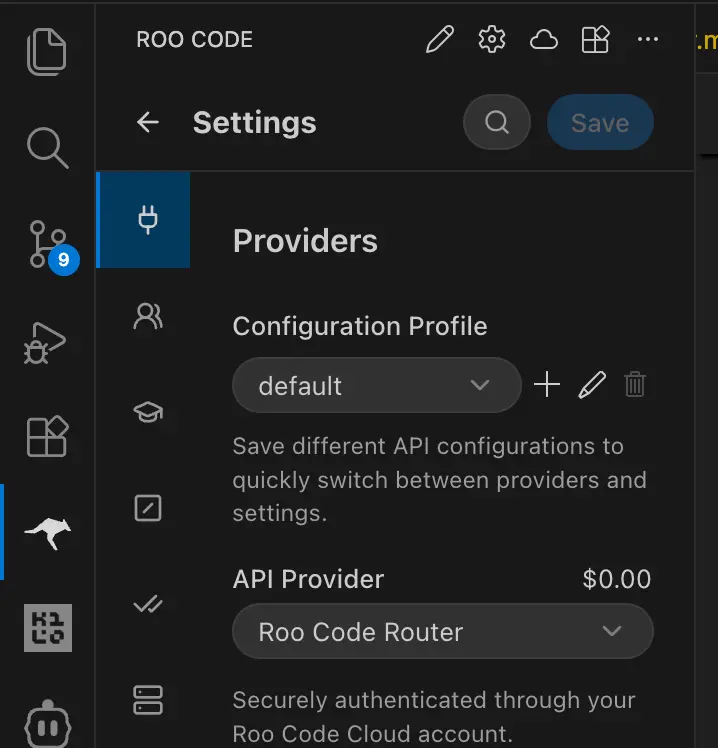
After installation, you'll find the Roo Code icon in your sidebar. Click it to open the panel.
Step 2: Go to Settings
Click the settings icon inside the Roo Code panel to open the provider configuration.
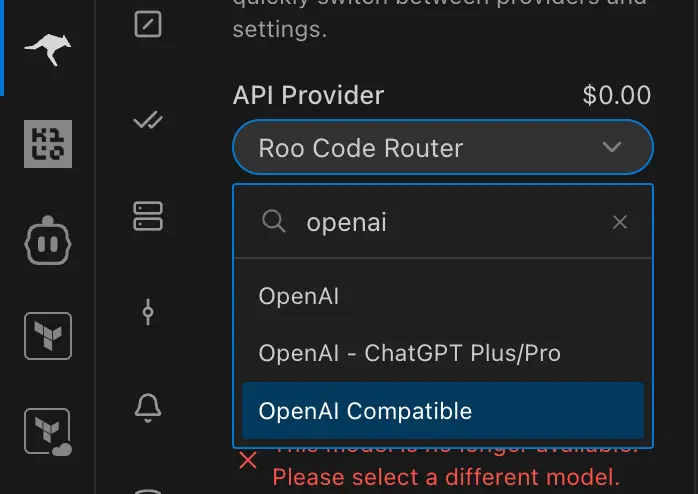
Step 3: Configure the Provider
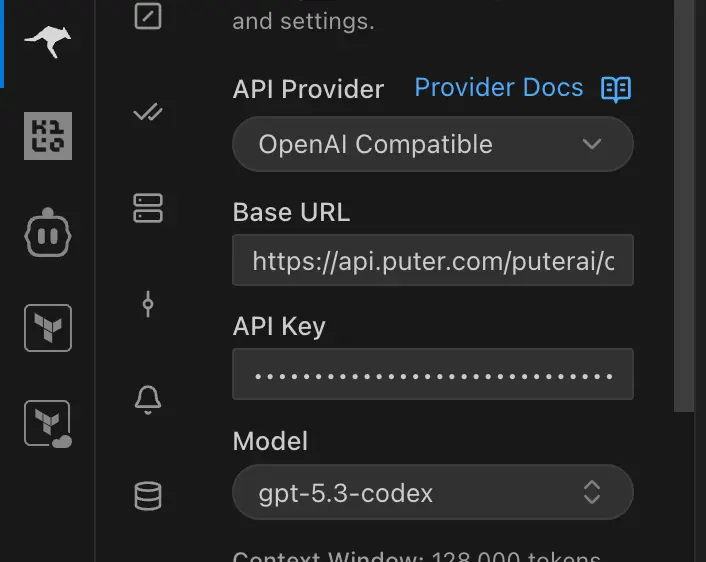
From the API Provider dropdown, select OpenAI Compatible.
Then fill in these fields:
- Base URL:
https://api.puter.com/puterai/openai/v1/ - API Key: Your Puter auth token (copied from the dashboard)
- Model: The model you want to use, for example
gpt-5.3-codex
Puter supports many models out of the box. Here are some popular picks for coding:
| Model Name | Model |
|---|---|
| GPT-5.3 Codex | gpt-5.3-codex |
| Claude Sonnet 4.6 | claude-sonnet-4-6 |
See the full list on the supported AI models page.
Step 4: Start Using Roo Code
Everything is ready. Type a message in the Roo Code chat panel and it will use your chosen Puter model to respond.
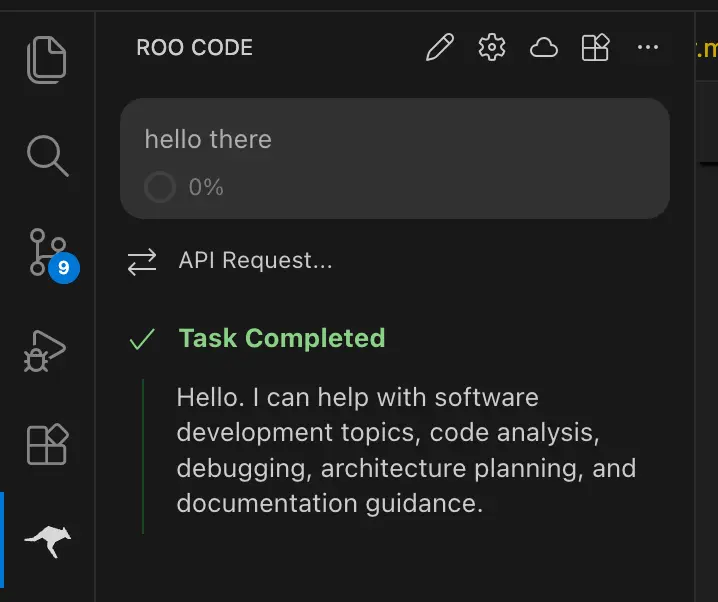
From here you can ask Roo Code to write code, fix bugs, explain files, run terminal commands, and more — all powered by whichever model you picked through Puter.
Switching Models
Want to try another model? Open the settings again and change the Model field. Because Puter routes to hundreds of models through a single endpoint, you can swap between GPT, Claude, Gemini, DeepSeek, and more with no other changes needed.
Conclusion
Connecting Roo Code to Puter takes just a few fields: set the provider to OpenAI Compatible, use Puter's base URL (https://api.puter.com/puterai/openai/v1/), and enter your Puter auth token as the API key. That's all it takes to unlock hundreds of AI models inside VS Code.
For more details, see the full list of supported AI models or read about Puter's OpenAI-compatible endpoint.
Related
- How to Use Cline with Puter
- How to Use Claude Code with Puter
- How to Use Kilo Code with Puter
- How to Use BLACKBOX AI with Puter
- How to Use SillyTavern with Puter
- How to Use Janitor AI with Puter
- How to Use OpenHands with Puter
- How to Use OpenAI SDK with Puter
- How to Use OpenRouter SDK with Puter
- How to Use LangChain with Puter
- How to Use LiteLLM with Puter
- How to Use Vercel AI SDK with Puter
Free, Serverless AI and Cloud
Start creating powerful web applications with Puter.js in seconds!
Get Started Now