How to Use OpenHands with Puter
On this page
In this tutorial, you'll learn how to connect OpenHands to Puter, giving you access to hundreds of AI models for autonomous coding tasks. OpenHands is an open-source platform for AI-driven software development, and since Puter provides an OpenAI-compatible endpoint, you can plug it into OpenHands as a custom LLM provider.
Prerequisites
- A Puter account
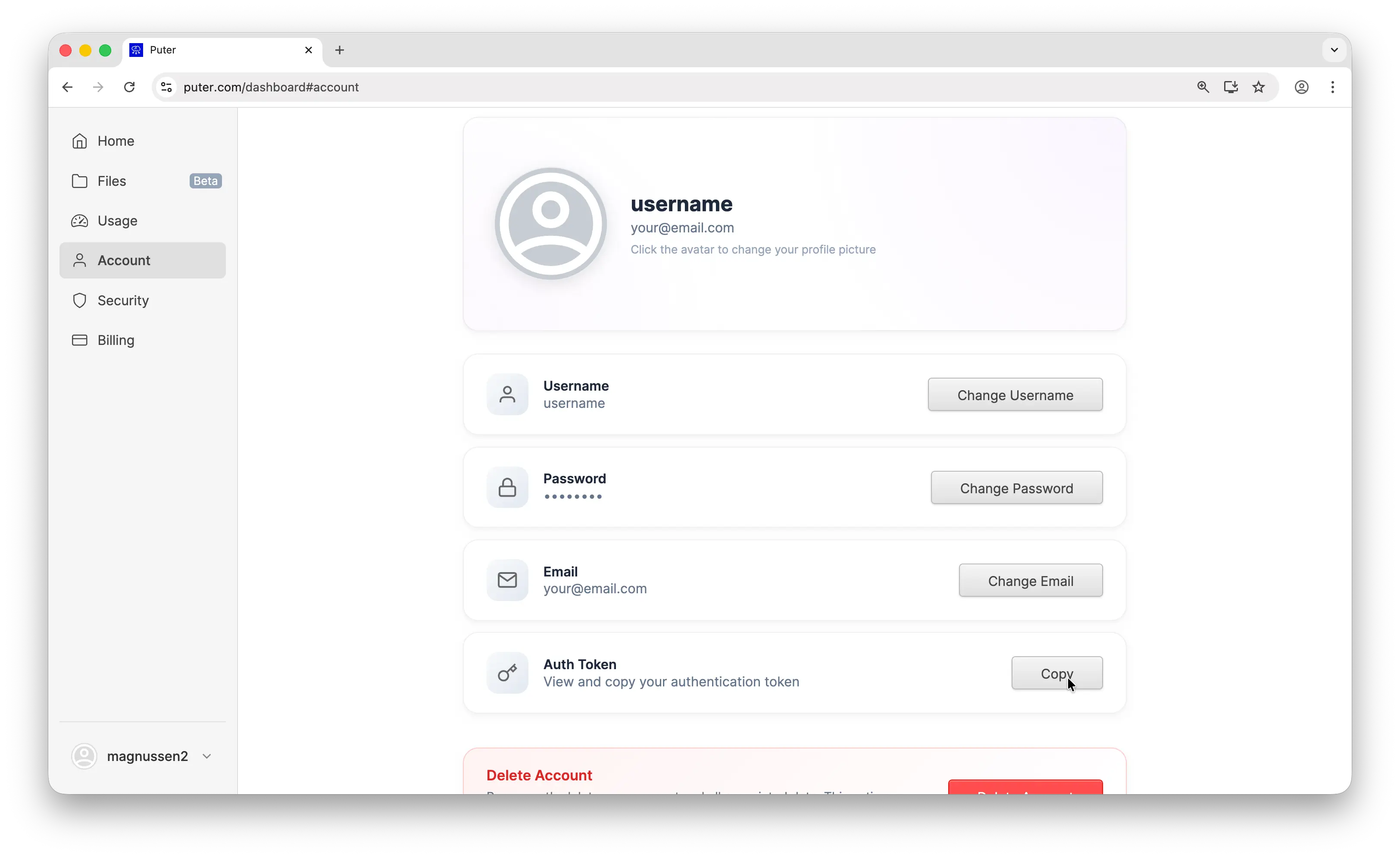
- Your Puter auth token, go to puter.com/dashboard and click Copy to get your auth token
- An OpenHands account (you can sign up with GitHub or GitLab)
Step 1: Create an OpenHands Account
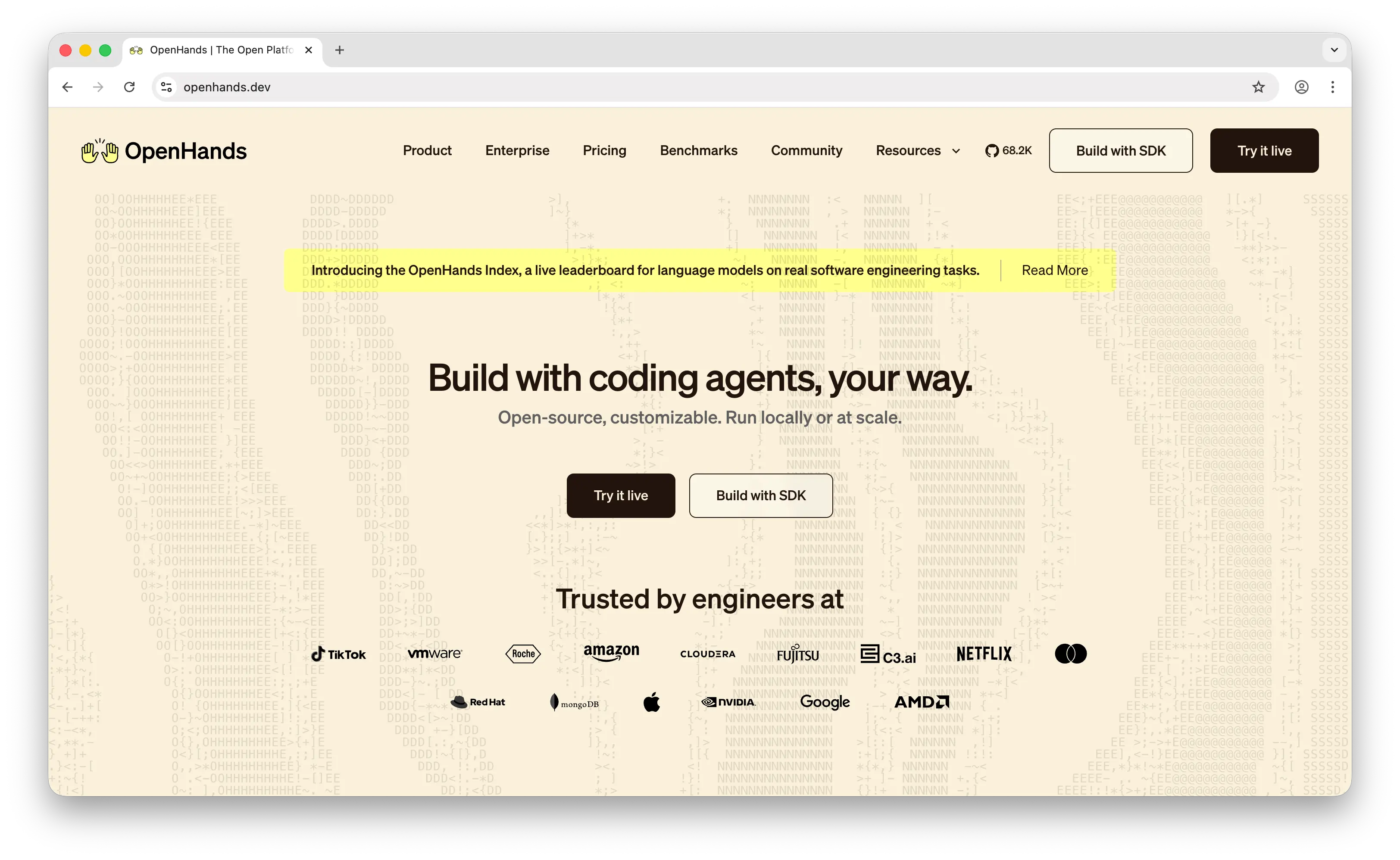
Go to openhands.dev and create an account. You can sign up using your GitHub or GitLab account. Once you've completed the signup, you'll be taken to the main screen where you can start new coding tasks.
Step 2: Open the LLM Settings
Look at the bottom-left corner of the screen and click on your profile.
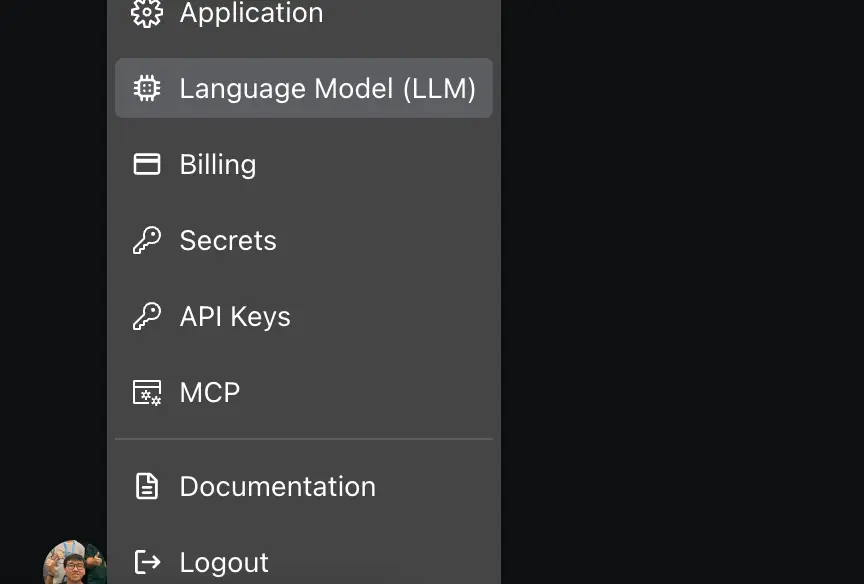
From there, find the Language Model (LLM) setting. By default, OpenHands uses its own built-in provider. We'll switch this to Puter so you can use any model available on the platform.
Step 3: Configure Puter as the LLM Provider
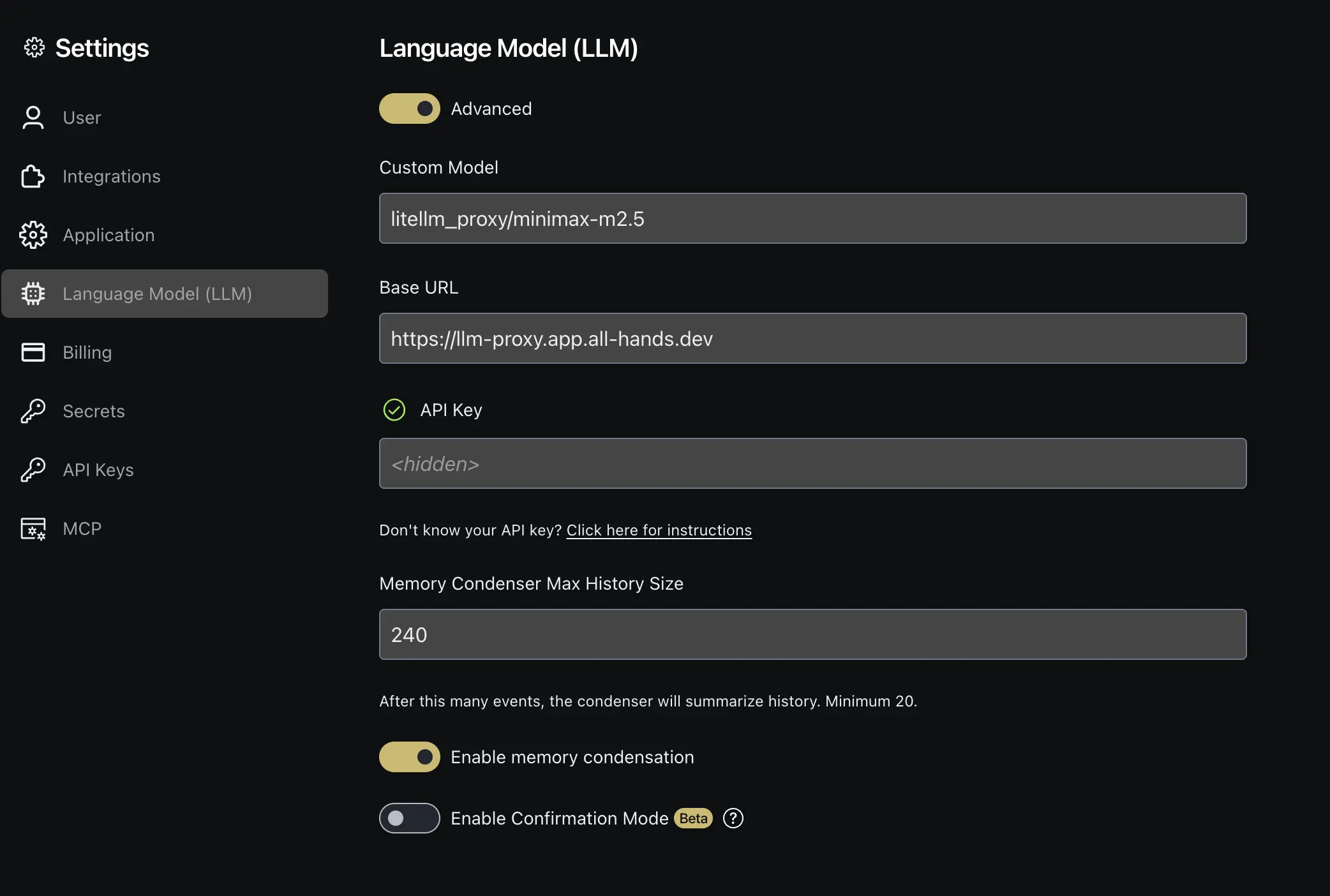
In the LLM settings, toggle the Advanced options to reveal the full configuration fields. Now fill in the following:
- Custom Model:
openai/gpt-4.1-nano - Base URL:
https://api.puter.com/puterai/openai/v1 - API Key: Paste the auth token you copied from your Puter dashboard
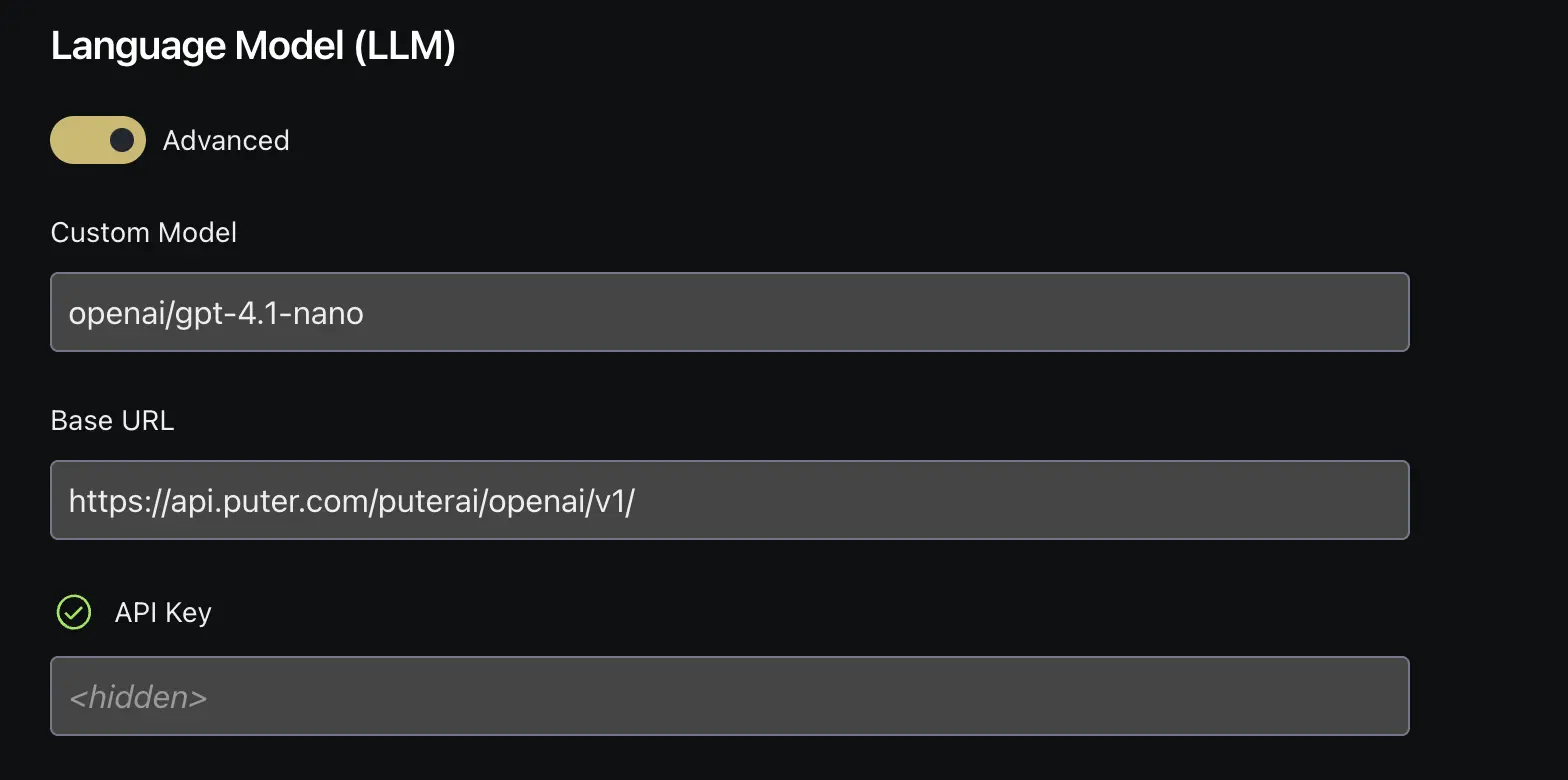
Click Save to apply the changes. The openai/ prefix before the model name tells OpenHands to treat this as an OpenAI-compatible endpoint. For the full list of available models, see the supported AI models page.
Step 4: Start a Conversation
Head back to the main screen and start a new conversation. Type a task or question and OpenHands will use the Puter model you configured to work on it.
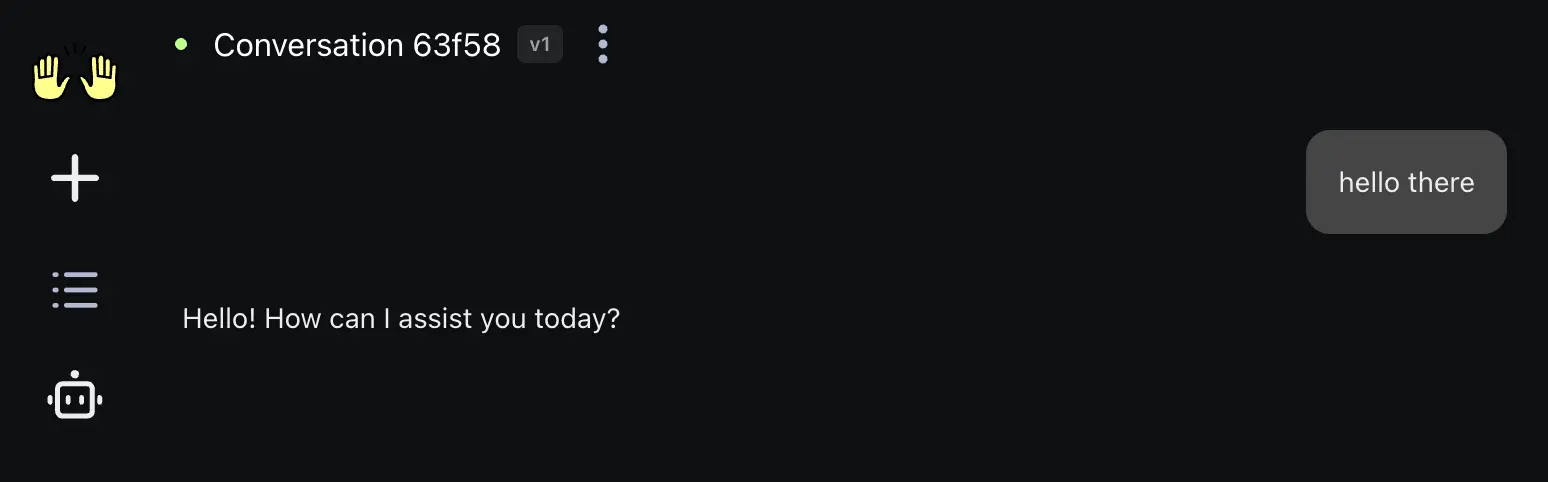
You can ask OpenHands to write code, fix bugs, review pull requests, generate tests, and more, all powered by the model you selected through Puter.
Switching Models
To use a different model, go back to the LLM settings and change the Custom Model field. Remember to keep the openai/ prefix. For example, to switch to Claude, you'd enter openai/claude-sonnet-4-6. Since Puter gives you access to hundreds of models through a single endpoint, you can switch between GPT, Claude, Gemini, DeepSeek, and more without changing anything else.
Note: Some models, such as the GPT-5 series, are not yet compatible with OpenHands when used through Puter due to how the two platforms interact. There are still plenty of other models you can use, including GPT-4.1, Claude, Gemini, and more.
Conclusion
You can use OpenHands with Puter by enabling the Advanced LLM settings, entering a model name with the openai/ prefix, pointing the base URL to Puter's endpoint (https://api.puter.com/puterai/openai/v1), and using your Puter auth token as the API key. This lets you run OpenHands' autonomous coding agent with hundreds of AI models, all through a single Puter account.
To go further, check out the full list of supported AI models or learn more about Puter's OpenAI-compatible endpoint.
Related
- How to Use Cline with Puter
- How to Use Kilo Code with Puter
- How to Use Roo Code with Puter
- How to Use BLACKBOX AI with Puter
- How to Use SillyTavern with Puter
- How to Use OpenAI SDK with Puter
- How to Use OpenRouter SDK with Puter
- How to Use LangChain with Puter
- How to Use LiteLLM with Puter
- How to Use Vercel AI SDK with Puter
Free, Serverless AI and Cloud
Start creating powerful web applications with Puter.js in seconds!
Get Started Now