How to Use Kilo Code with Puter
On this page
In this tutorial, you'll learn how to set up Kilo Code with Puter so you can access hundreds of AI models right from your code editor. Kilo Code is an autonomous AI coding agent (originally forked from Cline) that integrates directly into your editor, and because Puter provides an OpenAI-compatible endpoint, connecting the two only takes a few steps.
Prerequisites
- A Puter account
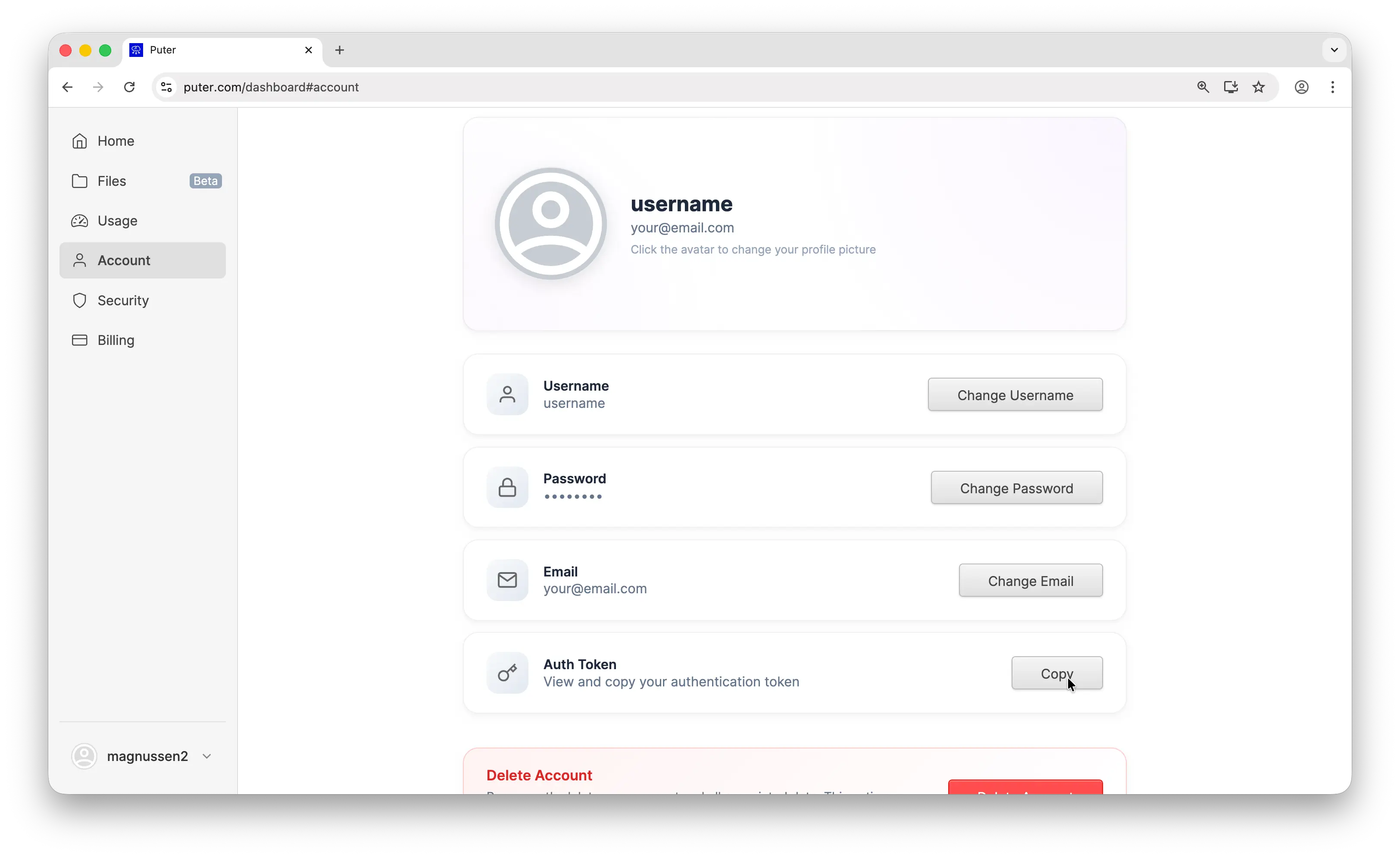
- Your Puter auth token, go to puter.com/dashboard and click Copy to get your auth token
- Kilo Code installed in your editor
Step 1: Install Kilo Code
Kilo Code is available for several editors. This tutorial uses VS Code as an example, but the setup works the same way in any supported editor.
Follow the installation instructions for your editor. Once Kilo Code is installed, open it from your sidebar.
Step 2: Open the Settings
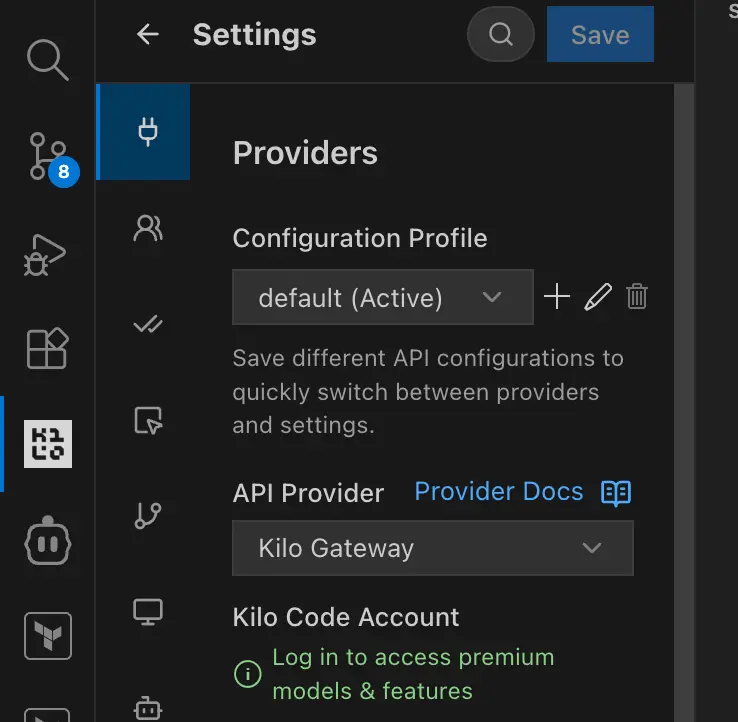
In the Kilo Code panel, click the settings icon to access the provider settings.
Step 3: Set Up the API Provider
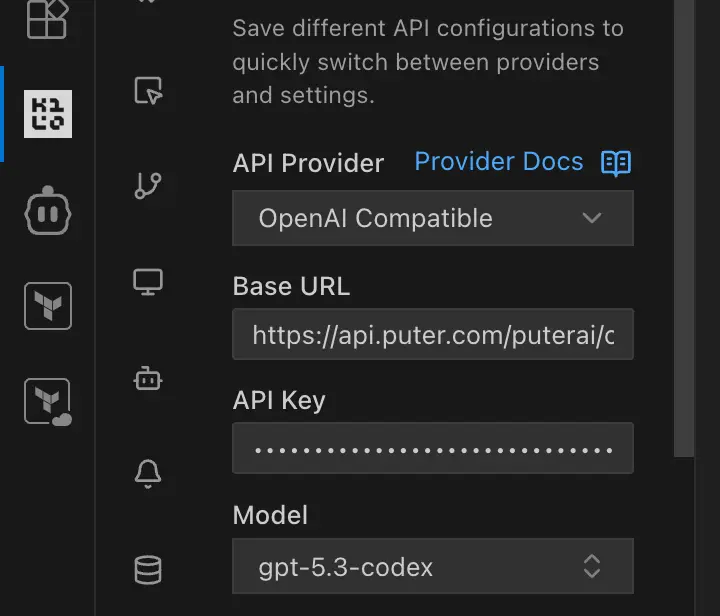
You'll see an API Provider dropdown in the settings. Choose OpenAI Compatible from the list.
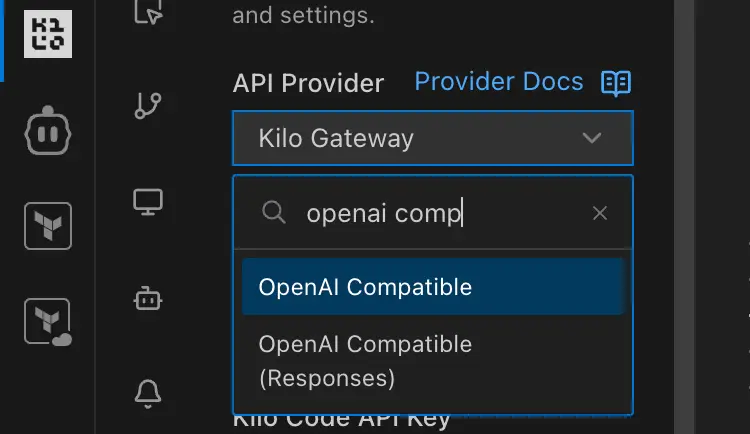
Enter the following values:
- Base URL:
https://api.puter.com/puterai/openai/v1/ - API Key: Your Puter auth token (copied from the dashboard)
- Model: The model you'd like to use, for example
gpt-5.3-codex
Puter supports a wide range of models. Here are some good options for coding:
| Model Name | Model |
|---|---|
| GPT-5.3 Codex | gpt-5.3-codex |
| Claude Sonnet 4.6 | claude-sonnet-4-6 |
Browse the complete list on the supported AI models page.
Step 4: Start Coding
You're all set. Use Kilo Code as you normally would — send a message in the chat panel and it will respond using the Puter model you selected.
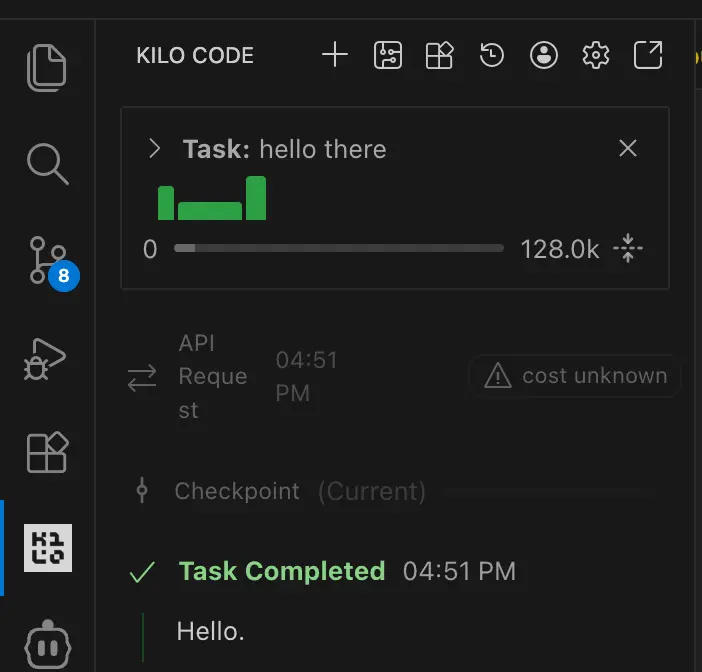
Ask it to generate code, debug issues, explain files, refactor functions, and anything else you'd normally use an AI coding agent for.
Switching Models
To use a different model, head back to the settings and update the Model field. Puter gives you access to hundreds of models through one endpoint, so you can freely switch between GPT, Claude, Gemini, DeepSeek, and others without reconfiguring anything else.
Conclusion
Setting up Kilo Code with Puter is straightforward: select OpenAI Compatible as the provider, enter Puter's base URL (https://api.puter.com/puterai/openai/v1/), and use your Puter auth token as the API key. From there you have access to hundreds of AI models through a single account, all within your editor.
For more details, see the full list of supported AI models or read about Puter's OpenAI-compatible endpoint.
Related
- How to Use Cline with Puter
- How to Use Claude Code with Puter
- How to Use Roo Code with Puter
- How to Use BLACKBOX AI with Puter
- How to Use SillyTavern with Puter
- How to Use Janitor AI with Puter
- How to Use OpenHands with Puter
- How to Use OpenAI SDK with Puter
- How to Use OpenRouter SDK with Puter
- How to Use LangChain with Puter
- How to Use LiteLLM with Puter
- How to Use Vercel AI SDK with Puter
Free, Serverless AI and Cloud
Start creating powerful web applications with Puter.js in seconds!
Get Started Now