How to Use Vercel AI SDK with Puter
On this page
In this tutorial, you'll learn how to use the Vercel AI SDK with Puter. Puter exposes an OpenAI-compatible endpoint, and the Vercel AI SDK supports custom OpenAI providers, so you can use generateText, streamText, tool calling, and more with any model Puter supports.
Prerequisites
- A Puter account
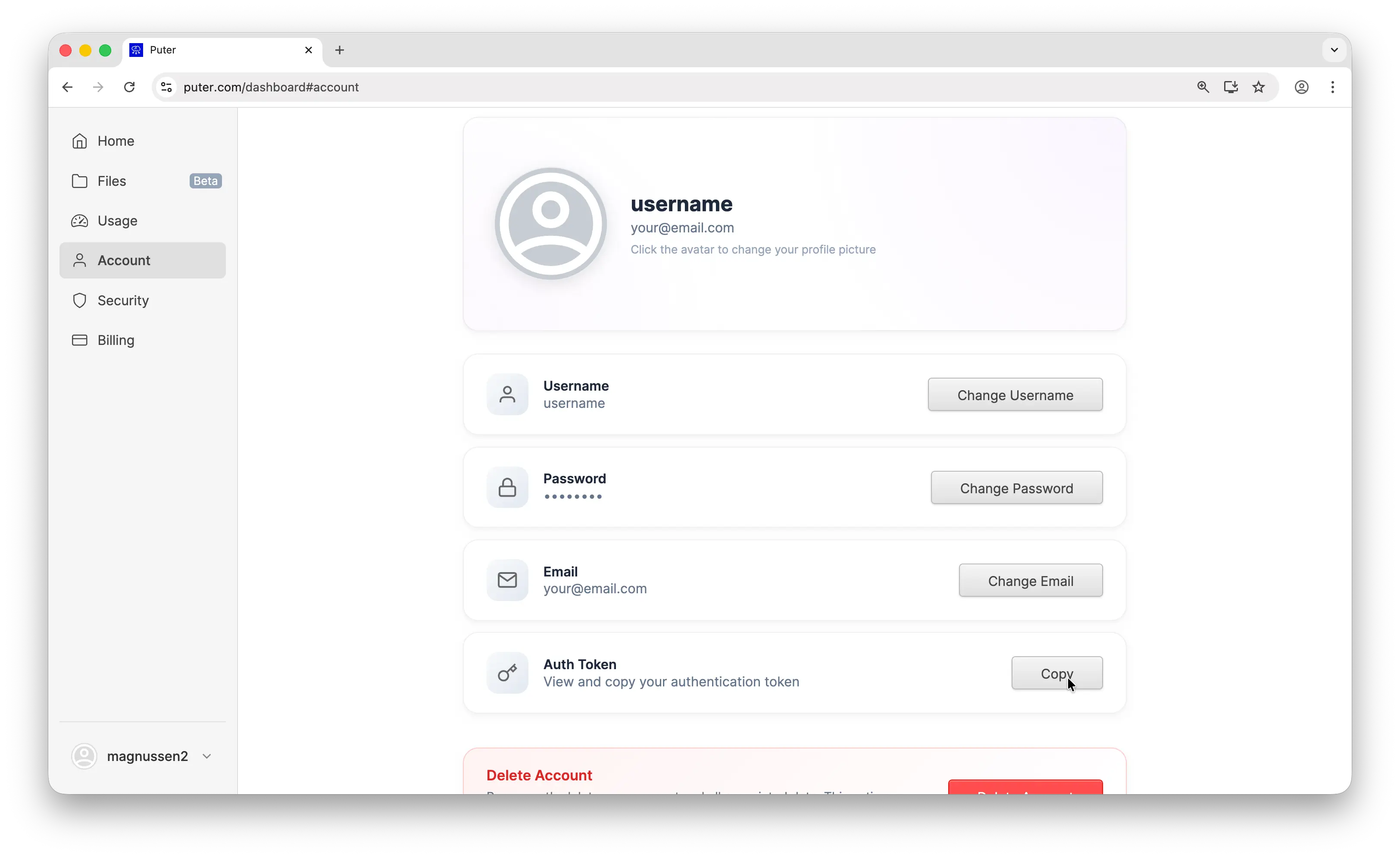
- Your Puter auth token, go to puter.com/dashboard and click Copy to get your auth token
- Node.js installed on your machine
Setup
Install the Vercel AI SDK and the OpenAI provider:
npm install ai @ai-sdk/openai
Then configure the provider with Puter's base URL and your auth token:
import { createOpenAI } from '@ai-sdk/openai';

const puter = createOpenAI({
  baseURL: 'https://api.puter.com/puterai/openai/v1/',
  apiKey: 'YOUR_PUTER_AUTH_TOKEN',
});
Replace YOUR_PUTER_AUTH_TOKEN with the auth token you copied from your Puter dashboard. That's all you need to start making requests.
Example 1: Basic Text Generation
Let's start with the simplest possible example, a single text generation call:
import { createOpenAI } from '@ai-sdk/openai';
import { generateText } from 'ai';

const puter = createOpenAI({
  baseURL: 'https://api.puter.com/puterai/openai/v1/',
  apiKey: 'YOUR_PUTER_AUTH_TOKEN',
});

const { text } = await generateText({
  model: puter.chat('gpt-5-nano'),
  prompt: 'What is the capital of France?',
});

console.log(text);
This sends a single prompt to gpt-5-nano and prints the response. The generateText function handles the chat completion call for you. The only difference from using OpenAI directly is the base URL and auth token.
Example 2: Streaming
For longer responses, streaming gives you results in real-time as they're generated:
import { createOpenAI } from '@ai-sdk/openai';
import { streamText } from 'ai';

const puter = createOpenAI({
  baseURL: 'https://api.puter.com/puterai/openai/v1/',
  apiKey: 'YOUR_PUTER_AUTH_TOKEN',
});

const result = streamText({
  model: puter.chat('gpt-5-nano'),
  prompt: 'Write a short story about a robot learning to paint.',
});

for await (const chunk of result.textStream) {
  process.stdout.write(chunk);
}
Use streamText instead of generateText and iterate over result.textStream to get text chunks as they arrive. Each chunk is a plain string that you can display immediately.
Example 3: Use a Non-OpenAI Model
This is where it gets interesting. Same code, same provider. Just swap the model string to use Claude, Gemini, Grok, or any other supported model:
import { createOpenAI } from '@ai-sdk/openai';
import { generateText } from 'ai';

const puter = createOpenAI({
  baseURL: 'https://api.puter.com/puterai/openai/v1/',
  apiKey: 'YOUR_PUTER_AUTH_TOKEN',
});

// Use Claude
const claude = await generateText({
  model: puter.chat('claude-sonnet-4-5'),
  prompt: 'What is the capital of France?',
});
console.log('Claude:', claude.text);

// Use Gemini
const gemini = await generateText({
  model: puter.chat('gemini-2.5-flash-lite'),
  prompt: 'What is the capital of France?',
});
console.log('Gemini:', gemini.text);

// Use Grok
const grok = await generateText({
  model: puter.chat('grok-4-1-fast'),
  prompt: 'What is the capital of France?',
});
console.log('Grok:', grok.text);
One provider, any model. You don't need separate SDKs, separate API keys, or separate billing accounts. Switch between providers by changing a single string.
Example 4: Tool Calling
Tool calling lets the model request structured data from your code. Define tools with a JSON schema and an execute function, and the SDK handles the rest:
import { createOpenAI } from '@ai-sdk/openai';
import { generateText, tool, jsonSchema, stepCountIs } from 'ai';

const puter = createOpenAI({
  baseURL: 'https://api.puter.com/puterai/openai/v1/',
  apiKey: 'YOUR_PUTER_AUTH_TOKEN',
});

const { text } = await generateText({
  model: puter.chat('gpt-5-nano'),
  prompt: "What's the weather like in Tokyo?",
  stopWhen: stepCountIs(2),
  tools: {
    get_weather: tool({
      description: 'Get the current weather for a given location',
      inputSchema: jsonSchema({
        type: 'object',
        properties: {
          location: { type: 'string', description: 'City name, e.g. San Francisco' },
        },
        required: ['location'],
      }),
      execute: async ({ location }) => {
        return { temperature: '22°C', condition: 'Partly cloudy' };
      },
    }),
  },
});

console.log(text);
The model analyzes the user's question, decides it needs weather data, and the SDK automatically calls your execute function and feeds the result back to the model. No manual tool call handling required.
Conclusion
That's it. You now have the Vercel AI SDK connected to Puter, giving you access to GPT, Claude, Gemini, Grok, and more through a clean, unified API. No need to juggle multiple API keys or rewrite your code when you want to try a different model.
To go further, check out the full Puter.js documentation or browse the complete list of supported AI models. You can also learn more about the Vercel AI SDK documentation for additional features like structured outputs, multi-step agents, and more.
Related
- Access Claude Using Vercel AI SDK
- Access Gemini Using Vercel AI SDK
- Access Grok Using Vercel AI SDK
- How to Use OpenAI SDK with Puter
- How to Use OpenRouter SDK with Puter
- How to Use LangChain with Puter
- How to Use LiteLLM with Puter
- How to Use Cline with Puter
- How to Use Kilo Code with Puter
- How to Use Roo Code with Puter
- How to Use BLACKBOX AI with Puter
- How to Use SillyTavern with Puter
- How to Use Janitor AI with Puter
- How to Use OpenHands with Puter
- Free, Unlimited OpenAI API
- Free, Unlimited Claude API
- Free, Unlimited Gemini API
- Free, Unlimited Grok API
- Free, Unlimited AI API
- Getting Started with Puter.js
Free, Serverless AI and Cloud
Start creating powerful web applications with Puter.js in seconds!
Get Started Now