How to Use Claude Code with Puter
On this page
In this tutorial, you'll learn how to connect Claude Code to Puter, allowing you to use your Puter account to access AI models directly from your terminal. Claude Code is Anthropic's official CLI for Claude, and since Puter exposes a native Anthropic-compatible endpoint, you can use it as Claude Code's API provider by editing a single config file.
Prerequisites
- A Puter account
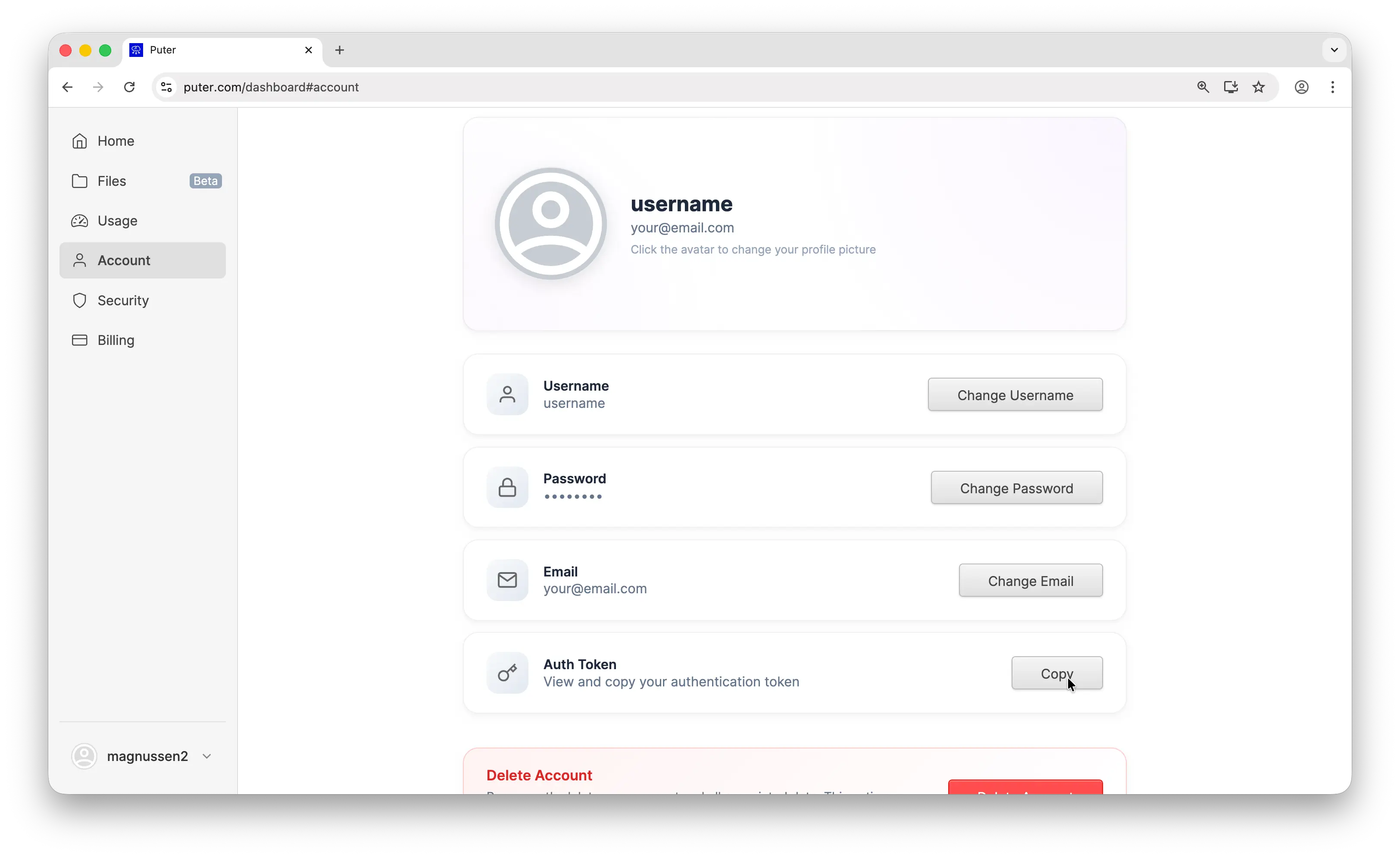
- Your Puter auth token, go to puter.com/dashboard and click Copy to get your auth token
- Claude Code installed on your machine
Step 1: Access Claude Code Settings
You'll need to configure Claude Code's settings to use Puter as the API provider. Open the settings file at:
~/.claude/settings.json
You can open this file with any text editor. Other guides might suggest using a third-party library to change the API provider, but here we'll show you how to do it directly through Claude Code's settings file.
Step 2: Add the Environment Variables
Add the following env block to your settings.json file. This sets Puter as the base URL, passes your auth token, and clears the default Anthropic API key so Claude Code routes all requests through Puter:
{
  "env": {
    "ANTHROPIC_BASE_URL": "https://api.puter.com/puterai/anthropic",
    "ANTHROPIC_AUTH_TOKEN": "YOUR_PUTER_AUTH_TOKEN",
    "ANTHROPIC_API_KEY": ""
  }
}
Replace YOUR_PUTER_AUTH_TOKEN with the auth token you copied from your Puter dashboard.
Step 3: Start Using Claude Code
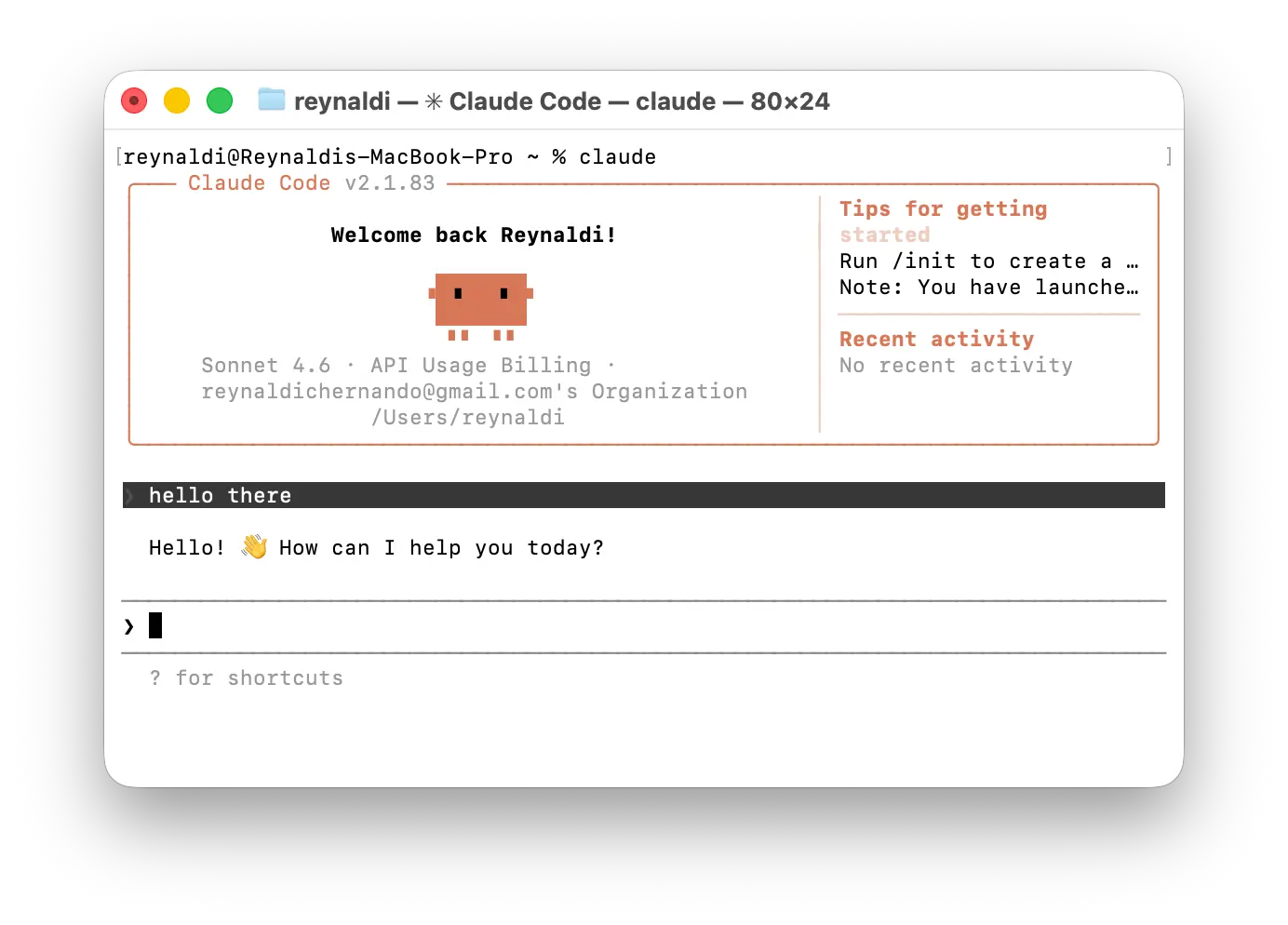
Save the file, then open your terminal and run claude to start Claude Code. Send a message and if everything is set up correctly, you should see a response.
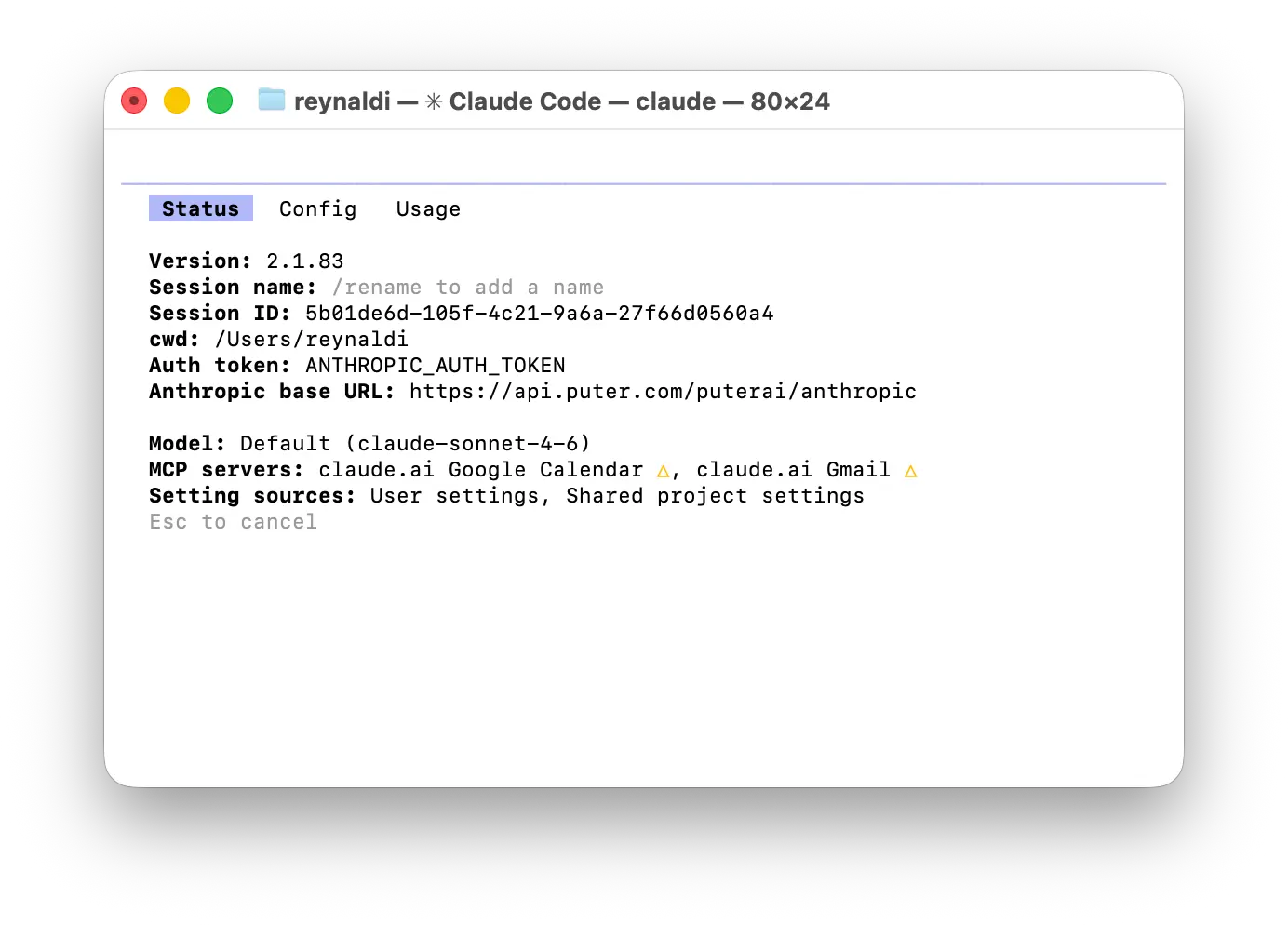
You can also verify the configuration by running /status inside Claude Code. You should see Puter's base URL listed in the output.
Switching Models
Claude Code works best with Anthropic models, which Puter supports. If you want to try different models, you can set the following environment variables in the same env block in your settings.json:
{
  "env": {
    "ANTHROPIC_BASE_URL": "https://api.puter.com/puterai/anthropic",
    "ANTHROPIC_AUTH_TOKEN": "YOUR_PUTER_AUTH_TOKEN",
    "ANTHROPIC_API_KEY": "",
    "ANTHROPIC_DEFAULT_OPUS_MODEL": "claude-opus-4-6",
    "ANTHROPIC_DEFAULT_SONNET_MODEL": "claude-sonnet-4-6",
    "ANTHROPIC_DEFAULT_HAIKU_MODEL": "claude-haiku-4-5"
  }
}
For the full list of available models, see the supported AI models page.
Conclusion
You can use Claude Code with Puter by adding a few environment variables to your ~/.claude/settings.json file, pointing it at Puter's Anthropic-compatible endpoint (https://api.puter.com/puterai/anthropic) and using your Puter auth token. This lets you use Claude Code without a separate Anthropic API key or billing.
To go further, check out the full list of supported AI models or learn how to use the Anthropic SDK with Puter.
Related
Free, Serverless AI and Cloud
Start creating powerful web applications with Puter.js in seconds!
Get Started Now