How to Perform OCR in JavaScript (With a Working Demo)
In this tutorial, you'll learn how to perform OCR in JavaScript: what OCR is, the call that does it, and a full working demo at the end.
What is OCR
OCR (optical character recognition) reads the text inside an image and returns it as a string. It's how an app turns a photo of a receipt into line items, a scan of a passport into a name and number, or a screenshot of a slide into something you can copy and paste.
OCR in JavaScript
To perform OCR in JavaScript, you can use Puter.js img2txt API. It takes an image and returns the text inside it.
To get started, add the Puter.js script tag to your HTML:
<script src="https://js.puter.com/v2/"></script>
Or install the npm package for Node:
npm install @heyputer/puter.js
Once it's loaded, you're ready to call puter.ai.img2txt with an image:
puter.ai.img2txt('https://assets.puter.site/letter.png').then(text => {
  console.log(text);
});
The first argument can be a URL string, a data URL, a File from a file input, or a Blob. The function returns the extracted text as a string.
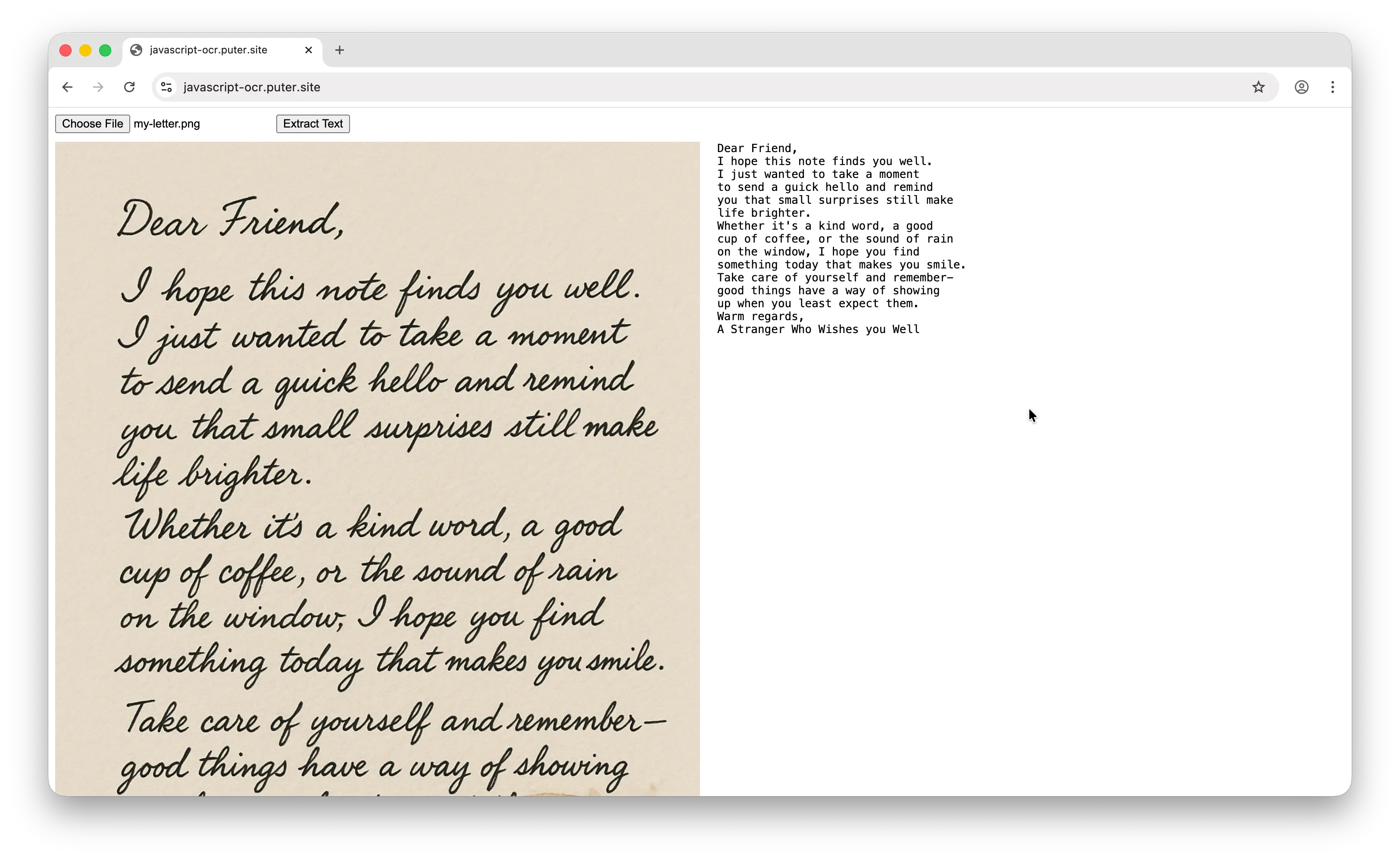
A typical OCR page lets the user pick an image, shows a preview, runs the recognition, and displays the result. For example, this full loop fits in one HTML file:
<html>
<body>
  <input type="file" id="file" accept="image/*">
  <button id="extract">Extract Text</button>

  <div style="display: flex; gap: 20px; align-items: flex-start; margin-top: 10px;">
    <img id="preview" style="flex: 1; max-width: 50%; display: none;">
    <pre id="result" style="flex: 1; white-space: pre-wrap; margin: 0;"></pre>
  </div>

  <script src="https://js.puter.com/v2/"></script>
  <script>
    const fileEl = document.getElementById('file');
    const previewEl = document.getElementById('preview');
    const resultEl = document.getElementById('result');
<html>
<body>
<input type="file" id="file" accept="image/*">
<button id="extract">Extract Text</button>
<div style="display: flex; gap: 20px; align-items: flex-start; margin-top: 10px;">
<img id="preview" style="flex: 1; max-width: 50%; display: none;">
<pre id="result" style="flex: 1; white-space: pre-wrap; margin: 0;"></pre>
</div>
<script src="https://js.puter.com/v2/"></script>
<script>
const fileEl = document.getElementById('file');
const previewEl = document.getElementById('preview');
const resultEl = document.getElementById('result');<html>
<body>
<input type="file" id="file" accept="image/*">
<button id="extract">Extract Text</button>
<div style="display: flex; gap: 20px; align-items: flex-start; margin-top: 10px;">
<img id="preview" style="flex: 1; max-width: 50%; display: none;">
<pre id="result" style="flex: 1; white-space: pre-wrap; margin: 0;"></pre>
</div>
<script src="https://js.puter.com/v2/"></script>
<script>
const fileEl = document.getElementById('file');
const previewEl = document.getElementById('preview');
const resultEl = document.getElementById('result');
fileEl.onchange = () => {
const file = fileEl.files[0];
if (!file) return;
previewEl.src = URL.createObjectURL(file);
previewEl.style.display = 'block';
resultEl.textContent = '';
};
document.getElementById('extract').onclick = async () => {
const file = fileEl.files[0];
if (!file) return;
resultEl.textContent = 'Extracting...';
try {
const text = await puter.ai.img2txt(file);
resultEl.textContent = text || 'No text found.';
} catch (err) {
resultEl.textContent = 'Error: ' + err.message;
}
};
</script>
</body>
</html>
Save this as index.html and run it with an HTTP server. You can pick an image, see a preview, and read the extracted text on the same page.
Or, you can try out the live demo at javascript-ocr.puter.site.
Puter.js
Puter.js is a JavaScript SDK that gives the browser access to AI, storage, auth, and hosting without a backend. Beyond OCR, the same SDK includes chat completions, image generation, file storage, key-value storage, and static site hosting.
Puter uses a User-Pays Model, where each user signs in with their own Puter account and covers their own usage, so the app stays free for you to run.
Conclusion
You can do OCR in JavaScript simply using puter.ai.img2txt. It accepts URLs, File objects, Blobs, and data URLs, and returns the extracted text. And since Puter.js is user-pays, the app stays free for you to run.
Ready to add OCR to your own site? Drop the Puter.js script into your page and start using puter.ai.img2txt — no backend, no API keys, no setup.
Related
Ship a Full-Stack App with One Prompt
Build an AI chat app using Puter.js
Coding manually? see the guide