How to Use GLM with the Vercel AI SDK — Zhipu (Z.AI) AI Provider Guide
On this page
In this tutorial, you'll learn how to use GLM models with the Vercel AI SDK through Puter's OpenAI-compatible provider endpoint. No Zhipu AI API key needed — just your Puter auth token.
About GLM
GLM (General Language Model) is developed by Zhipu AI, one of China's leading AI research companies. GLM models are known for strong bilingual performance in Chinese and English, with competitive results on academic and practical benchmarks. GLM-5 represents their latest generation with improved reasoning and instruction-following capabilities. Through Puter, you can access GLM models via the Vercel AI SDK without needing a Zhipu AI API key.
Prerequisites
- A Puter account
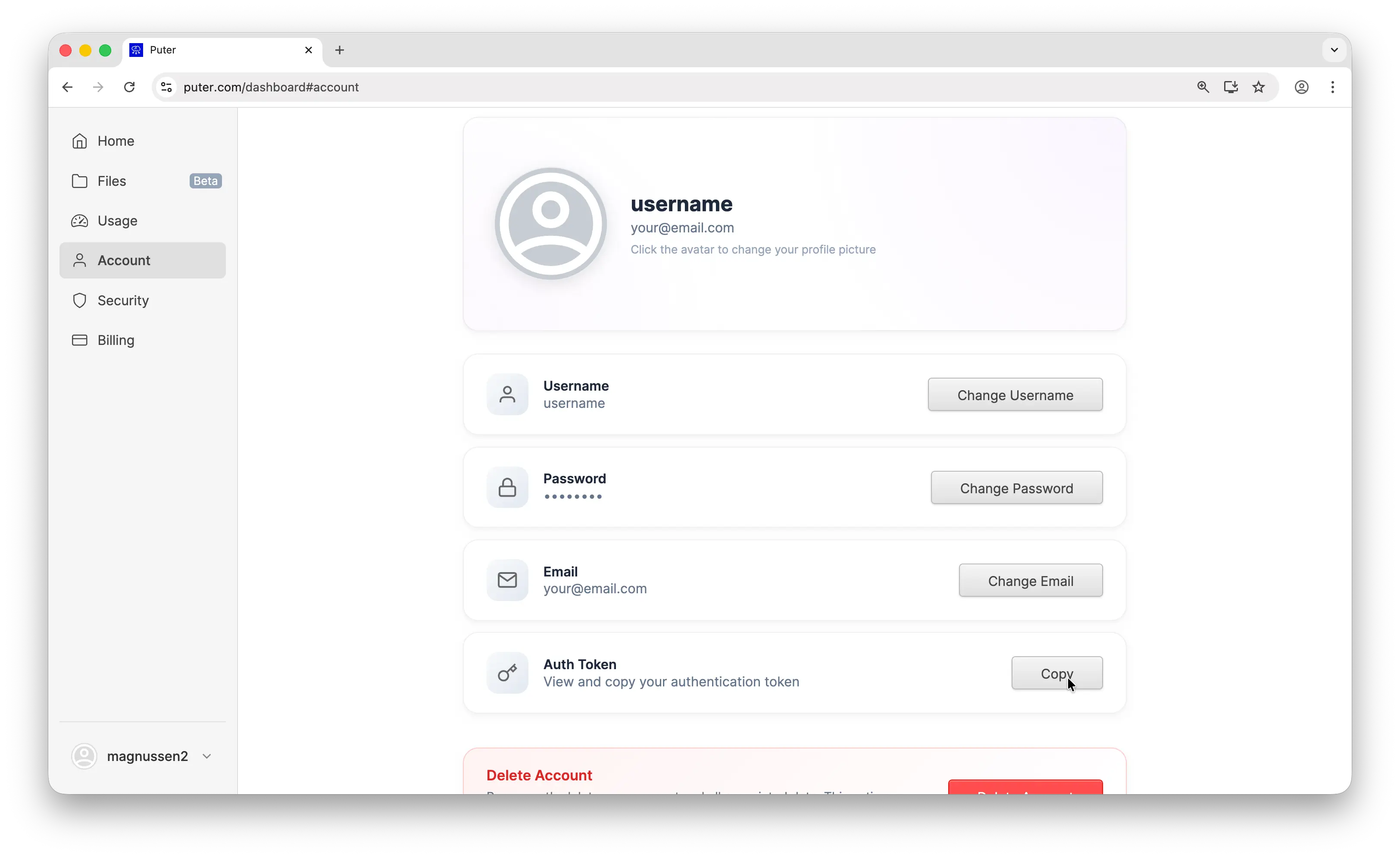
- Your Puter auth token, go to puter.com/dashboard and click Copy to get your auth token
- Node.js installed on your machine
Setup
Install the Vercel AI SDK and the OpenAI provider:
npm install ai @ai-sdk/openai
Puter works as an OpenAI-compatible provider, so you use @ai-sdk/openai to connect. Configure it with Puter's base URL and your auth token:
import { createOpenAI } from '@ai-sdk/openai';

const puter = createOpenAI({
  baseURL: 'https://api.puter.com/puterai/openai/v1/',
  apiKey: 'YOUR_PUTER_AUTH_TOKEN',
});
Replace YOUR_PUTER_AUTH_TOKEN with the auth token you copied from your Puter dashboard. That's all you need. No Zhipu AI API key required.
Basic Text Generation
Here's a simple text generation call using GLM 5:
import { createOpenAI } from '@ai-sdk/openai';
import { generateText } from 'ai';

const puter = createOpenAI({
  baseURL: 'https://api.puter.com/puterai/openai/v1/',
  apiKey: 'YOUR_PUTER_AUTH_TOKEN',
});

const { text } = await generateText({
  model: puter.chat('z-ai/glm-5'),
  prompt: 'What is the capital of France?',
});

console.log(text);
The code is identical to what you'd write for any OpenAI provider. The only difference is the base URL and the model string.
Streaming
For longer responses, use streamText to get results in real-time:
import { createOpenAI } from '@ai-sdk/openai';
import { streamText } from 'ai';

const puter = createOpenAI({
  baseURL: 'https://api.puter.com/puterai/openai/v1/',
  apiKey: 'YOUR_PUTER_AUTH_TOKEN',
});

const result = streamText({
  model: puter.chat('z-ai/glm-5'),
  prompt: 'Write a short story about a robot learning to paint.',
});

for await (const chunk of result.textStream) {
  process.stdout.write(chunk);
}
Use streamText instead of generateText and iterate over result.textStream to get text chunks as they arrive.
Why Use Puter?
You could use GLM through Zhipu AI's API directly. Here's why Puter is a simpler option:
- One API key for everything — no need to sign up for separate Zhipu AI, Anthropic, or OpenAI accounts. Your Puter auth token covers all providers.
- One setup for all models — the same Puter config works for Claude, GPT, Gemini, Llama, and 400+ other models. Just change the model string.
- No extra packages — without Puter, each AI provider needs its own SDK package and API key. With Puter, everything goes through a single
@ai-sdk/openaisetup.
Conclusion
You now have the Zhipu AI provider set up through the Vercel AI SDK via Puter — no API key needed. Swap the model string to use any GLM model, or the hundreds of other AI models available through Puter.
Related
Free, Serverless AI and Cloud
Start creating powerful web applications with Puter.js in seconds!
Get Started Now